Digtix SSO Configuration and Conversion Process (New UI)
OVERVIEW
BEFORE SSO INTEGRATION
SSO integration with Digtix requires two pieces of information to be sent from the identity provider to Digtix:
- A unique identifier for the user. It is *highly* recommended that this is the user's email address. This will be referred to as the "SSO User Key" going forward.
- A piece of information that will be used to determine the default permissions / access the user has within Digtix, such as a title ("Field Supervisor 2") or group name ("app.digtix.fieldsupervisor"). This will be referred to as the "SSO Permission Key" going forward.
In addition to these two required fields, several optional pieces of information may be provided:
- The first name of the user.
- The last name of the user.
- The email address of the user (if it is not already being sent as the SSO User Key).
- The phone number of the user.
- A unique identifier for the manager of the user, such as the user's manager's email address.
Once these fields are determined, Digtix personnel will work with the appropriate IT personnel to configure the mapping of this data between the identity provider and the Digtix SSO system. After the mapping of SSO data is completed, users may begin logging into Digtix via SSO. When a user logs into Digtix via SSO, there are three scenarios:
Scenario 1: Brand New User
If the user has never accessed Digtix before, a new user account is created using the information that was mapped and sent from the identity provider to Digtix. Permissions and configuration are determined based on the user's SSO Permission Key and the configuration of the "SSO Permissions" section of the Digtix administration page. See below for more information on the "SSO Permissions" section.
Scenario 2: Existing User's First SSO Login
If the user has accessed Digtix before using password digest authentication, the user is automatically put through a process that converts the user into an SSO-enabled account. This conversion process is explained in more detail below.
Scenario 3: Existing User's Subsequent SSO Login
If a user who has logged into Digtix via SSO logs into Digtix again via SSO, they are granted access, provided that their SSO Permission Key is still configured in the "SSO Permissions" section of the Digtix administration page. See below for more information on the "SSO Permissions" section.
SSO PERMISSIONS DEFAULT CONFIGURATION
An SSO Permission is a directive on how to treat each of the SSO Permission Keys that the identity provider could send. In the case of Microsoft's Active Directory system, users may be set up to belong to an AD group, which then maps to an SSO Permission record within Digtix.
Taking the configuration shown in Figure 1 as an example, we will assume a user belonging to the AD group "app.digtix.fieldlocator" logs into DigTix for the first time. The user's Digtix profile will be set up with the settings specified in the "app.digtix.fieldlocator" entry. More specifically:
User Type = Strict View
Manager = manager1
Is Field User = true
Is Hourly = true
Team = Field Locators
Permission Group(s) = Utility Locator

Figure 1: Expand Menu
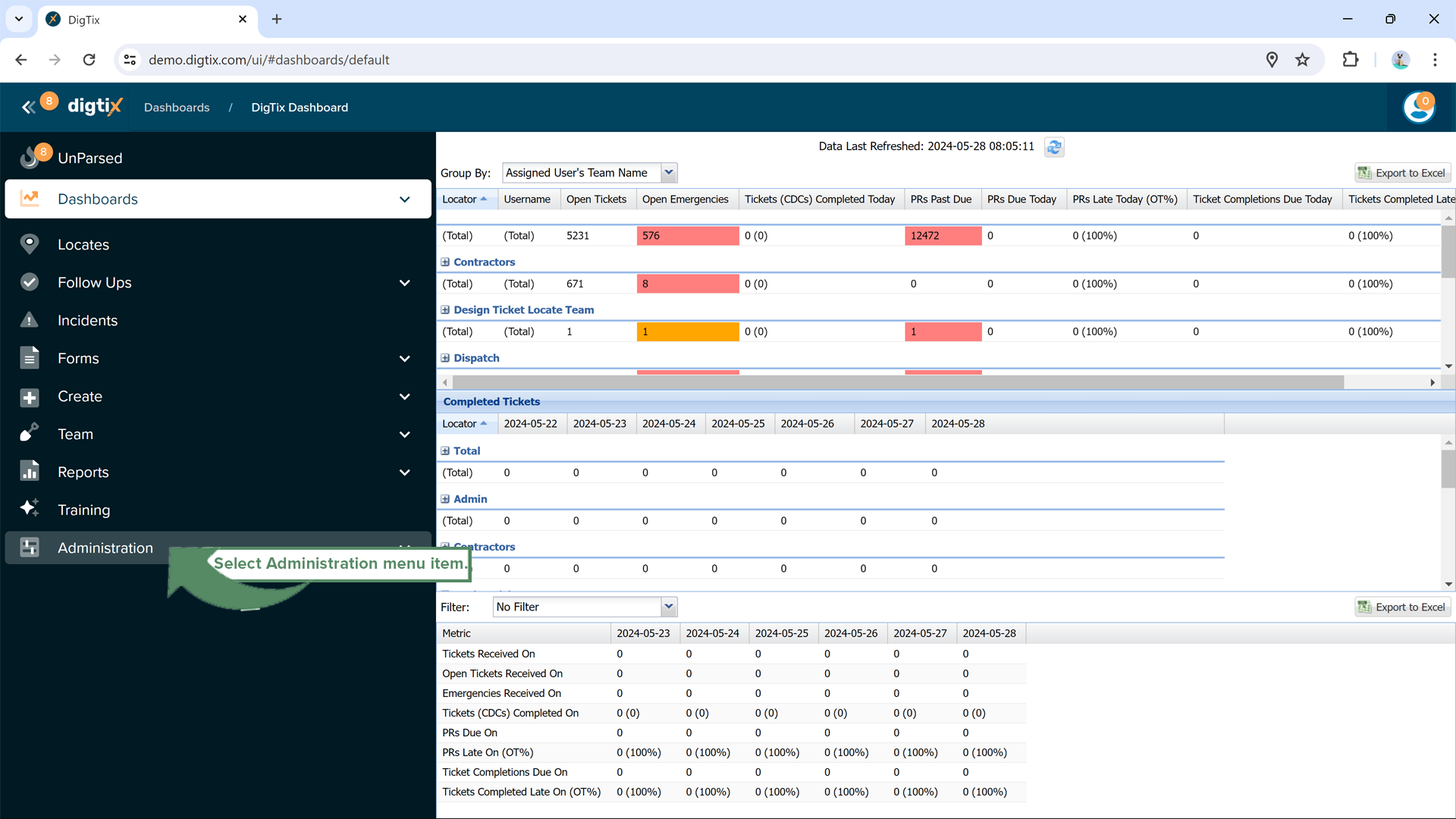
Figure 2: Select Administration
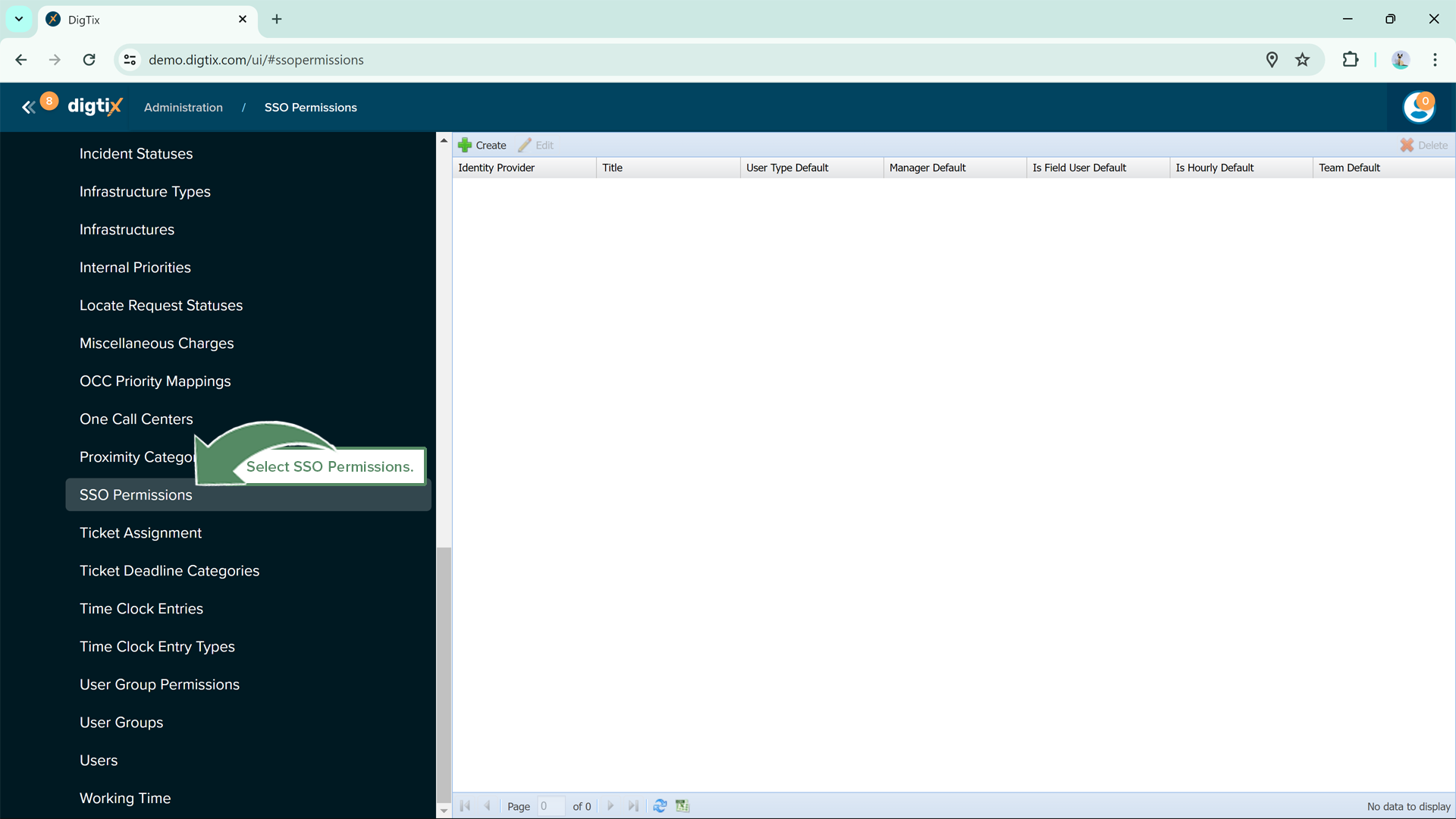
Figure 3: Select SSO Permissions
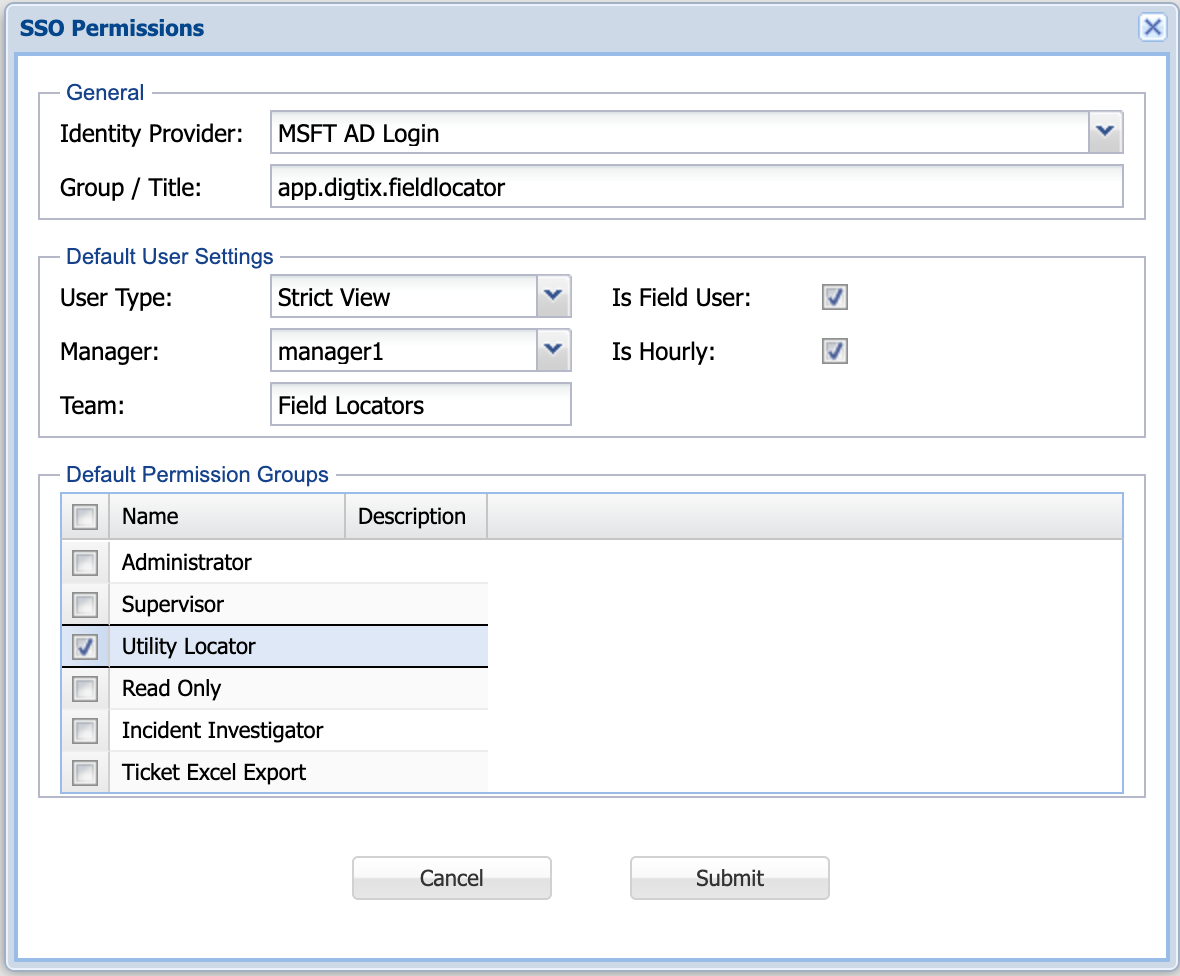
Figure 4: SSO Permission Entry (Default Values)
If the user account already exists within DigTix, their configured profile will not change. The settings listed under the SSO Permissions entries are only defaults for new users accessing Digtix for the first time.
If our example user should be revoked access to Digtix through SSO, the "app.digtix.fieldlocator" group should be removed from their account in Active Directory. Alternatively, you can remove access from the entire AD group by deleting the corresponding SSO Permission entry within Digtix.
SSO USER ACCOUNT CONVERSION
More information here soon!
Was this article helpful?
That’s Great!
Thank you for your feedback
Sorry! We couldn't be helpful
Thank you for your feedback
Feedback sent
We appreciate your effort and will try to fix the article