User Permission Management (New UI)
Purpose/Overview
In this article, you will learn how User Permissions Management works in Digtix and how administrators control both data access and system actions for users. This feature ensures users can only see the data relevant to their role and perform actions appropriate to their responsibilities, supporting security, accountability, and efficient operations.
This functionality is intended for Digtix Administrators and Supervisors responsible for configuring users, managing access, and maintaining compliance across teams.
TABLE OF CONTENTS
Navigation Path:
To access this feature: Digtix > Administration > Users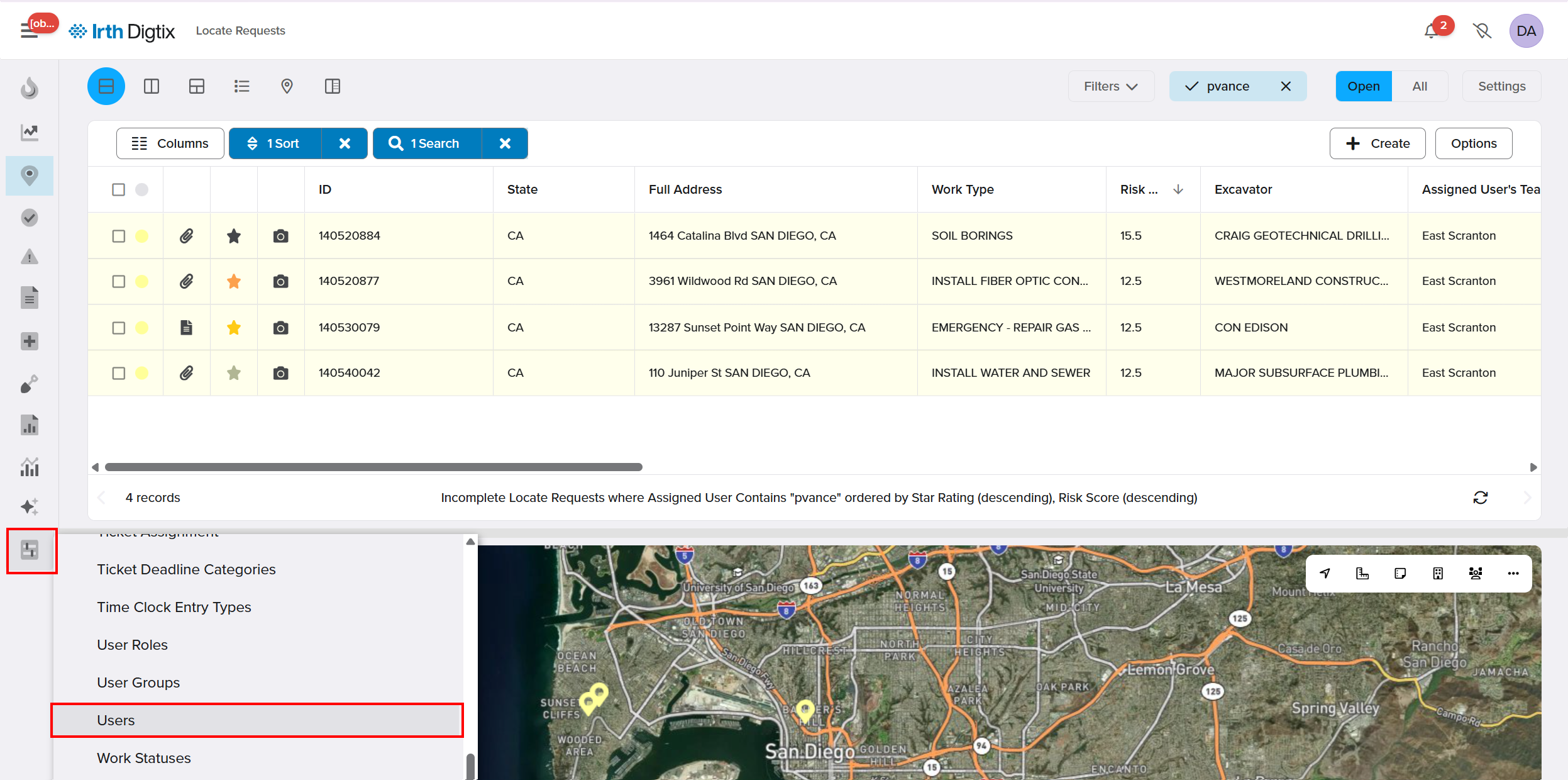
Things to Know:
Administrator access is required to manage users, data permissions, and permission groups.
Permissions are managed through a combination of manager hierarchy, data permissions, and action permission groups.
Users must have a manager assigned and cannot be their own manager.
Users may belong to one or more permission groups.
Some data permission types apply only to licensed third‑party users (e.g., Facility Owners, One Call Centers, Excavators).
Key Benefits/Use Cases:
Role‑based access control: Ensures users only see work orders and data relevant to their role and team.
Operational security and compliance: Prevents unauthorized access to sensitive data and system actions.
Flexible organizational management: Supports complex team structures using manager‑to‑subordinate relationships and configurable permission groups.
How It Works:
Data Permissions
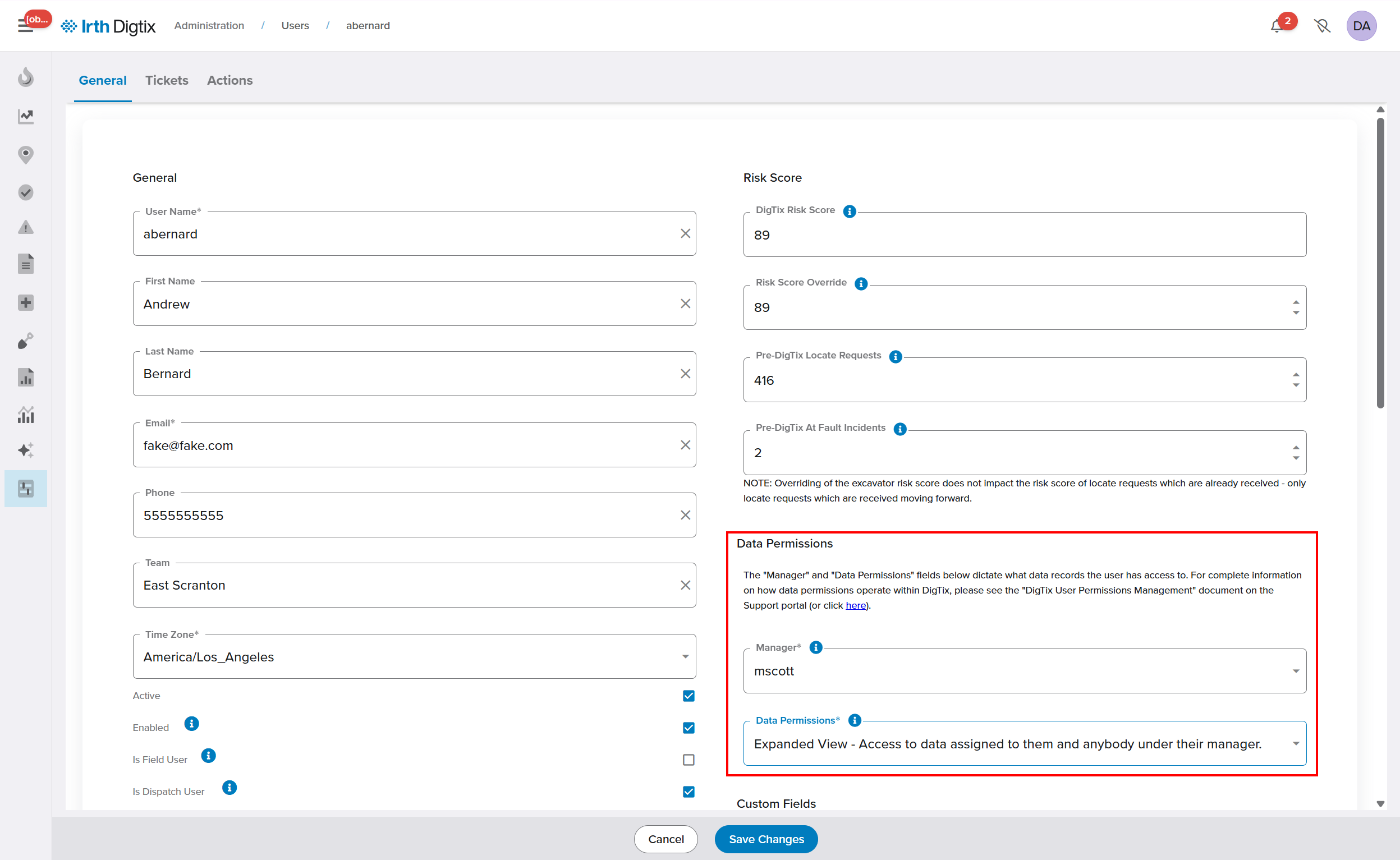
Data permissions control which work order data (tickets, incidents, etc.) a user can view and interact with. Data access is determined by two settings in the user’s profile:
- Assigned Manager
- Data Permissions setting
All users must be part of a manager‑to‑subordinate hierarchy, similar to an organizational chart or family tree. Access expands based on a user’s position within this hierarchy and their selected data permission level.
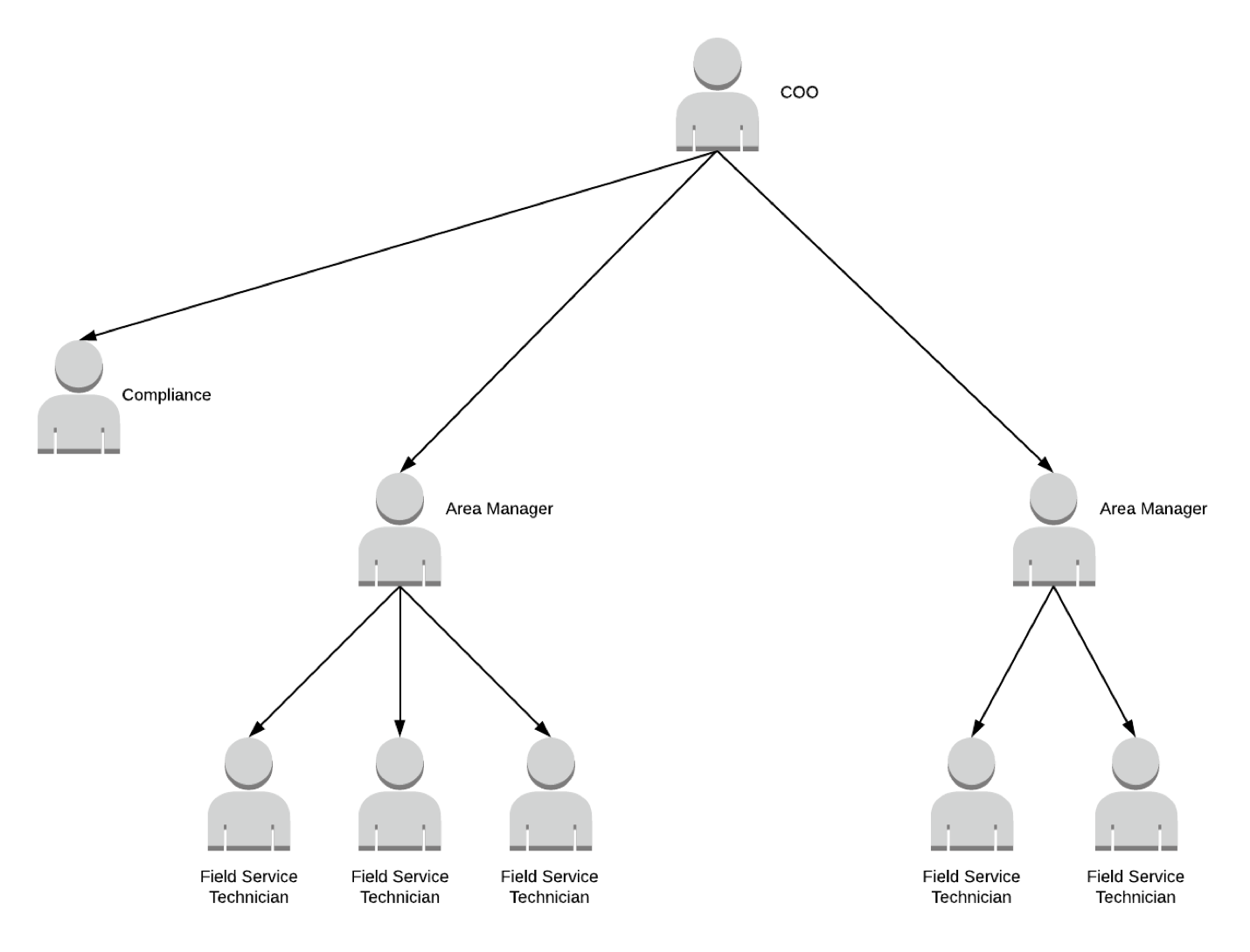
Data Permission Types
Third‑Party Data Permissions (licensed users only):
- Facility Owner: Access limited to work orders linked to that Facility Owner’s member codes
- One Call Center: Access limited to work orders originating from that One Call Center
- Excavator: Access limited to work orders involving that Excavator
Hierarchy‑Based Data Permissions:
- Strict View: Access only to work orders assigned directly to the user
- Limited View: Access to the user’s work orders and those of their subordinates (children, grandchildren, etc.)
- Expanded View: Access to the user, siblings, and their combined subordinates
- Expanded Plus View: Access expands further up and across the hierarchy (manager’s peers and their teams)
- Full View: Access to all work orders in the system
The manager hierarchy and data permission level work together to define exactly what data each user can see.
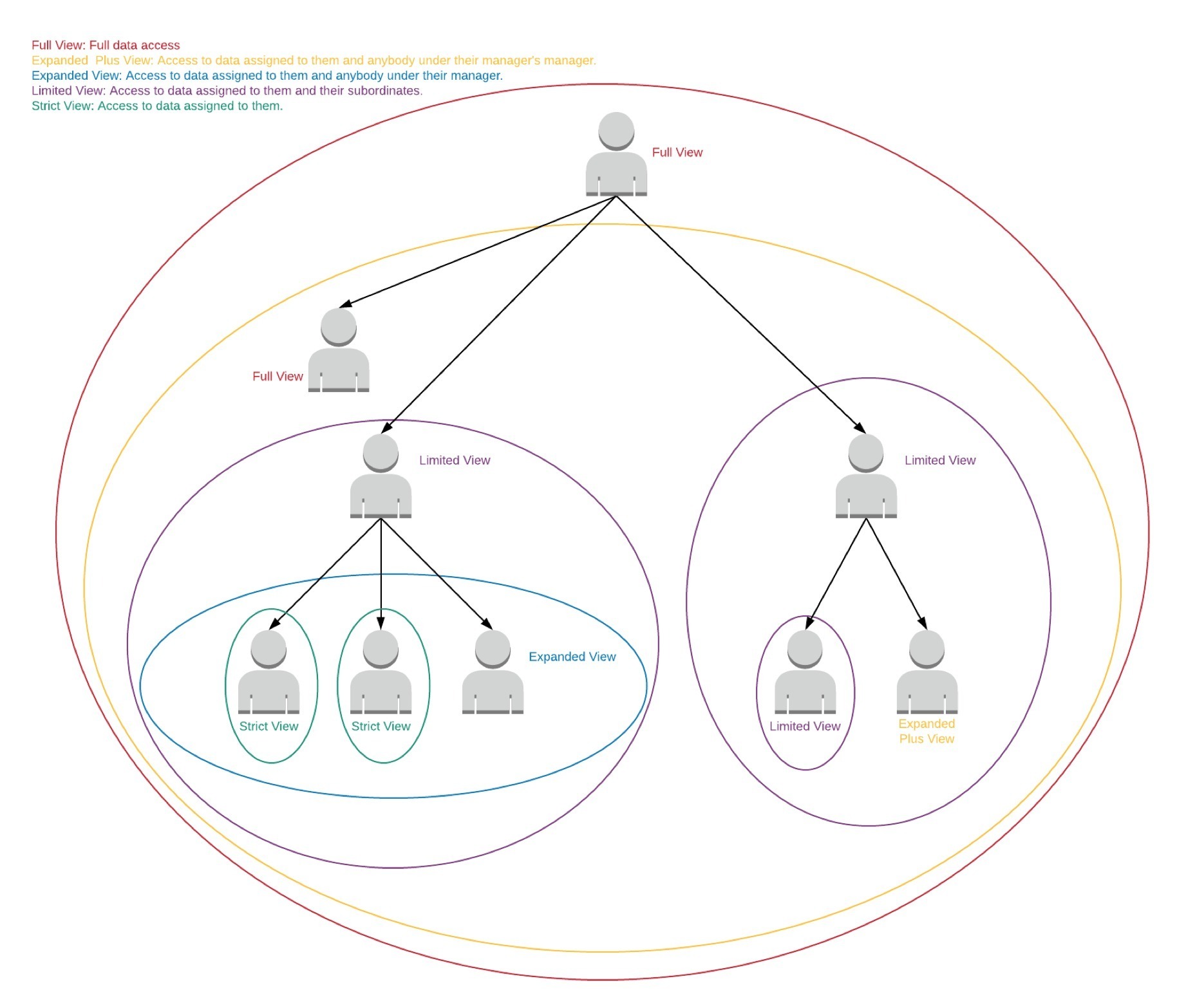
Assigning Permissions to Users
- Go to Administration > User
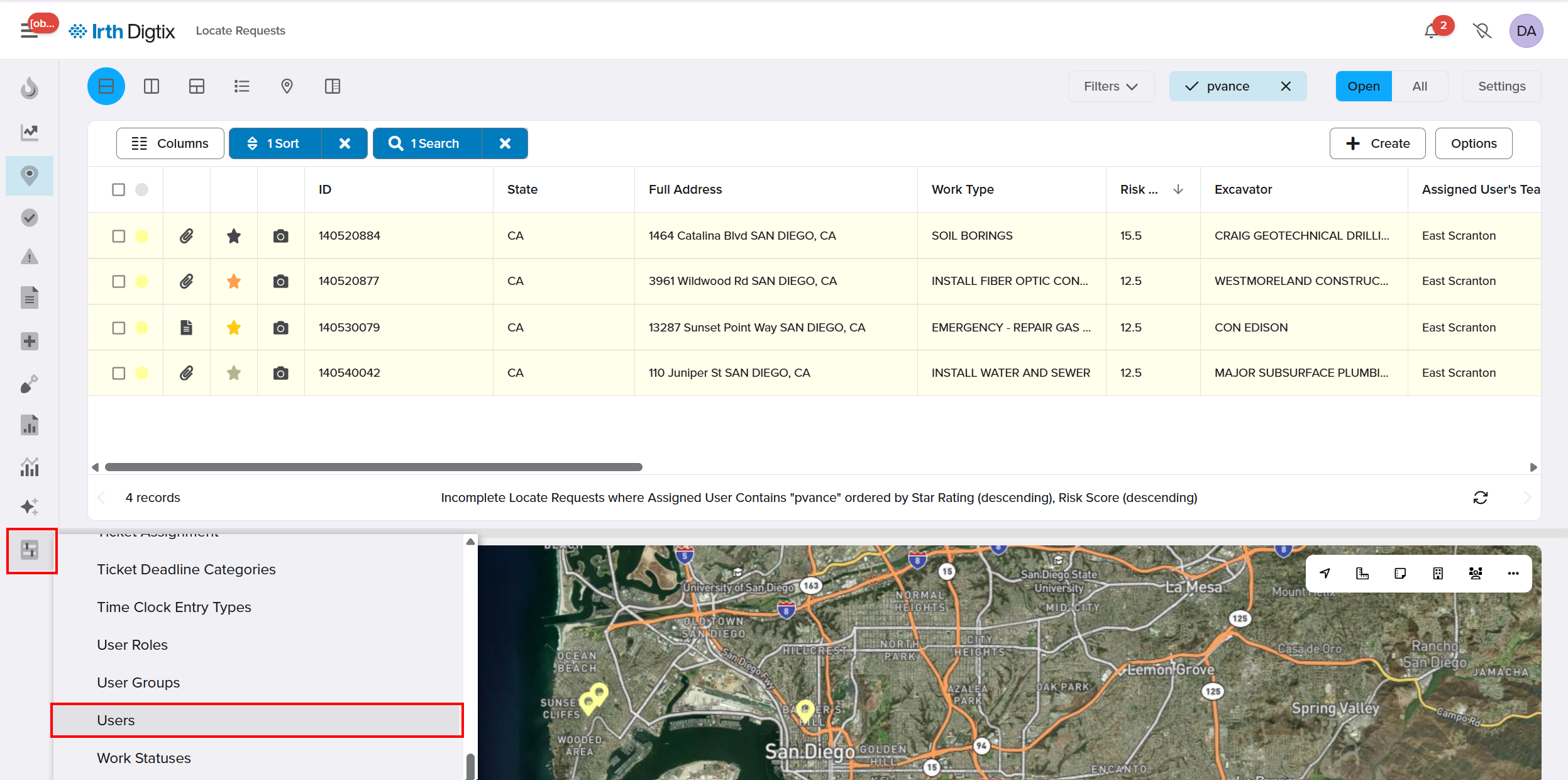
- Choose +Create to add a new user or choose an existing user

- Assign a Manager and Data Permissions from the dropdown menus, then Save Changes
Action Permissions
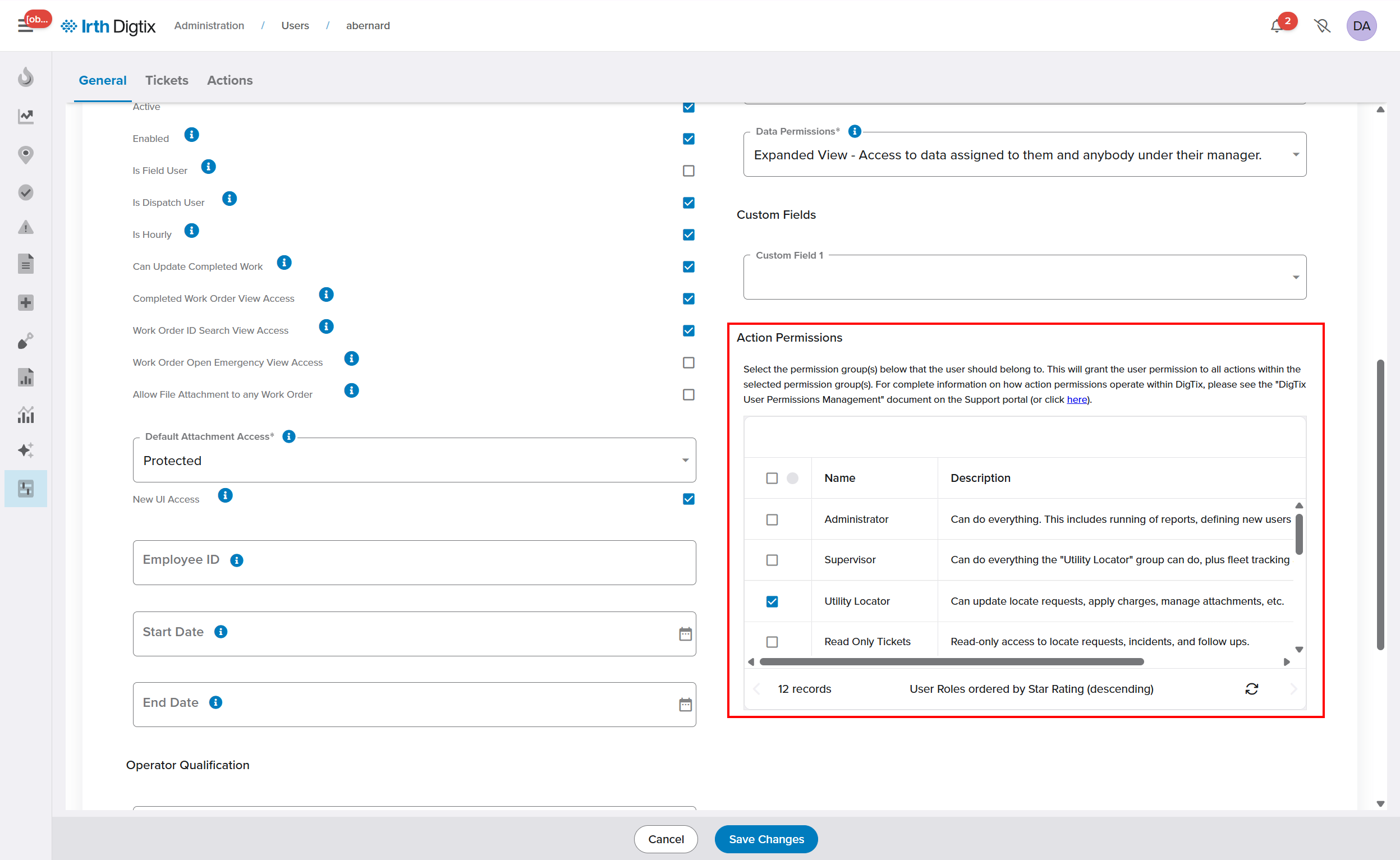
Action permissions control what actions a user can perform in Digtix.
Standard Permission Groups
Digtix includes several default permission groups:
- Administrator: Full system access. This includes running reports, defining new users and assignment areas, etc.
- Supervisor: Locator capabilities plus fleet tracking and other supervisory tools
- Utility Locator: Update locate tickets, apply charges, manage attachments, etc.
- Read-Only Tickets: Read-only access
- Incident Investigator: Update incidents, manage attachments, etc.
- Damage Prevention Specialist: Update tickets, follow-ups, and manage attachments and custom forms
These groups can be customized by granting or revoking specific actions.
Managing Permission Groups
Access User Permissions
- Go to Administration > User
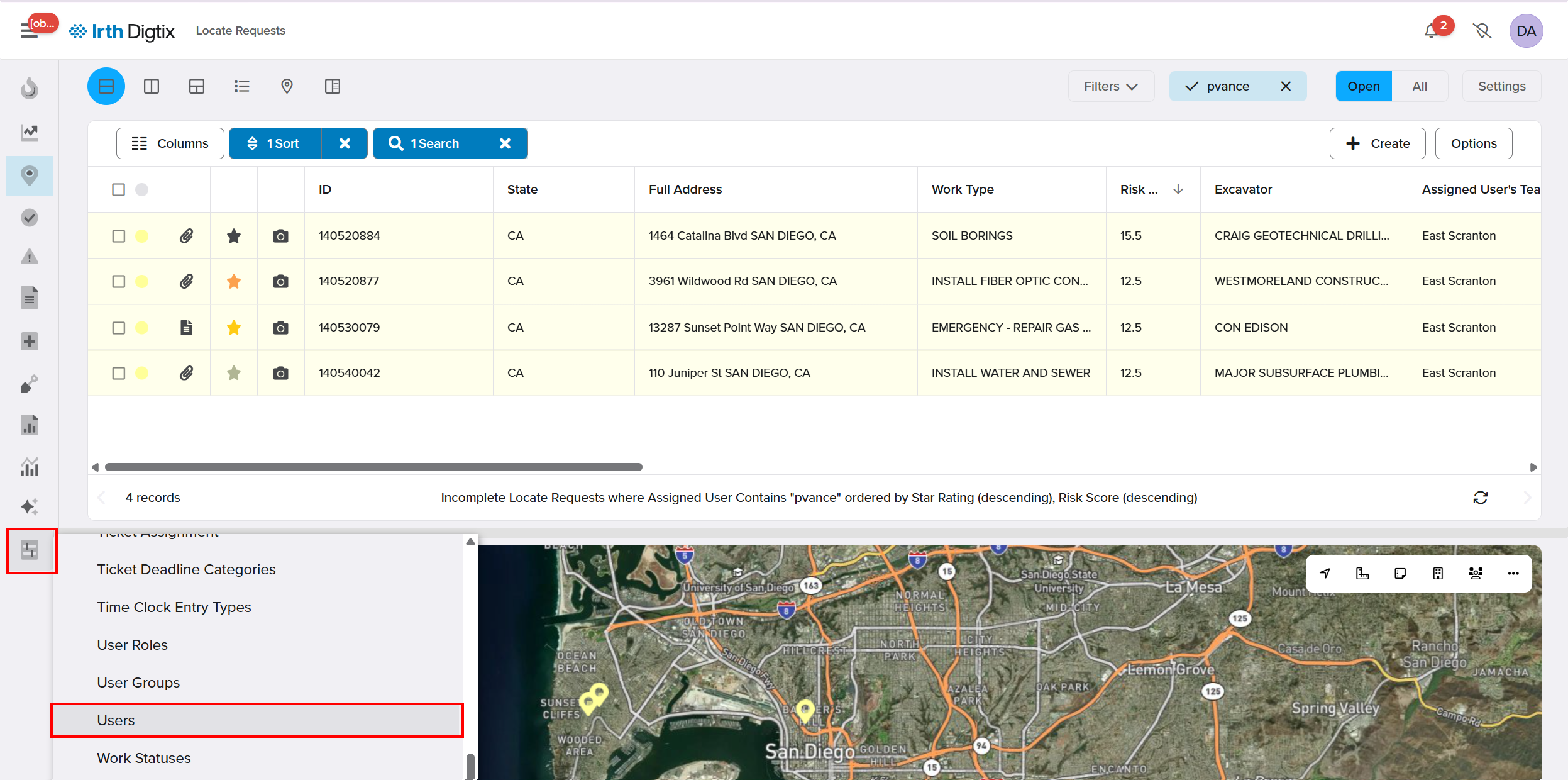
- Choose +Create to add a new user or choose an existing user

- Grant or revoke specific Digtix actions as needed, then Save Changes
Create Custom Permission Groups
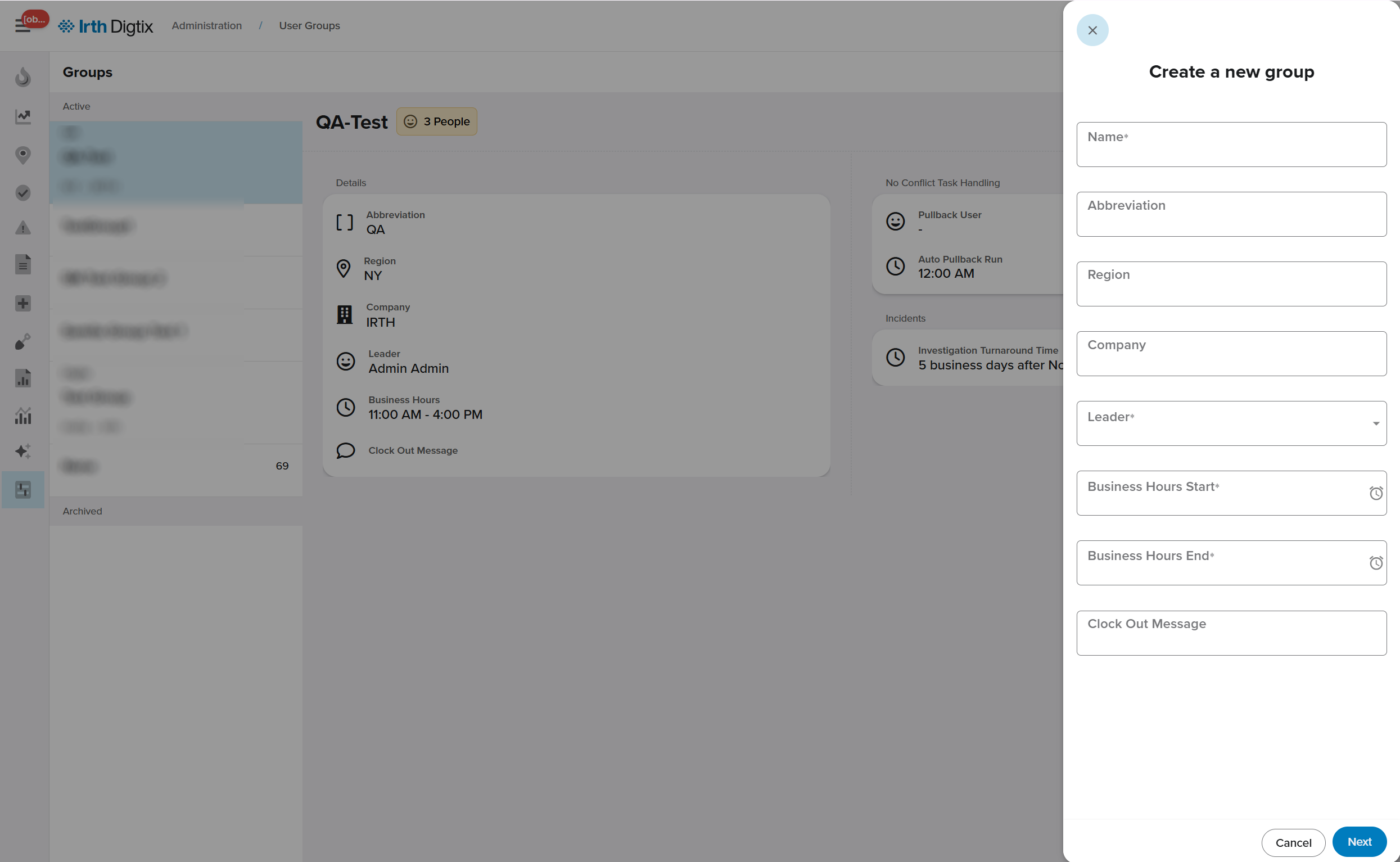
- Go to Administration > User Groups
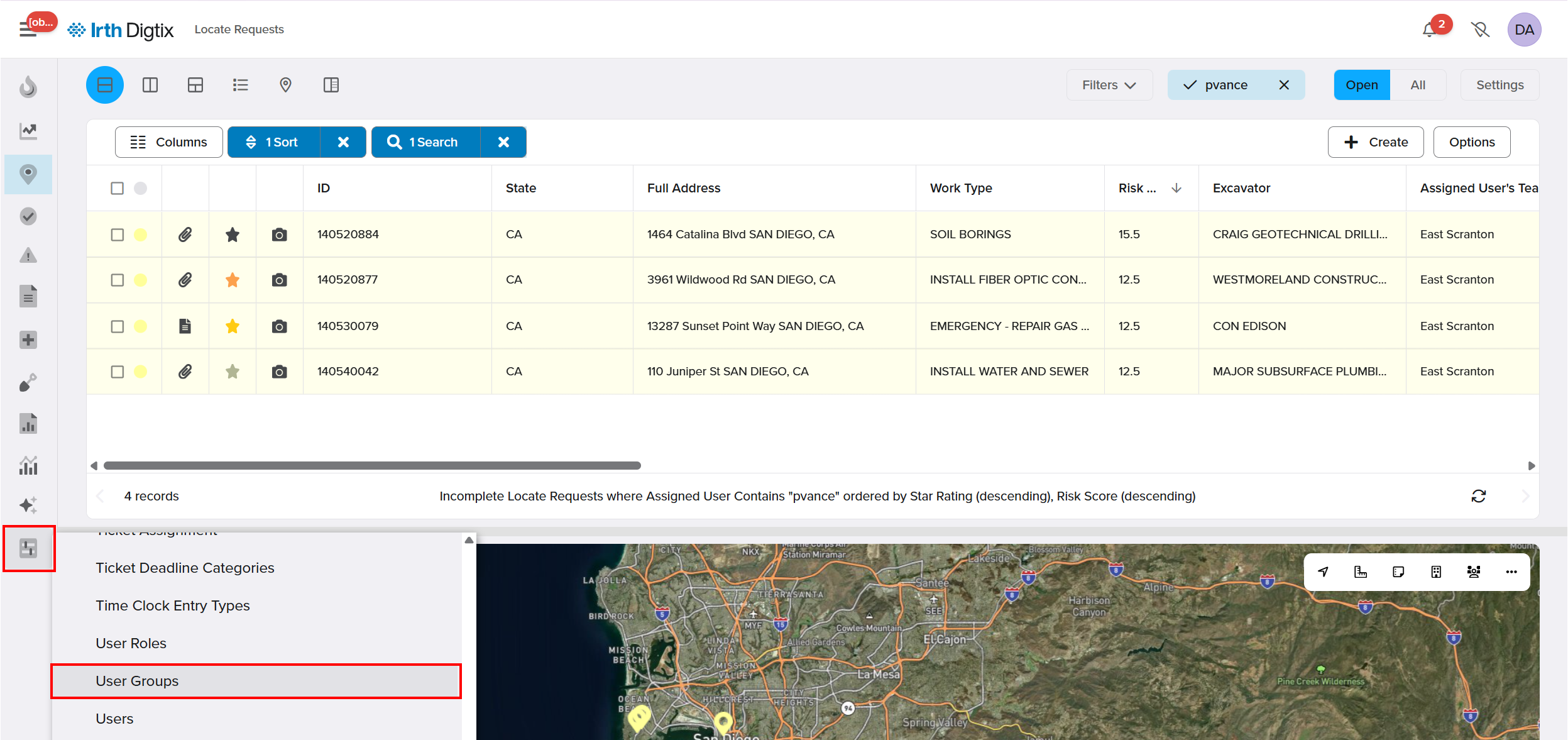
- Select the + Group button to add a new group

- Create a new permission group to support specific roles or workflows by filling out the slide-out form
FAQ/Troubleshooting:
Q: Why can’t a user see certain work orders?
A: Verify the user’s assigned manager and data permission level. Both must align with the intended data scope.
Q: Can a user belong to more than one permission group?
A: Yes. Users can be assigned multiple permission groups and will receive all associated actions.
Q: What’s the difference between data permissions and action permissions?
A: Data permissions control what data a user can see, while action permissions control what the user can do in the system.
Questions? Contact us!

Was this article helpful?
That’s Great!
Thank you for your feedback
Sorry! We couldn't be helpful
Thank you for your feedback
Feedback sent
We appreciate your effort and will try to fix the article