Creating a New Contractor (New UI)
Purpose/Overview
In this article, you will learn how to create and configure a new contractor (Contract Locator) in Digtix. This process allows organizations to connect third‑party or vendor locating services so they can receive, complete, and respond to locate requests efficiently.
This feature is intended for system administrators responsible for managing external locating vendors. By properly configuring a contractor, user account, and alerts, organizations can ensure locate requests are routed, dispatched, and responded to accurately, reducing manual effort and improving turnaround time.
Navigation Path:
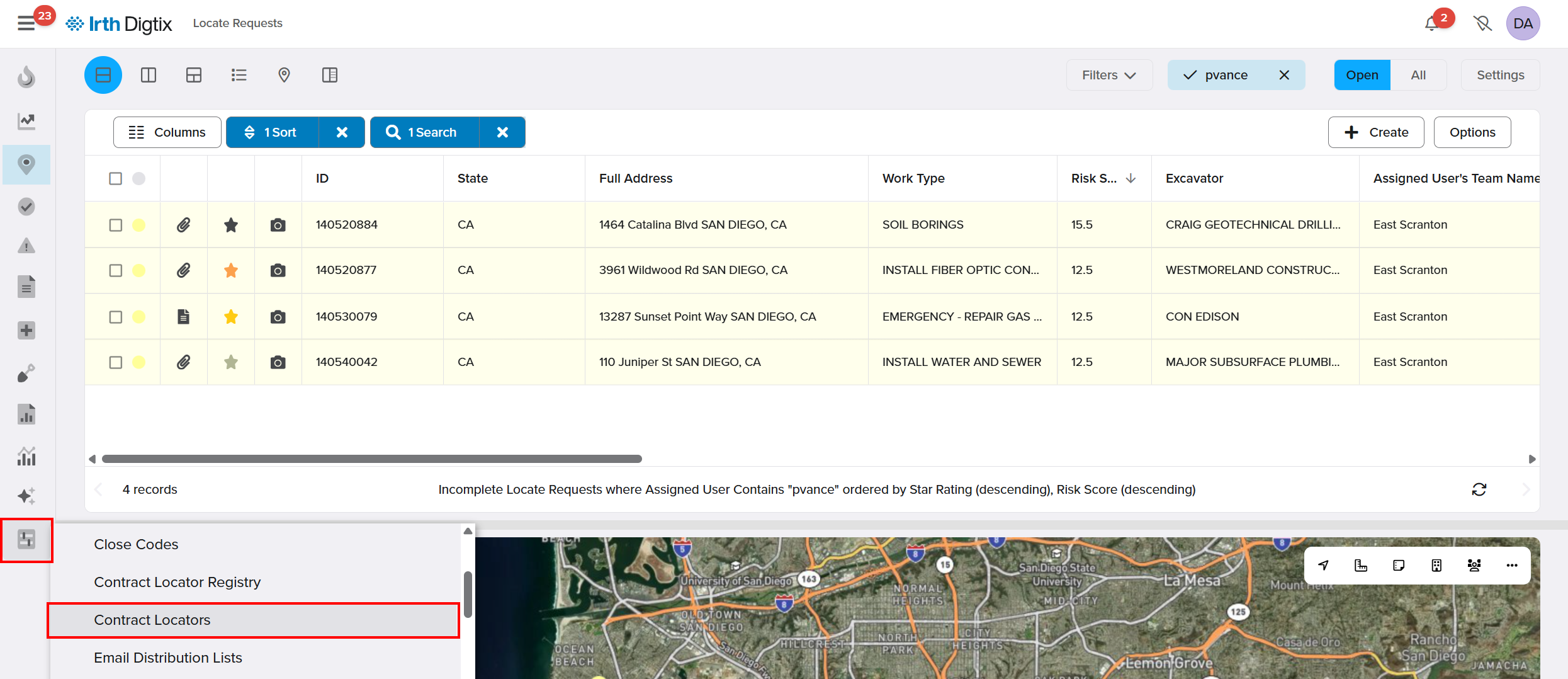
To access this feature: Digtix > Administration > Contract Locators
Things to Know:
Permissions Required: Administrator with the ability to manage Contract Locators, Users, Alerts, and Ticket Assignment rules
Platform Considerations: Configuration is performed in the Digtix New UI via a supported web browser
Important Behaviors & Limitations
- Each contract locator requires a dedicated user account
- The email address on the user account is used to receive locate requests
- Proper data and action permissions are required for Positive Response Service (PRS) access
- Automatic dispatch requires additional configuration and is optional
Key Benefits/Use Cases:
Third‑Party Locate Fulfillment: Easily connect external locating vendors to handle locate requests, reducing internal workload and improving response times.
Automated Dispatch & Notifications: Ensure contractors are notified immediately when locate requests are assigned, supporting timely and consistent responses.
Centralized Vendor Management: Maintain all contract locators, permissions, and assignment rules within Digtix Administration for better oversight and control.
How It Works:
Follow these steps to create and configure a new contractor.
Create the Contract Locator
- Navigate to Administration > Contract Locators.
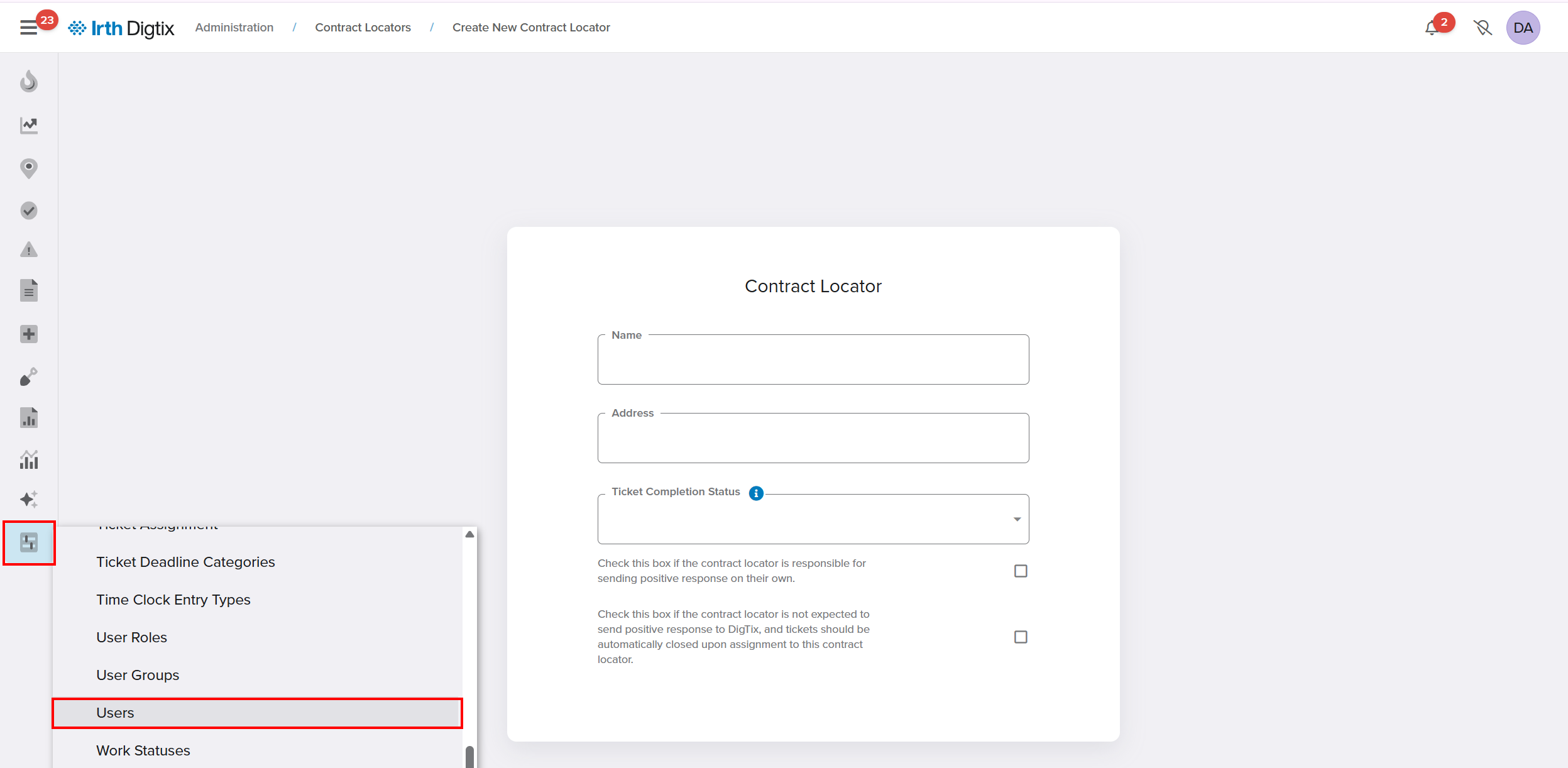
- Select +Create.

- Complete the Contract Locator form with the appropriate vendor details and click Save Changes.
Create the Contractor User Account
- Navigate to Administration > Users.
- Select +Create.

- Configure the user to represent the contract-locating company, then click Save Changes.
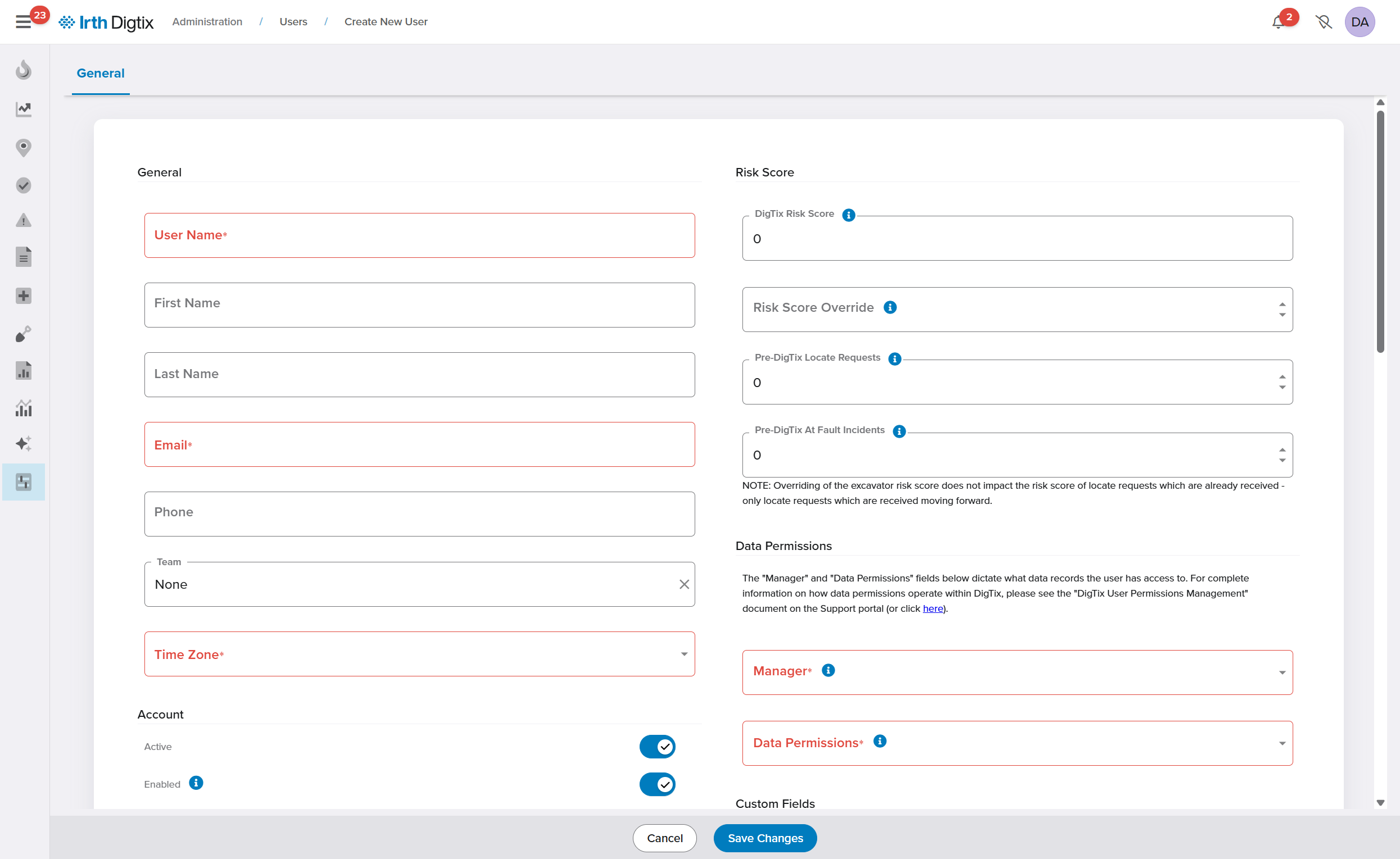
Key configuration notes:
- The Email field must contain the address that will receive locate requests.
- Upon creation, the user receives an email with their username and password.
- These credentials are used when submitting positive responses via the Digtix Positive Response Service (PRS).
- Data Permissions must be set to Contract Locator, and the associated Contract Locator name must be selected.
- Action Permissions must include the Utility Locator permission group.
Set Up Alerts
- Navigate to Administration > Alerts.
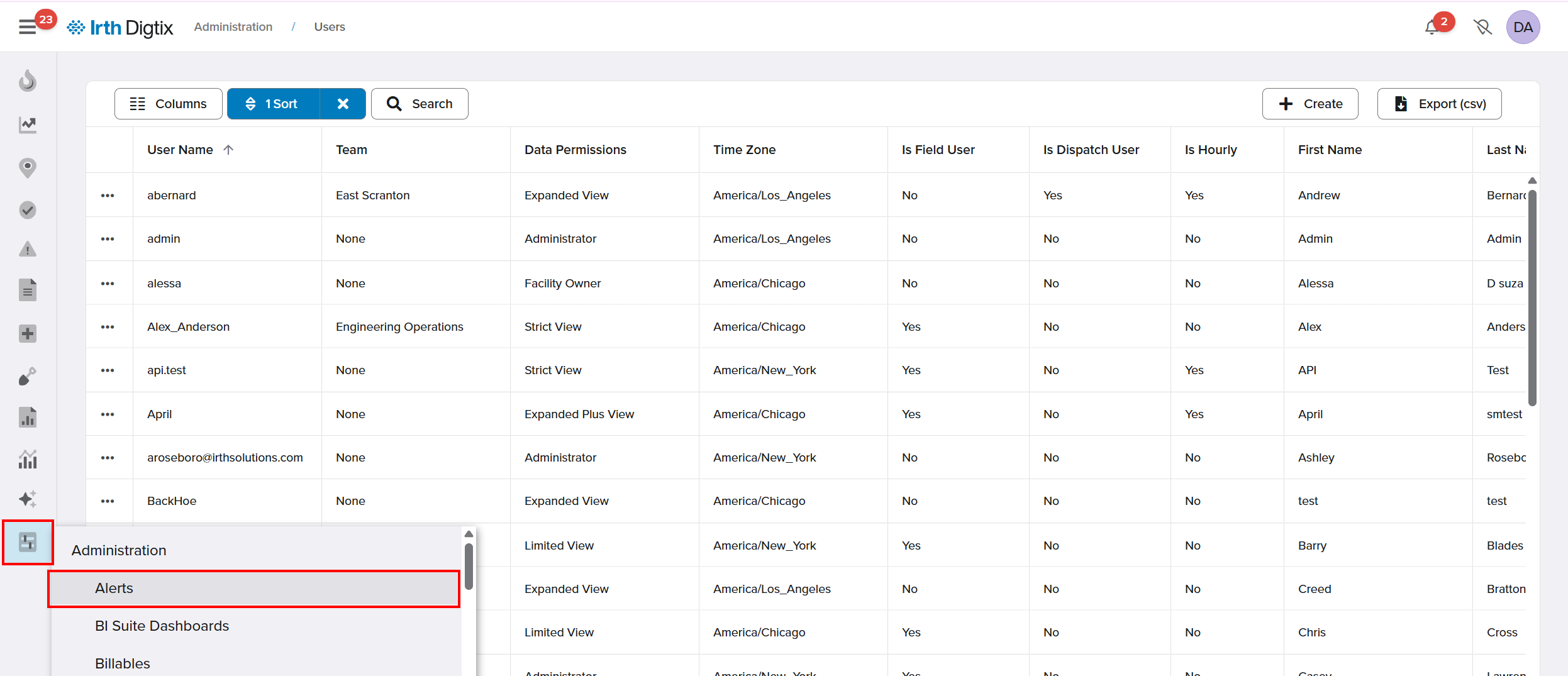
- Select Create.

- Configure the alert so the users you created receive emails for locate requests assigned to them during the appropriate hours. This ensures locate requests are automatically dispatched via email to the contractor.
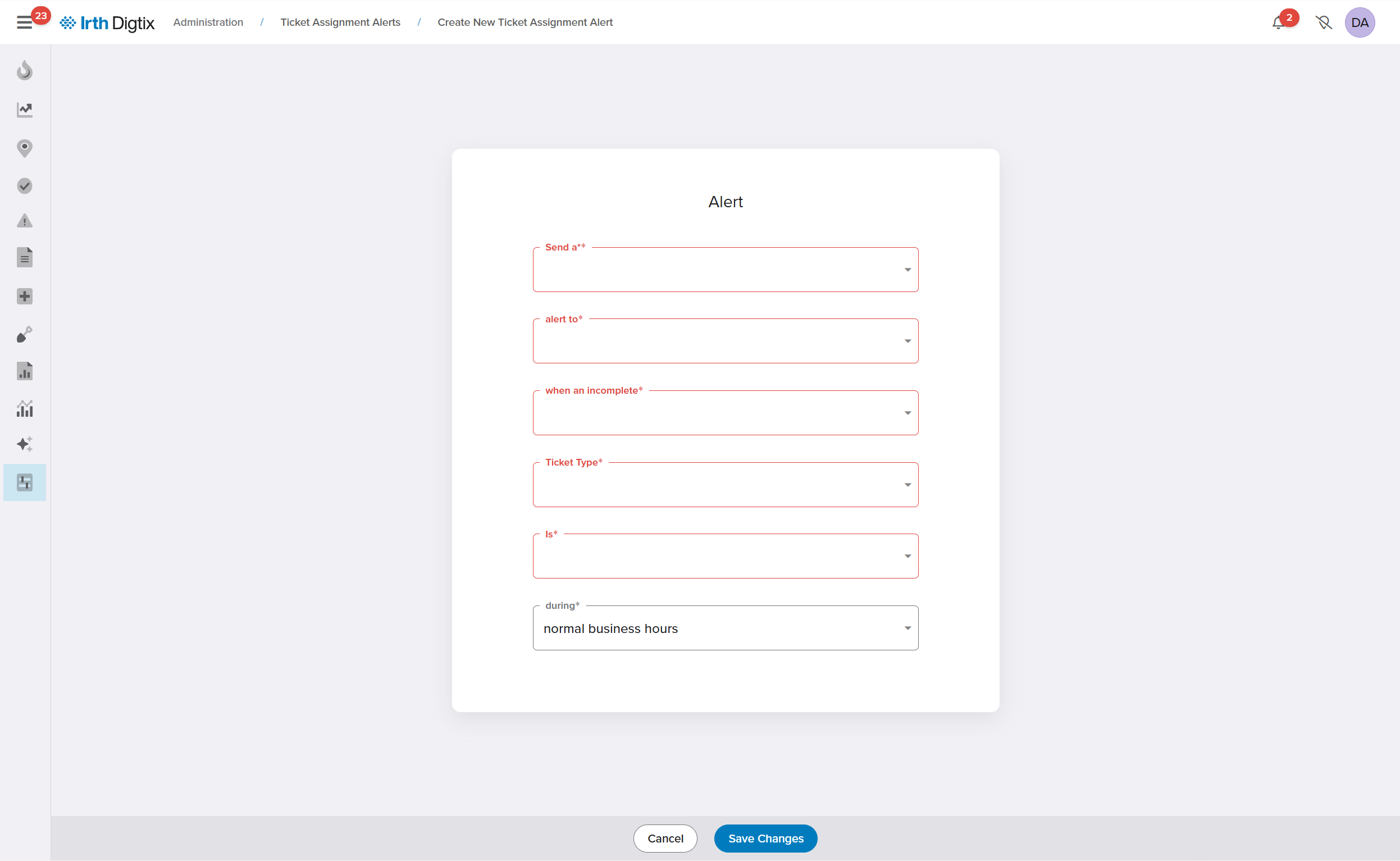
- Click Save Changes.
Configure Automatic Dispatch (Optional)
If automatic dispatch is required:
- Navigate to Administration > Ticket Assignment.
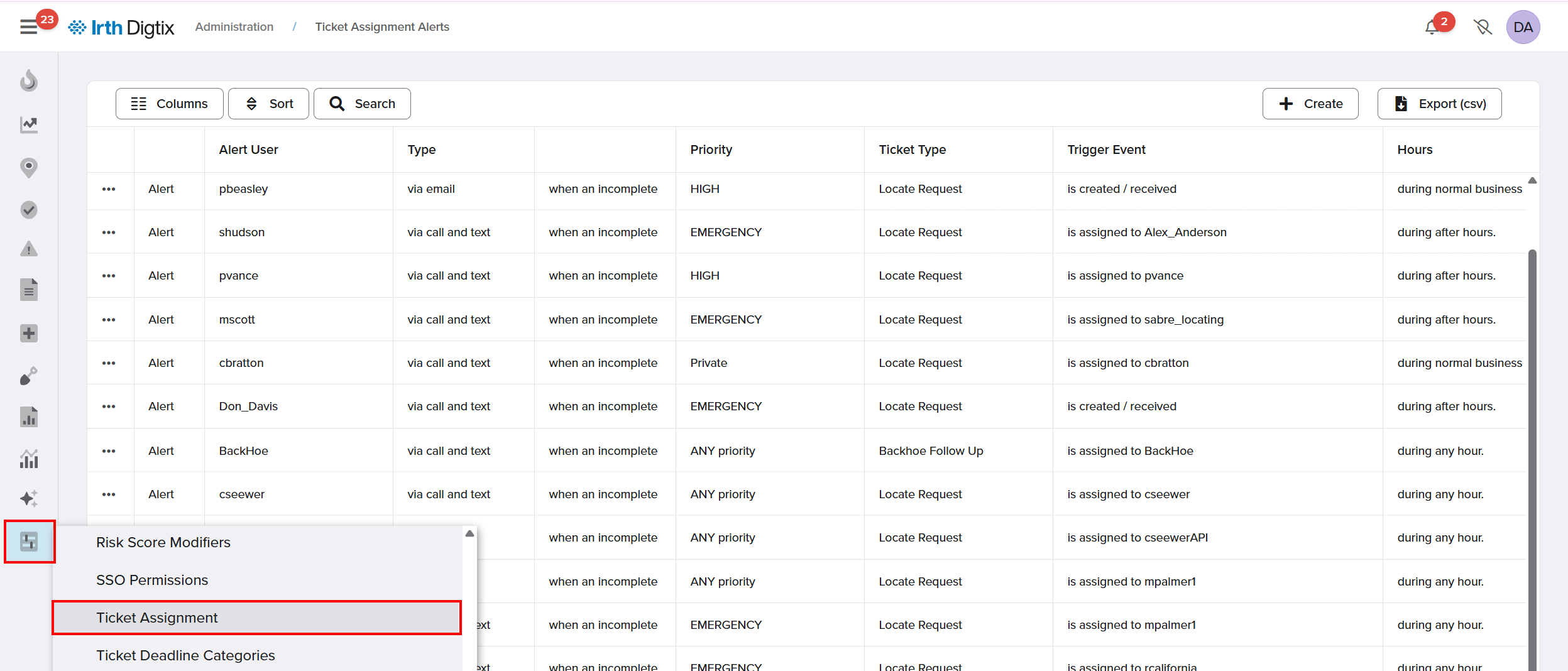
- Create or update assignment rules so locate requests are automatically assigned to the contract locator.
 When configured, tickets are automatically dispatched and made available for response through the Digtix PRS.
FAQ/Troubleshooting:
Q: Why isn’t the contractor receiving locate request emails?
A: Verify that alerts are configured correctly, the correct user is selected, and the alert schedule aligns with assignment times.
Q: Can multiple users be assigned to the same contract locator?
A: Yes, but each user must have the correct data and action permissions and associated alerts.
Q: Is automatic dispatch required?
A: No. Automatic dispatch is optional. Locate requests can be manually assigned if preferred.
Questions? Contact us!

Was this article helpful?
That’s Great!
Thank you for your feedback
Sorry! We couldn't be helpful
Thank you for your feedback
Feedback sent
We appreciate your effort and will try to fix the article