Close Code and Response Code Configuration (New UI)
Purpose/Overview
Navigation Path:
To access this feature: Digtix > Administration

Things to Know:
Permissions: Close Code configuration is available to users with administrative access to Digtix.
Billing Requirements: Billing‑related options (Price, Billable Required) only appear if the Billing module is enabled.
Immutable Fields: Some settings cannot be edited after creation (e.g., CDC assignment, Denotes Completion, PR Service availability).
Multiple CDCs on a Ticket: Tickets may contain several CDCs, each must be closed with a code that denotes completion before the ticket itself can be completed.
Third‑Party Integrations: Response codes are transmitted to external systems via integrations managed by the Digtix team.
Key Benefits/Use Cases:
Standardizing Completion Criteria: Administrators can define what Completed truly means for each CDC, ensuring consistent workflow and reducing errors across teams.
Improving Compliance Reporting: Close Codes directly influence PR compliance and due‑date management. Codes that denote completion or serve as PR compliance exceptions help maintain accurate on‑time performance metrics.
Automating Communication with Stakeholders: Configured response codes automatically notify 811 centers, utility owners, excavators, or contract locators of ticket status, reducing manual outreach and communication gaps.
How It Works:
Follow these steps to set up Close Codes:
Navigate to the Close Code Configuration
Go to Administration > Close Codes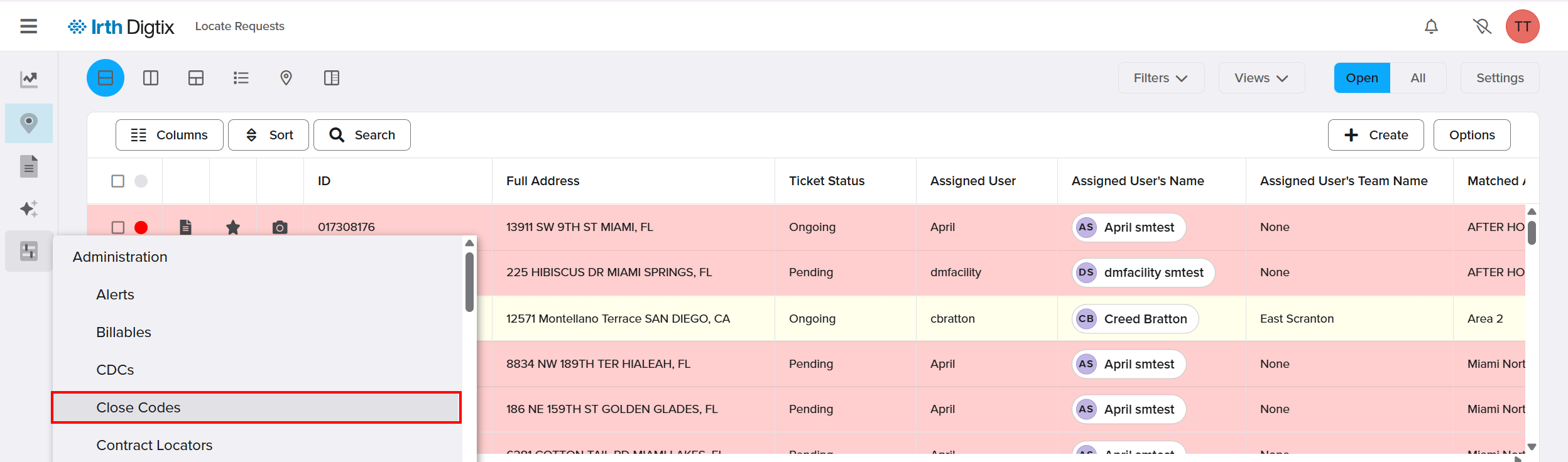
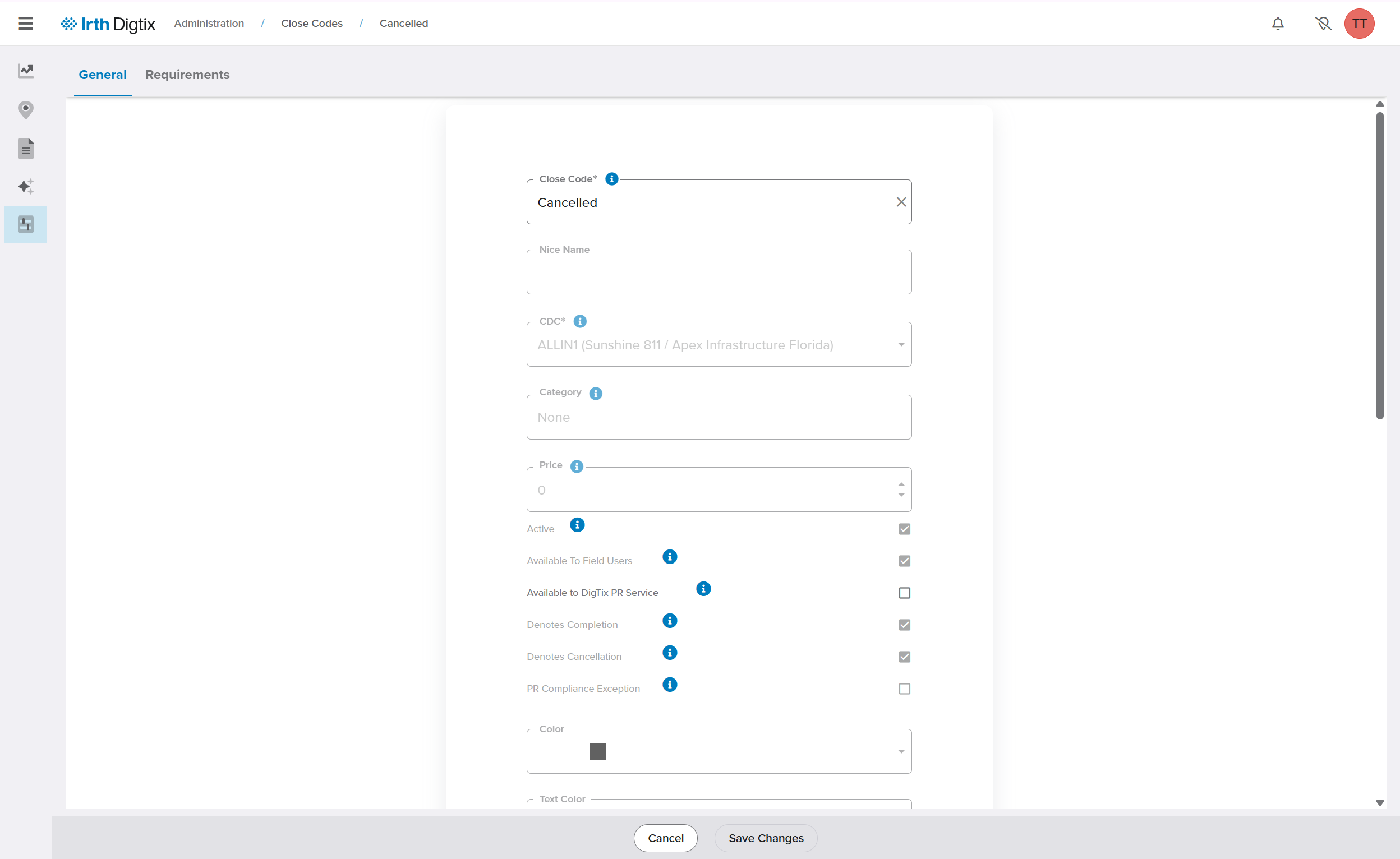
Close Codes appear in a table where each entry represents a single configured close code for a specific CDC. Double-click a Close Code to view or change its configuration. 
Each close code has multiple configuration options to choose from. Make any edits and click Save Changes.
Once a Close Code is configured, users can apply it to locate CDC requests that define item.
- Go to the Locates menu and select the Close Code menu in a ticket.


- Apply the correct Close Code by selecting the Close Code or Update button.
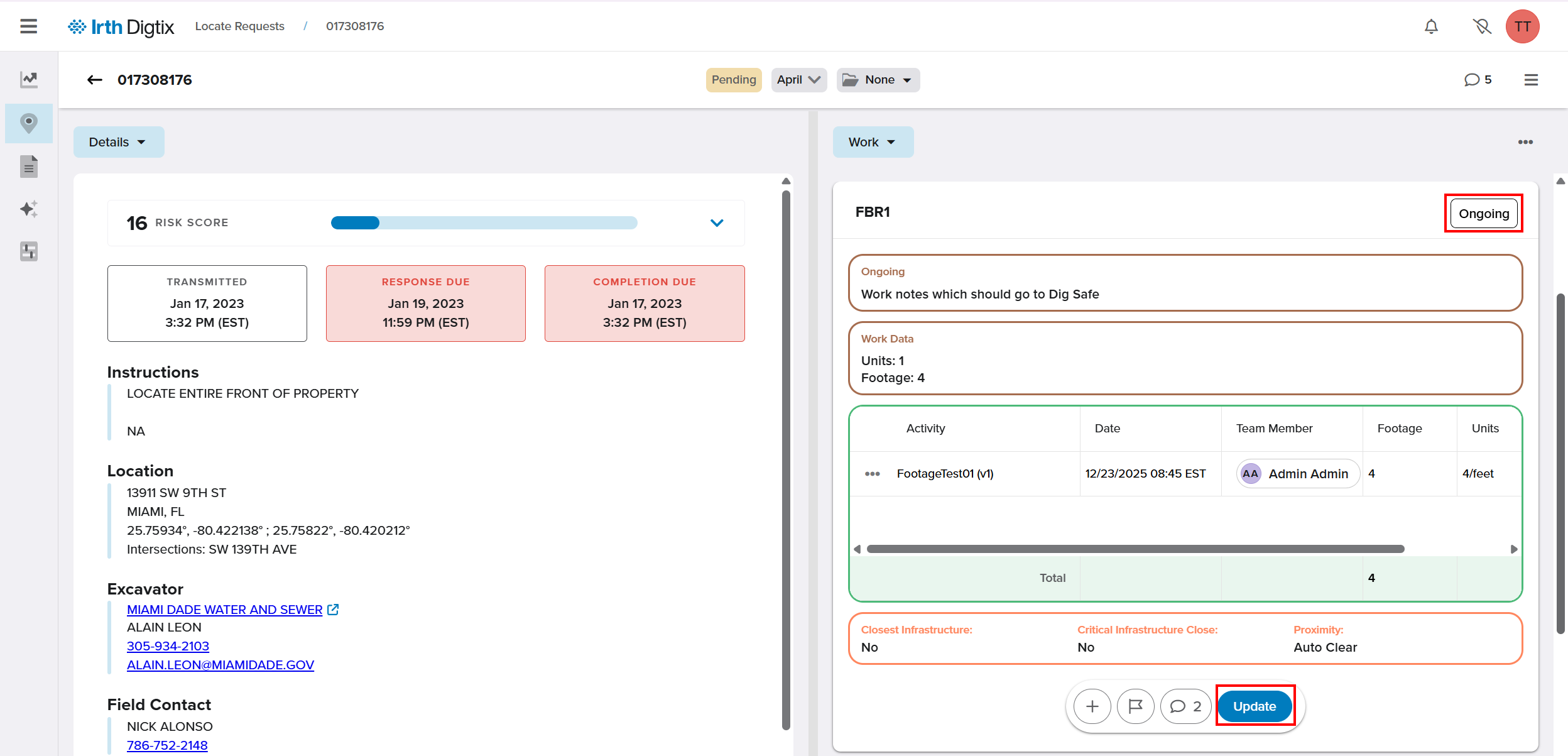
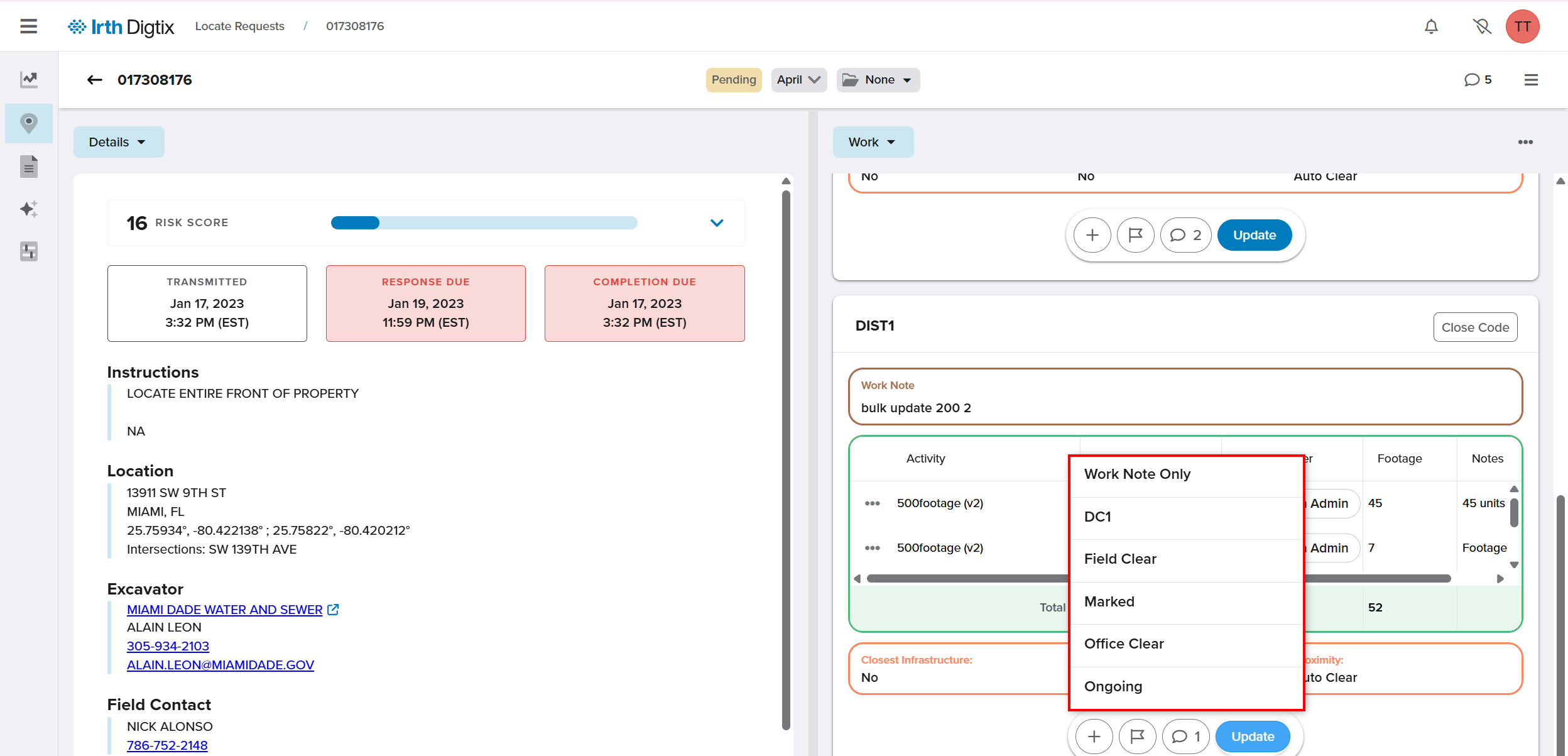
- Fill in the appropriate information and click Save.
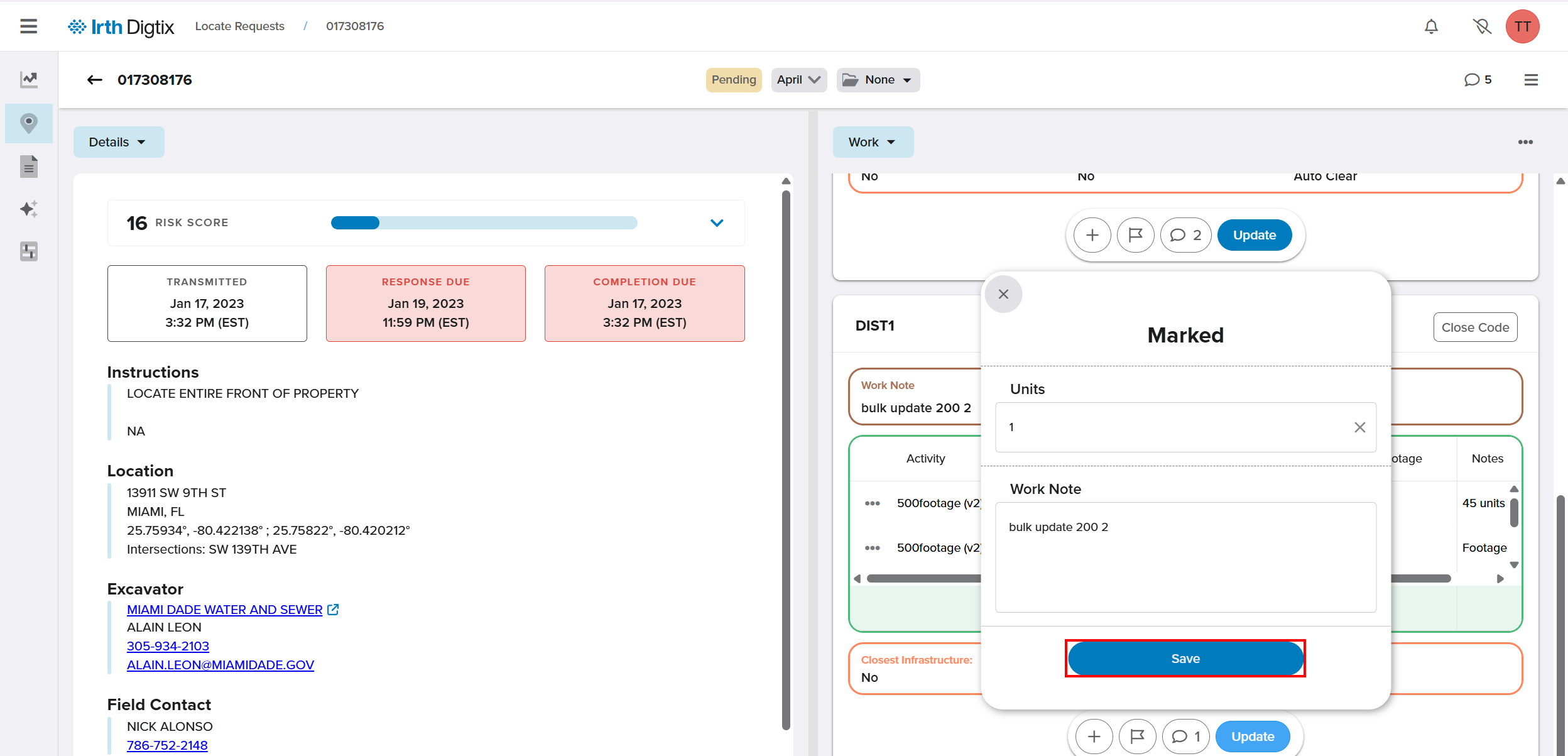
If a ticket has multiple CDCs, all must be closed with a code that denotes completion before the ticket can be completed.
Close Code activity is recorded within the History tab, including any transmitted response codes.
NOTE: Ticket History is only available to users with the correct permissions. If it's not visible to you, contact your admin to have them grant access.
Response Codes
A Close Code may (optionally) have a response code associated with it. Whenever a close code is applied to a locate request, Digtix checks if a response code is associated with that close code. If there is a response code configured, Digtix will send that response code via system integrations to third parties such as 811 call centers, excavators, or utility operators. This allows other stakeholders to be kept up to date on the progress of each locate request. One of the most common industry responses is referred to as Positive Response. More information on positive response and compliance can be found in the article Digtix PR Compliance and Due Date Management.
Integrations in which response codes are sent can include email, RESTful API, SFTP, SOAP, and more. Integrations to third-party systems are developed, configured, and monitored by the Digtix team.
Response codes that are sent to third parties are logged within the History tab of the ticket window.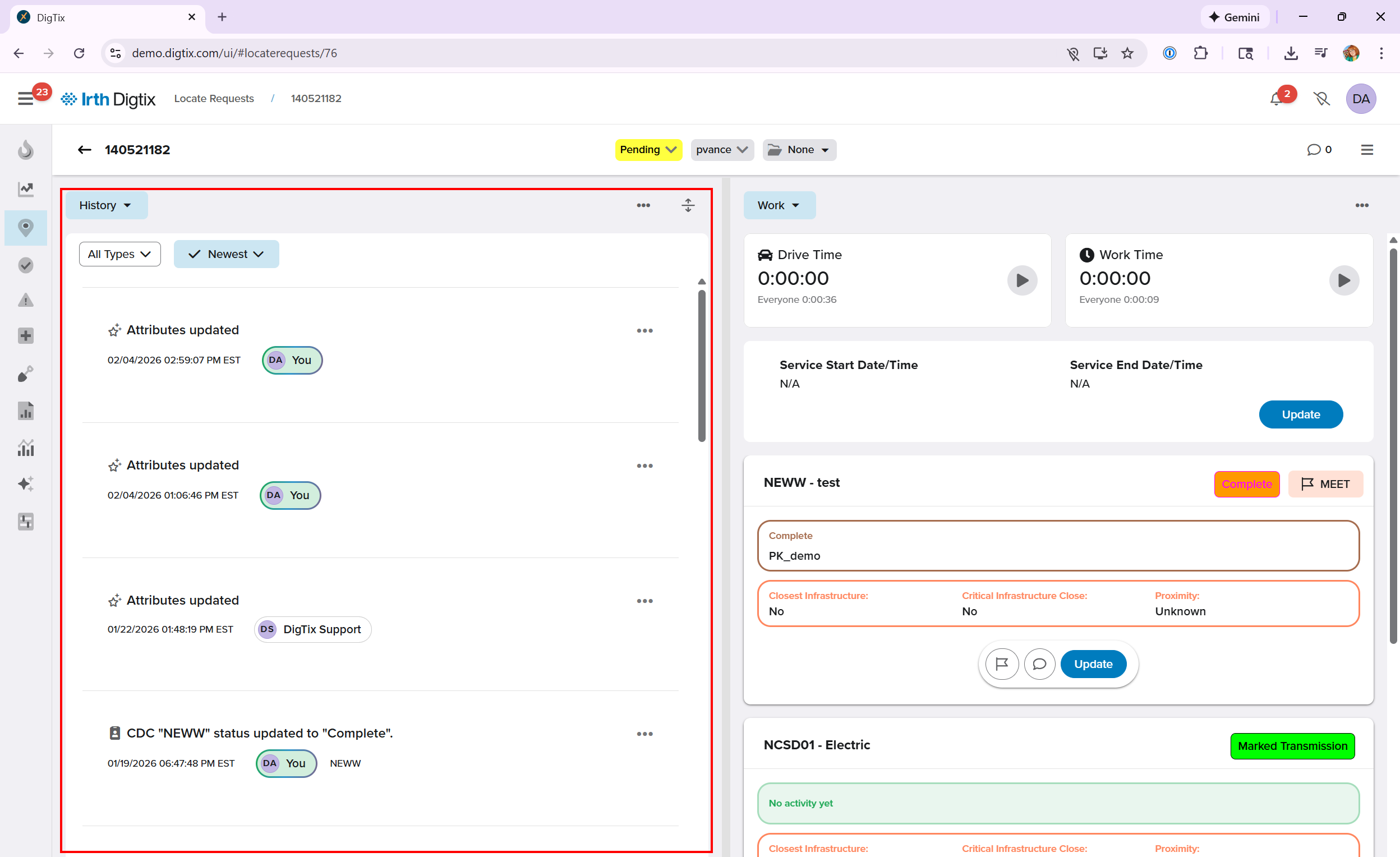
In addition to the History tab, if you have permissions, you can view all outgoing responses on the Responses screen.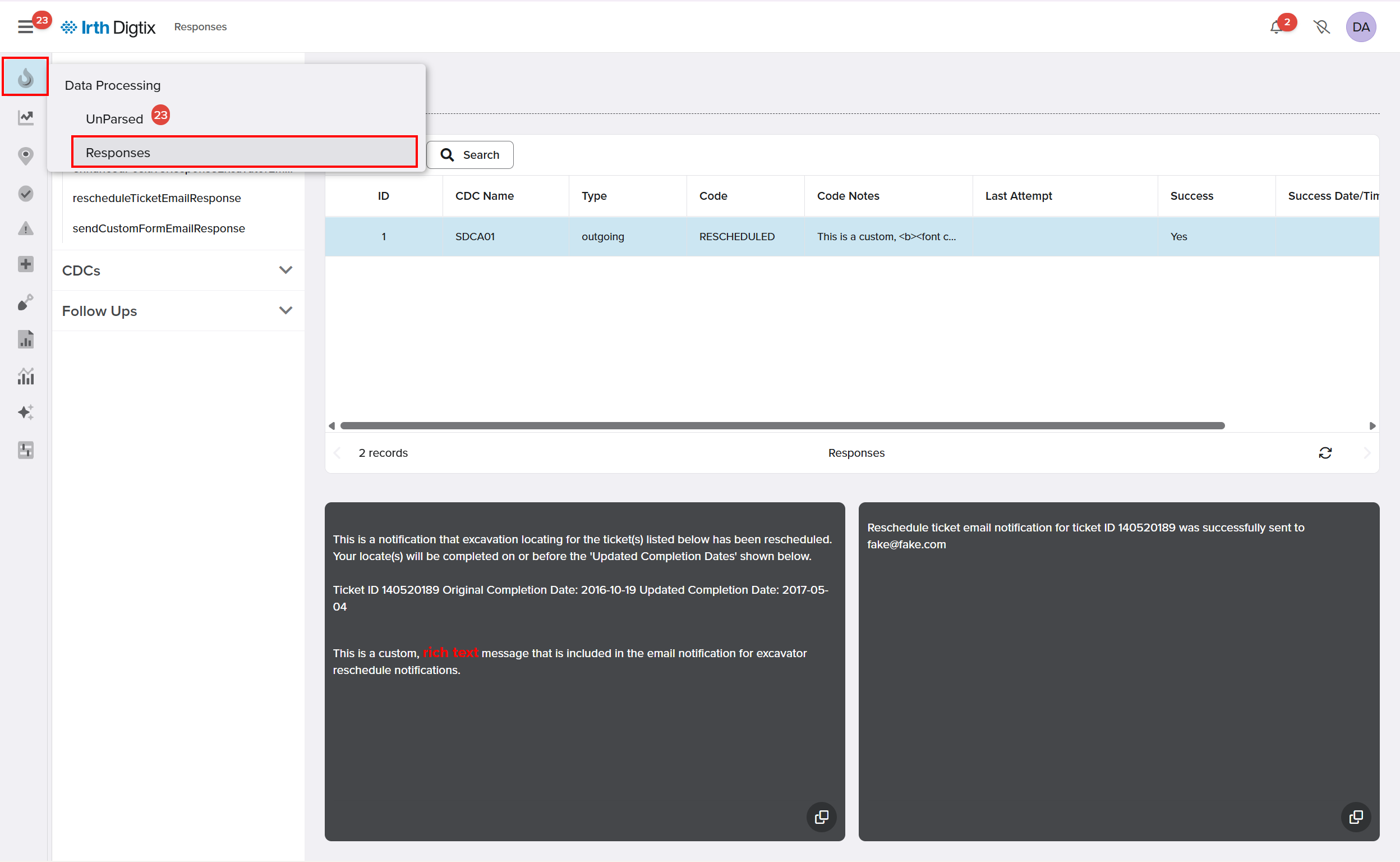
Reporting and Analytics
Close codes are commonly used for reporting purposes related to productivity, compliance, and forecasting. It is very important to define your close codes in a way that will support your desired reporting strategy and provide a way to answer your business intelligence performance and quality metrics. For example if you'd like to track each time a locate request could not be satisfied due to not being able to access the work site, a No Access close code might be desired. It is also important to maintain consistency across your close codes. For example, avoid defining a No Access close code for one CDC and a Cannot Access close code for another CDC. Such configuration would result in multiple records within reports despite both close codes representing the same event.
To view a Productivity report, go to Reports > Productivity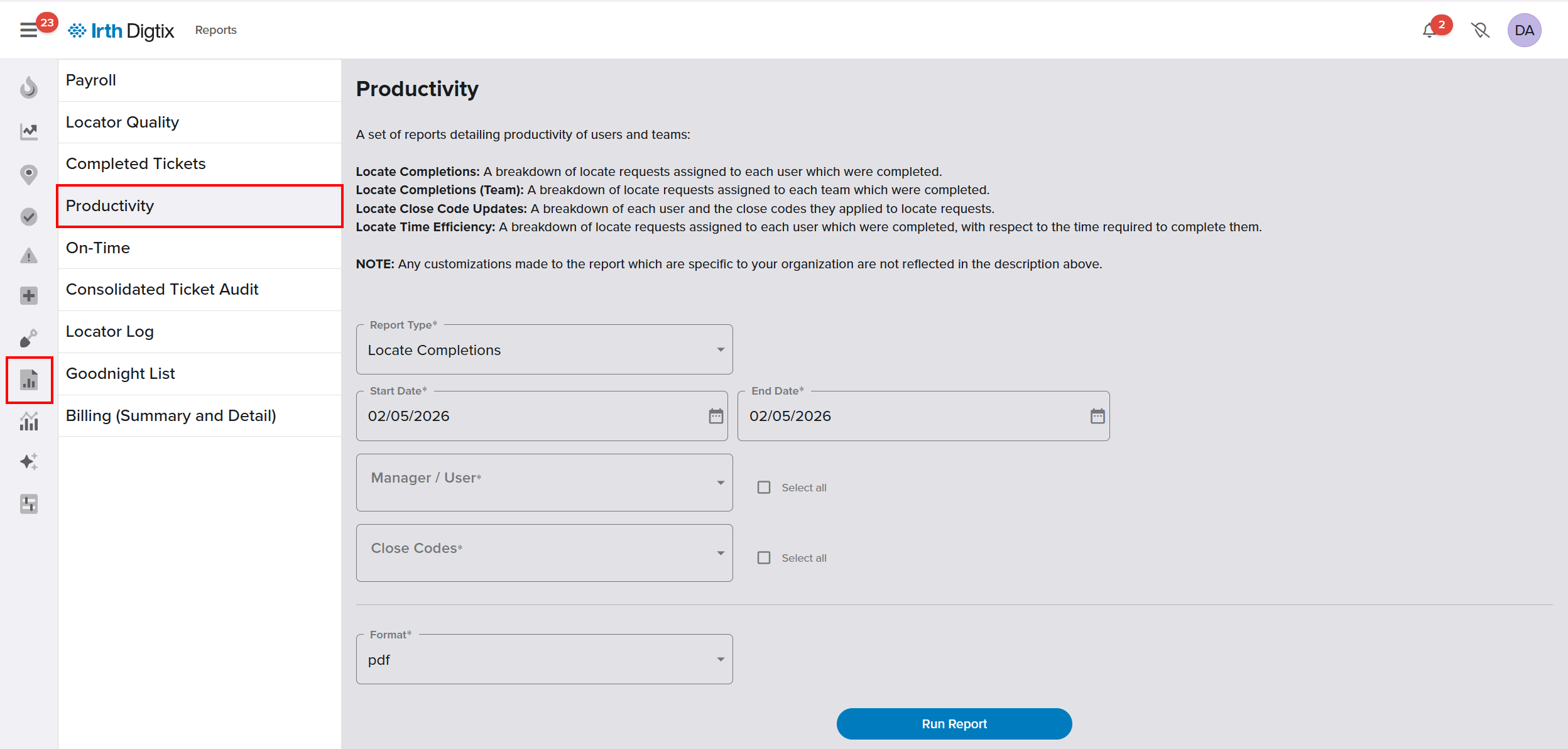
FAQ/Troubleshooting:
Q: Why can’t I edit certain fields on an existing close code?
A: Fields like CDC, Denotes Completion, and PR Service availability are locked after creation to protect workflow integrity.
Q: Why am I unable to apply a close code?
A: You may be missing required inputs such as billables, attachments, service times, or comments. Check the settings for that specific close code.
Q: Why isn’t my response code being sent to third parties?
A: Ensure a response code is configured for the close code and that the integration is active. Contact the Digtix team for integration support.
Questions? Contact us!

Was this article helpful?
That’s Great!
Thank you for your feedback
Sorry! We couldn't be helpful
Thank you for your feedback
Feedback sent
We appreciate your effort and will try to fix the article