Completing a Locate Request (New UI)
Purpose/Overview
In this article, you will learn how to complete a locate request in the updated Digtix interface. This feature allows locators to document work performed in the field, upload attachments, apply close codes, enter utility‑specific notes, and complete the ticket properly. Depending on your organization’s workflow, you may also be required to track additional details such as mark times or footage for billable activities. This process ensures accurate recordkeeping, compliance with internal and 811 requirements, and proper communication back to excavators and call centers.
Navigation Path:
To access this feature, go to Irth Digtix > Locates
Things to Know:
- Attachments:
- Videos over 720p are not recommended.
- Rapid‑fire photo capture is available using your device’s native camera app.
- Workflow Variations:
- Some organizations require entry of marking times or footage.
- Some CDCs may require billables before a ticket can be closed.
- Automatic Notifications:
- If enabled, Work Notes will be included in excavator positive response emails.
Key Benefits/Use Cases:
- Field Documentation: Locators can upload photos, videos, and comments to provide a complete record of work completed. This improves accuracy and audit readiness.
- Compliance & Communication: Applying correct close codes and notes ensures the call center and excavator receive timely, accurate status updates.
- Workflow Efficiency: Centralized documentation, easy attachments, and streamlined close-out reduce administrative overhead and help tickets move out of the queue promptly.
How It Works:
Follow these steps to complete a locate:
Open the Ticket
- Navigate to the Locates Tab and open the ticket you want to work on by double-clicking it.

Perform the Locate & Add Attachments
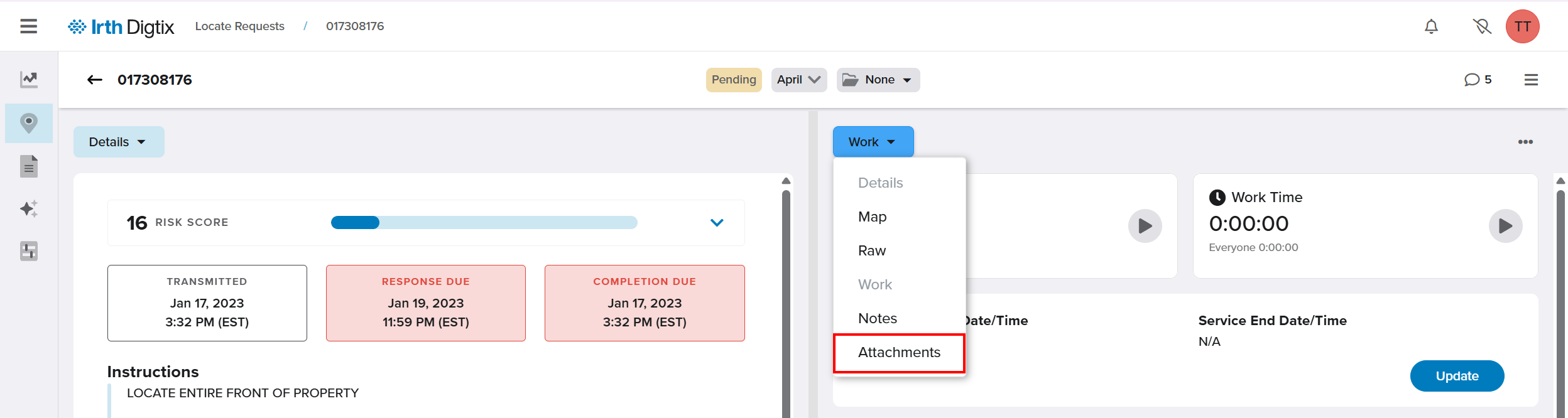
- Drive to the ticket location. Perform the locate and document with photos, comments, and video. To add attachments, click on one of the drop-down menus and select “Attachments”.
Adding Photos and Videos
- Click the + button to add your media.
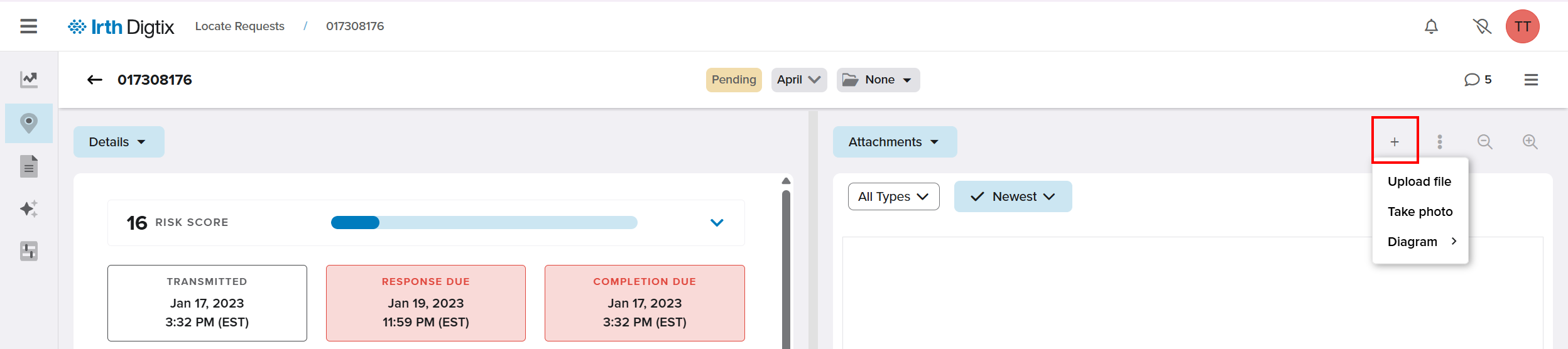
For photos, you have two options:
- Attach the files via My Documents for computers, Photos for Apple Devices or Gallery/Google Photosfor Android devices.
- Select the + button, then click Upload file.
- You can select multiple files at once by holding Ctrl on a computer or Select on mobile devices.
- Videos should be uploaded this way (720p or smaller recommended).
- Use your device’s native camera app (you can snap multiple pictures “rapid fire” style and each photo will automatically be attached to the ticket.
- Select the + button, then click Take photo.
NOTE: It is recommended to use Google Chrome on all mobile devices except for Apple devices. On Apple devices, the Safari browser is recommended.
Add Work Details
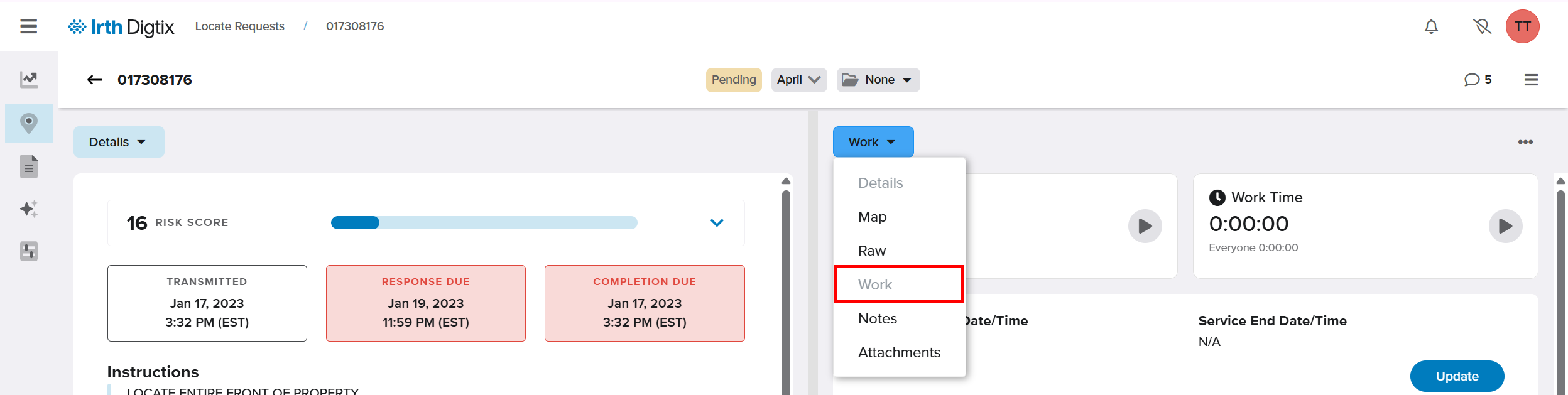
- On one of the drop-down menus select Work. Then, on the far right, scroll through each Member Code/CDC and select Update.
- You'll need to scroll through all of the Member codes and select the Status button or the Update button to add Work Details.
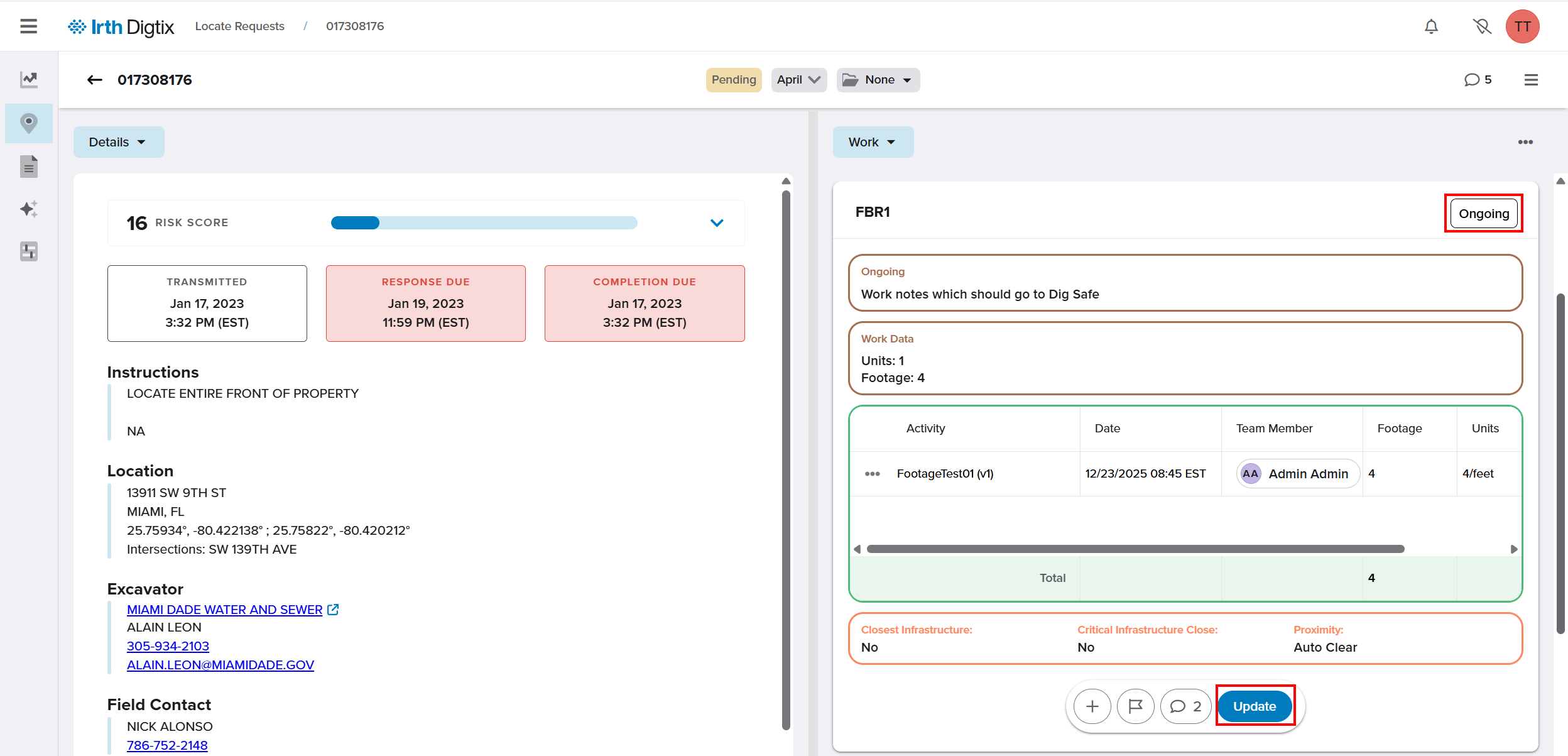
Apply Close Codes & Work Notes
- Apply the appropriate Close Code to each Member Code.
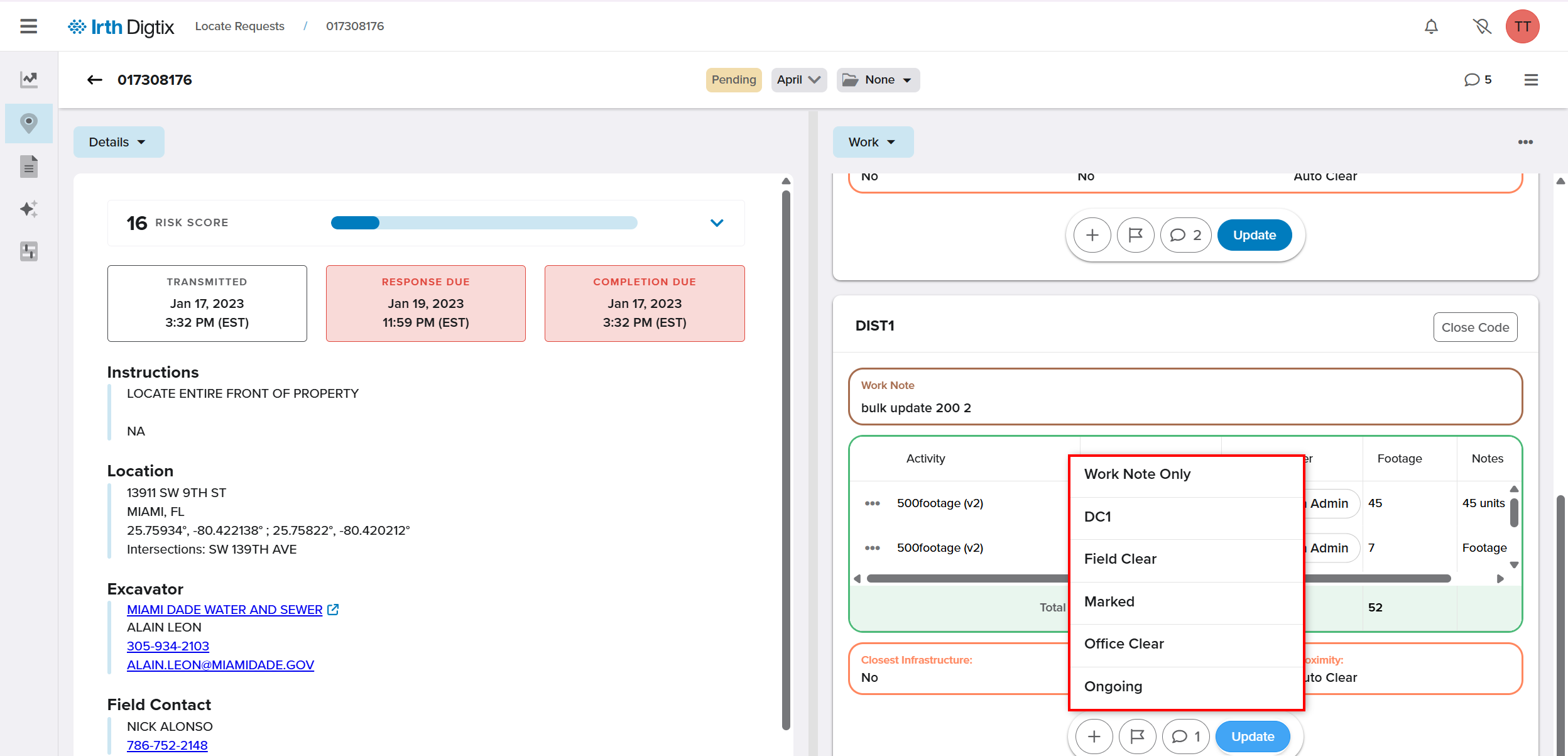
- Add any notes specific to the utility into the Work Notes box. Make sure comments/notes, photos, and videos have been added. Some CDCs will require billables to close the ticket. Click the Save button to submit the close code and notes.
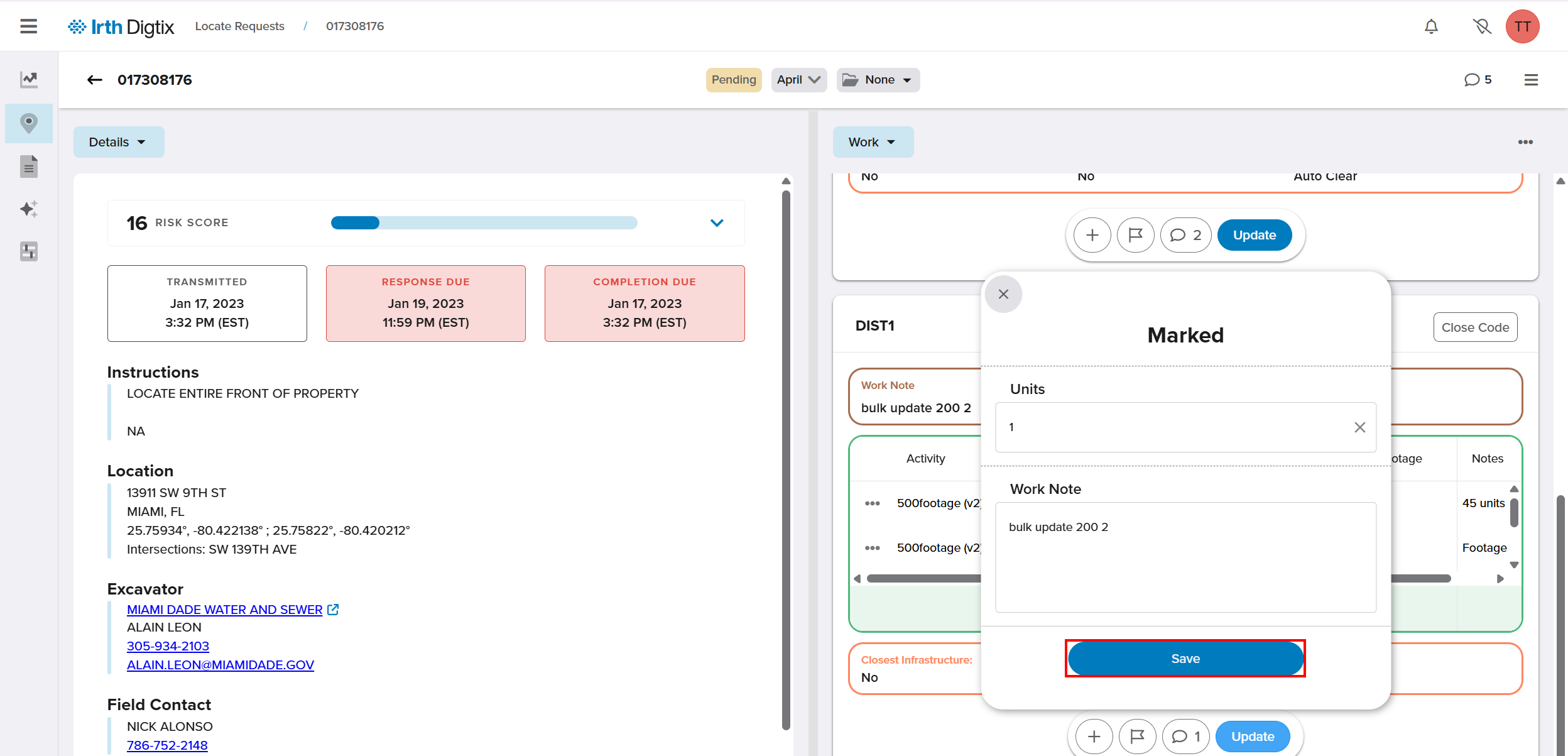
NOTE: You can update all the Member Codes to the same Close Code by clicking the More Options button in the upper-right corner of the Work panel and selecting Update All Codes.  |
NOTE: If excavator positive response emails are being automatically sent by Digtix, the notes in the Work Notes box will be included in the email to the excavator. The close code for each CDC and notes will be sent to the call center as soon as you hit save (if applicable). All CDCs must be closed to update the Ticket Status to Completed.
Complete the Ticket
- If you have permissions to change the ticket status, you will see a dropdown arrow on the Status button. Click the dropdown menu, select Completed for the Ticket Status, and click the Update button.

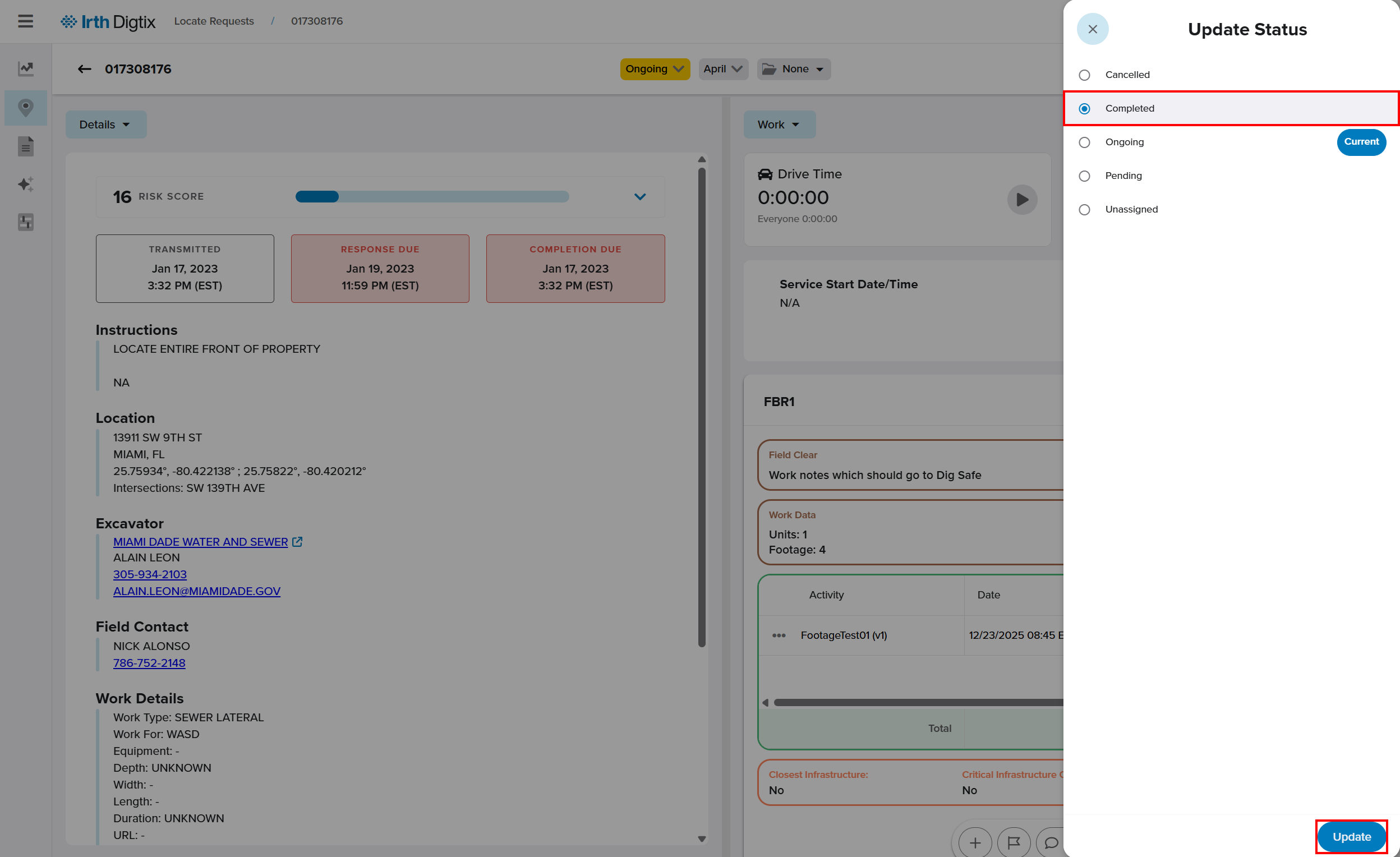
- The ticket is now completed and will be removed from your work queue.
FAQ/Troubleshooting:
Q: The ticket won't mark as completed. What should I check?
A: Ensure all CDCs have been closed with appropriate close codes and saved.
Q: My photos won't attach. What can I do?
A: Verify your browser is supported, and that camera or file access permissions are enabled on your device.
Q: Why can't I upload a video?
A: Videos larger than the recommended resolution (720p) or unsupported by the browser may fail. Try compressing the video or switching to Chrome/Safari.
Questions? Contact us!

Was this article helpful?
That’s Great!
Thank you for your feedback
Sorry! We couldn't be helpful
Thank you for your feedback
Feedback sent
We appreciate your effort and will try to fix the article