Follow-Ups Overview (New UI)
Purpose/Overview
In this article, you’ll learn how the Follow‑Ups feature helps organizations create, manage, and complete work orders after a locate request has been completed. Follow‑ups support damage prevention and safety programs by ensuring that additional inspections, audits, or patrols are performed when needed. This feature is intended for administrators, damage prevention specialists, and field personnel who need visibility into post‑locate activities and a structured way to manage follow‑up work.
Navigation Path:
To access this feature: Digtix > Administration > Follow-Up Types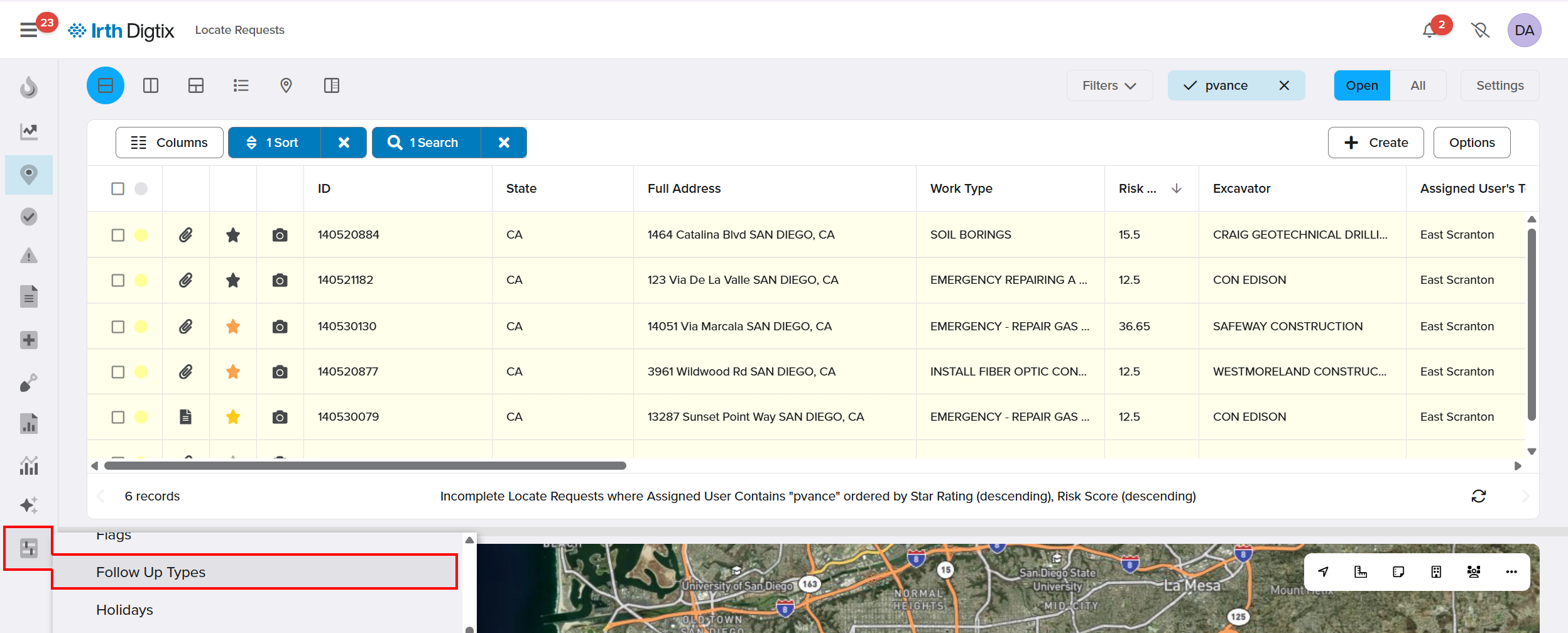
Things to Know:
- Permissions required:
- Only Administrators can create, edit, or delete Follow‑Up Types.
- Users must have permission to trigger follow‑ups from locate requests.
- Completion permissions are granted by default to the Damage Prevention Specialist role.
- Assignment behavior: Follow‑ups are created unassigned and must be assigned before completion.
- Status rules: Certain follow‑up statuses may require attachments or be restricted to office users.
- Required statuses: All follow‑up types must include Unassigned, Pending, and Cancelled statuses
Key Benefits/Use Cases:
Utility Locate Audits: Evaluate the quality and accuracy of completed locate requests to support compliance and continuous improvement.
Critical Asset Patrols (Watch and Protect): Monitor and protect critical infrastructure during and after excavation to reduce damage risk.
Adverse Excavator Patrols: Track and inspect excavation activities performed by contractors with prior safety concerns, improving accountability and safety outcomes.
How It Works:
Follow these steps to set up and manage Follow‑Ups:
Define Follow‑Up Types
Before follow‑ups can be used, your organization must define which types are available.
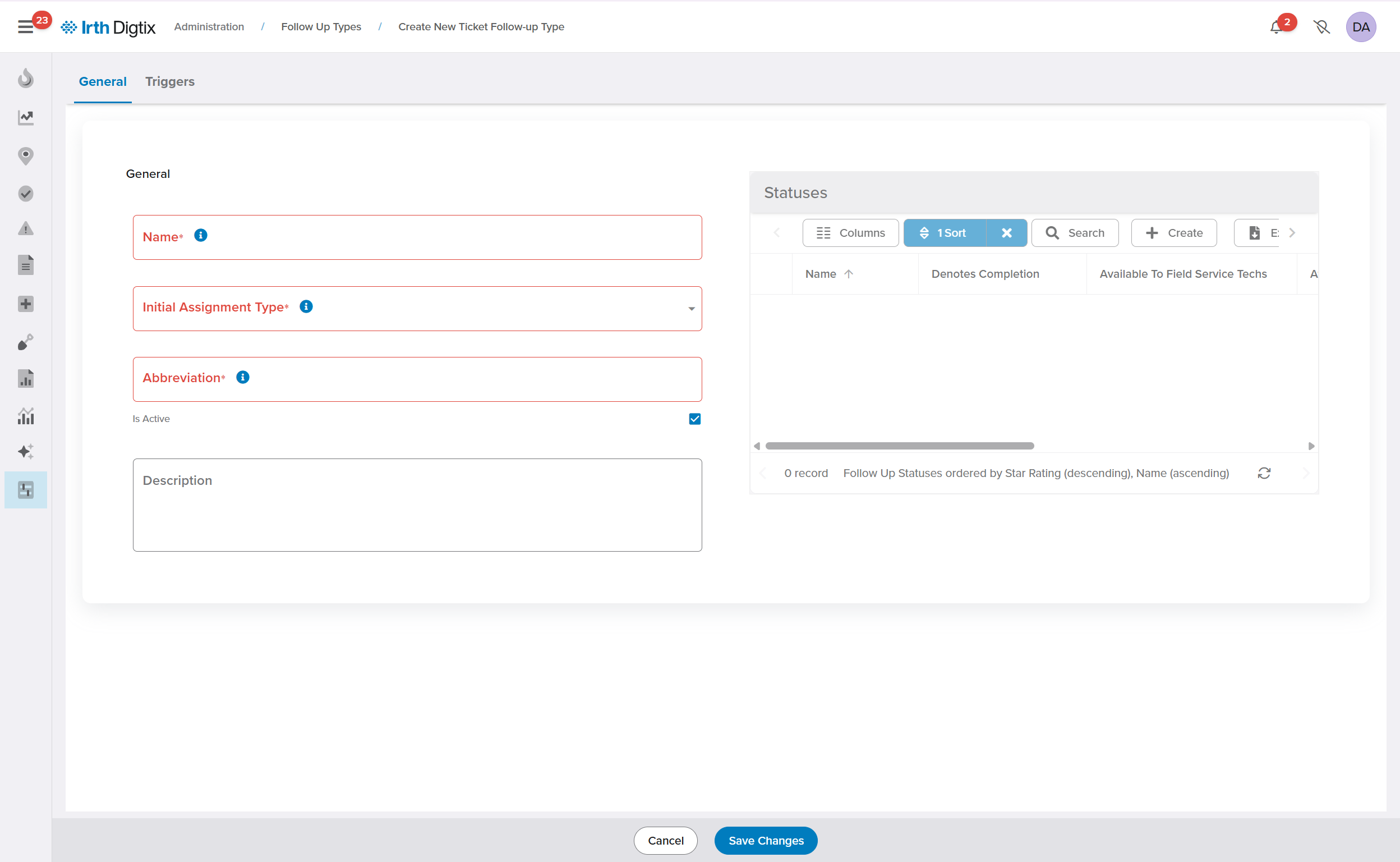
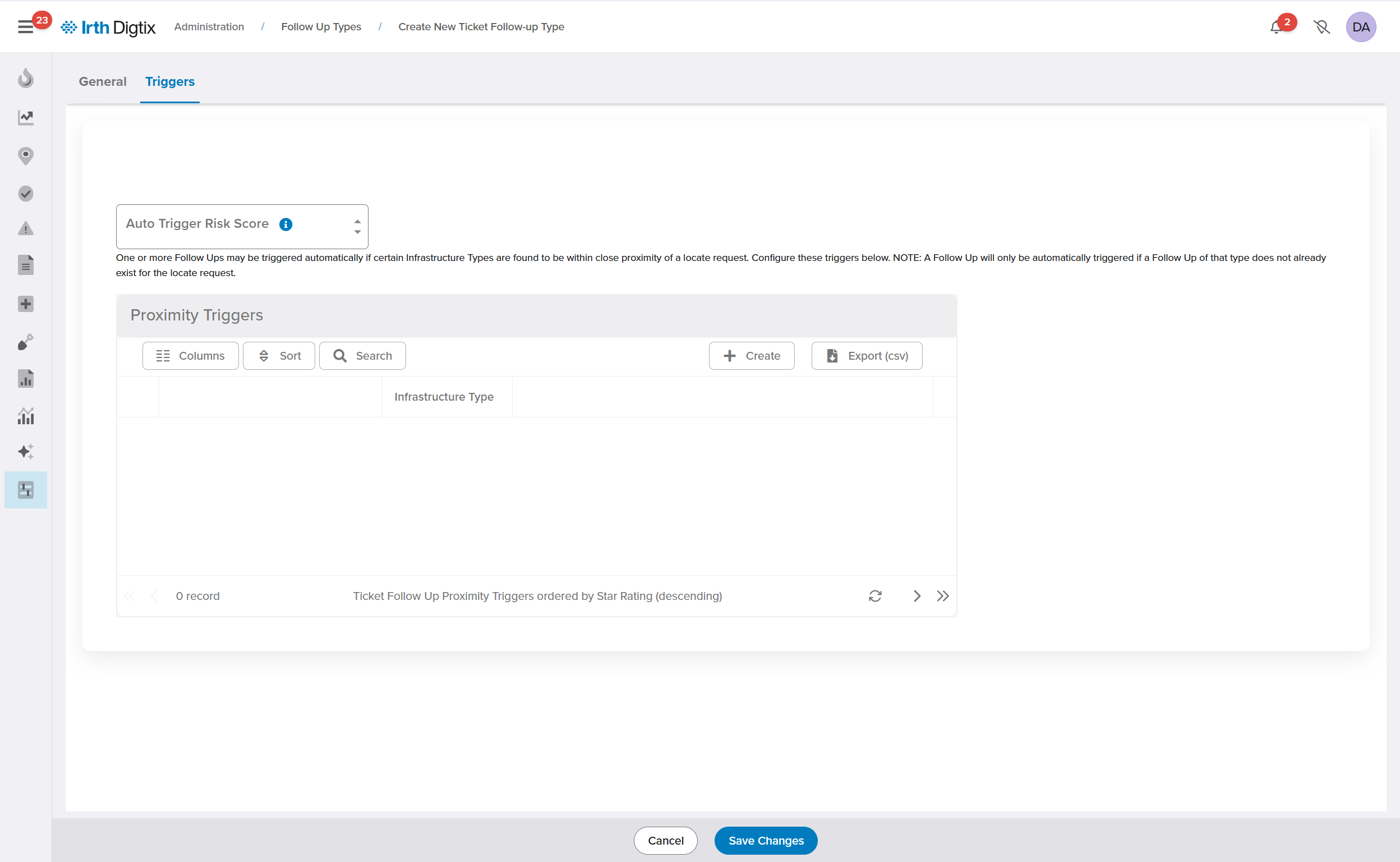
- Open Administration > Follow‑Up Types.
- Click Create.

- Fill out the General and Triggers forms and Save Changes.
 Once follow‑up types are defined, authorized users can create follow‑ups from locate requests.
Triggering individually:
- Open a locate request.
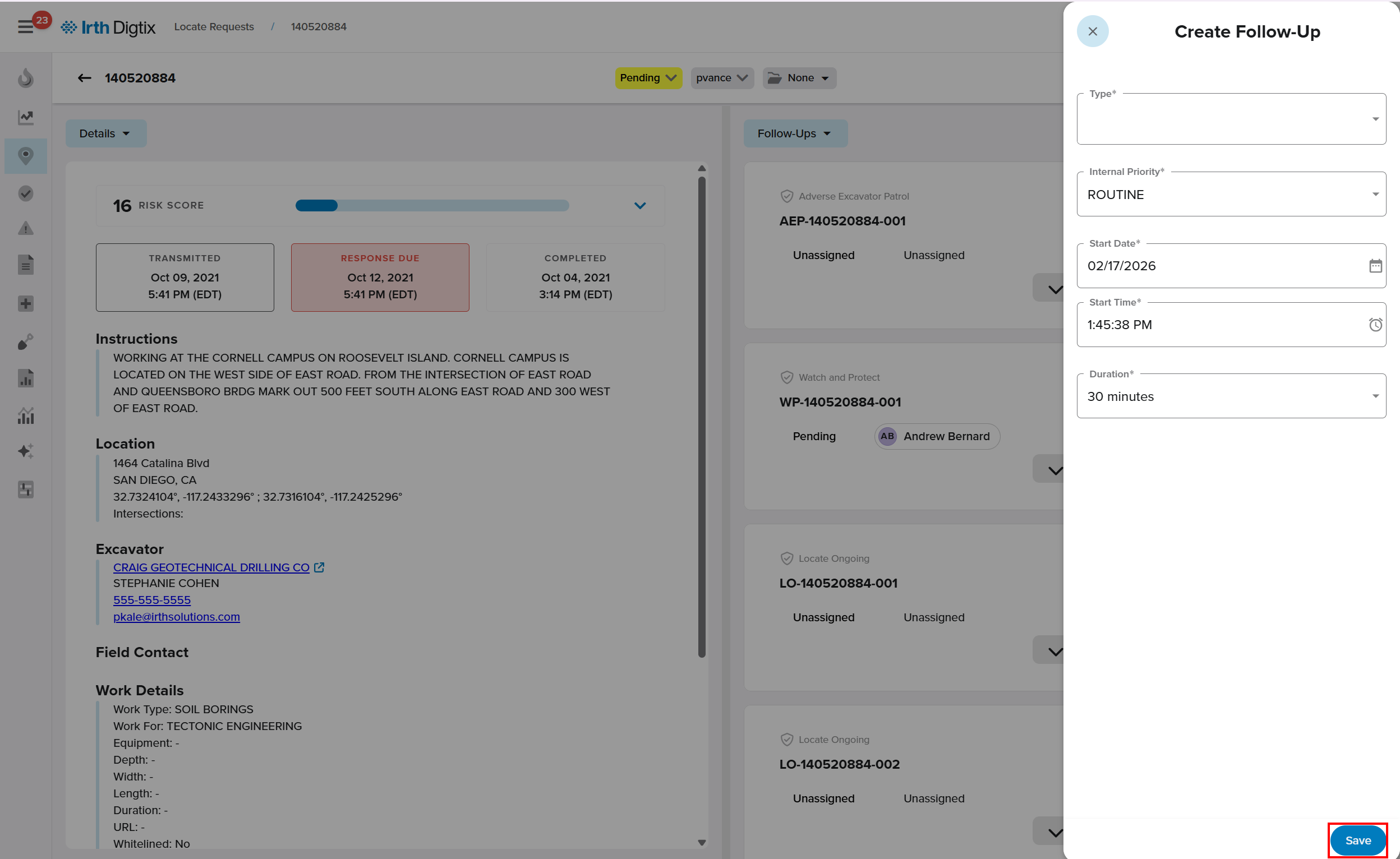
- Select Follow‑Ups from the dropdown menu and click the + icon to create a follow-up.
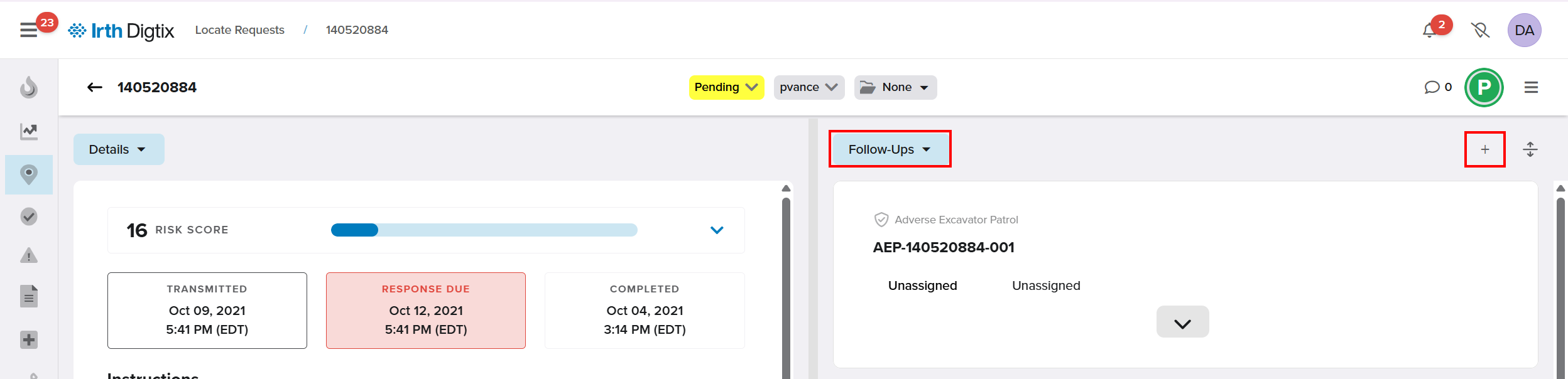
- Fill out the Follow-up form and click Save.
Triggering in bulk:
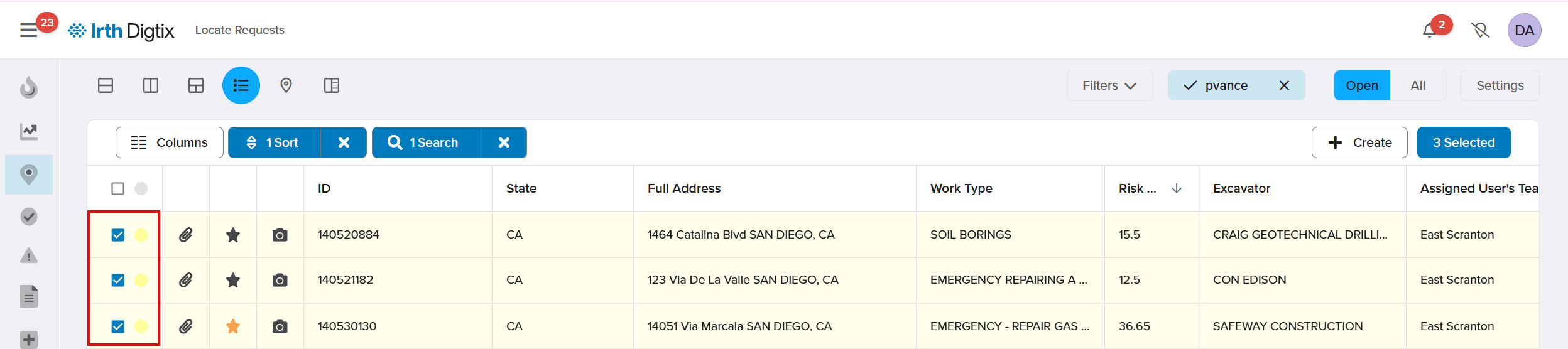
- Select multiple locate requests from the Locates grid.
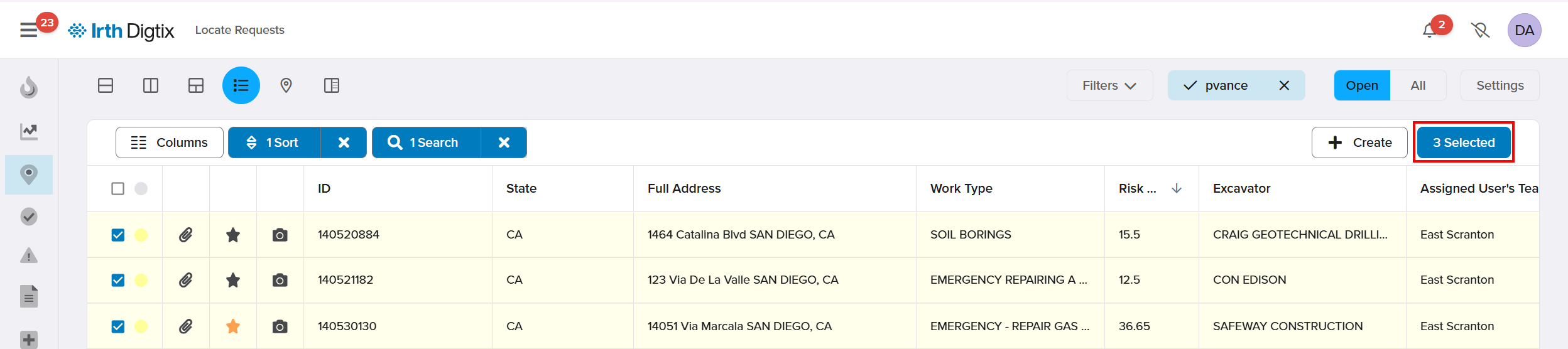
- Click the options menu.
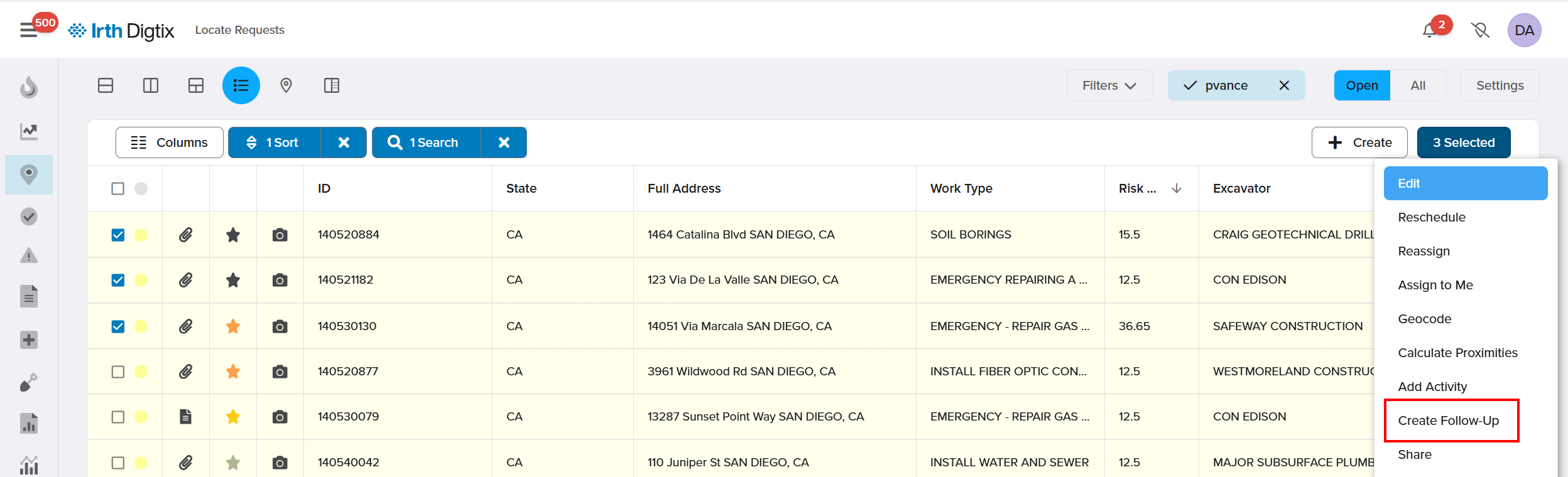
- Choose Create Follow‑Up.
- Fill out the follow‑up form and click Save.
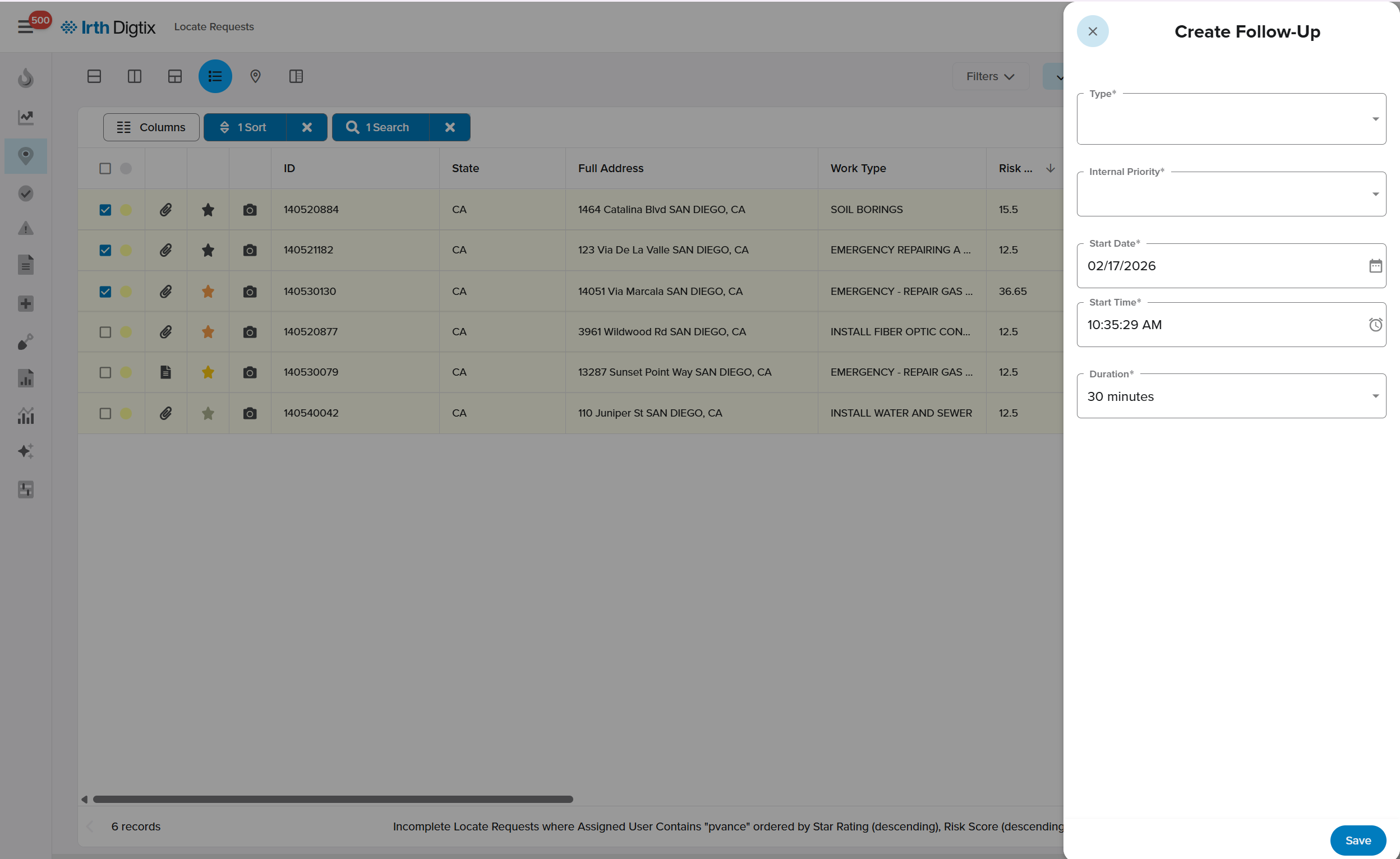
Triggered follow‑ups are created unassigned and can be managed later.
Track Follow‑Ups in the Locates Grid
The Follow‑Ups column in the Locates grid shows which follow‑up types have been triggered for each locate request.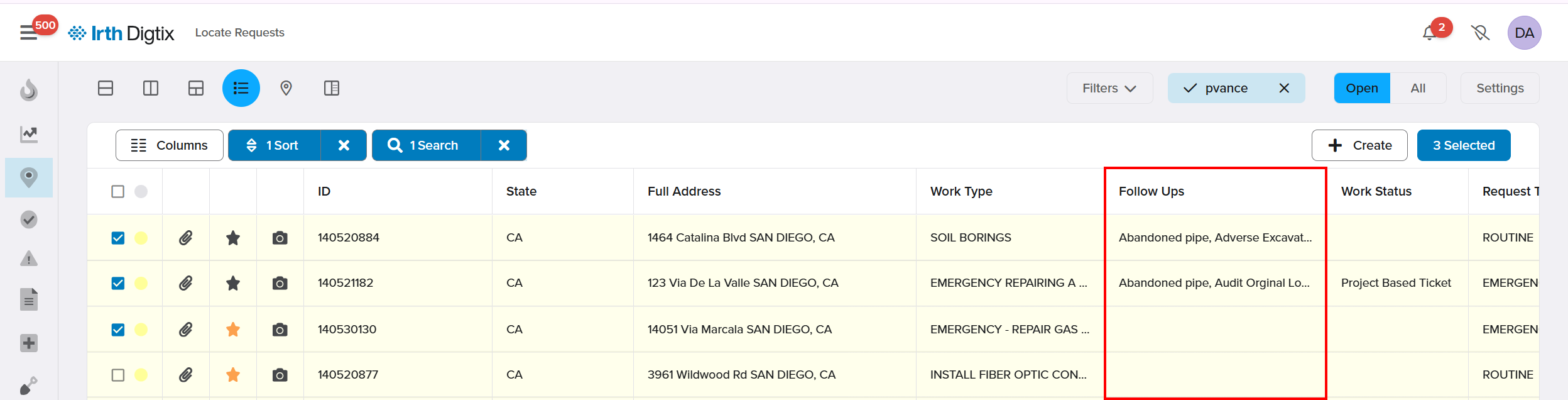
- The column can be filtered, sorted, hidden, or rearranged.
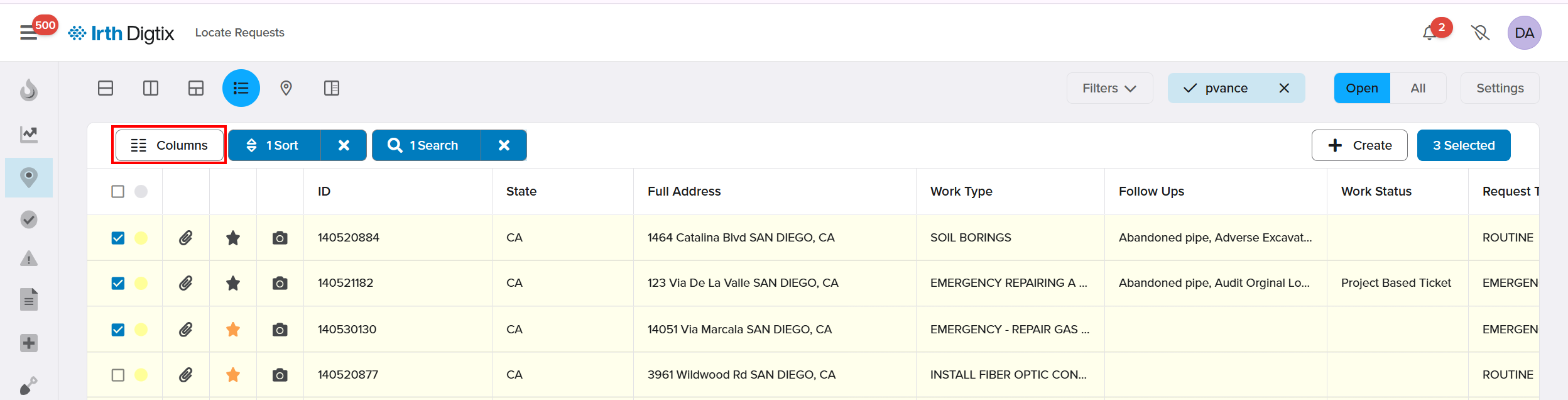
- This provides quick visibility into follow‑up activity across locate requests.
Manage Follow‑Ups from the Follow‑Ups Screen
Select Follow‑Ups from the main menu, then choose a follow‑up type to open its dedicated screen.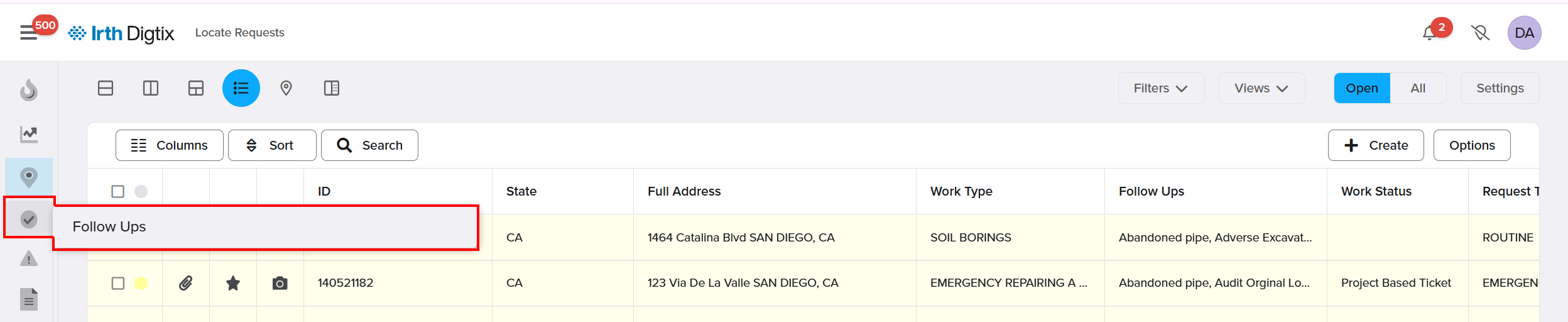
The Follow‑Ups screen includes:
- An interactive grid listing follow‑ups
- A map showing their geographic locations
- A control panel for filtering, views, and tools
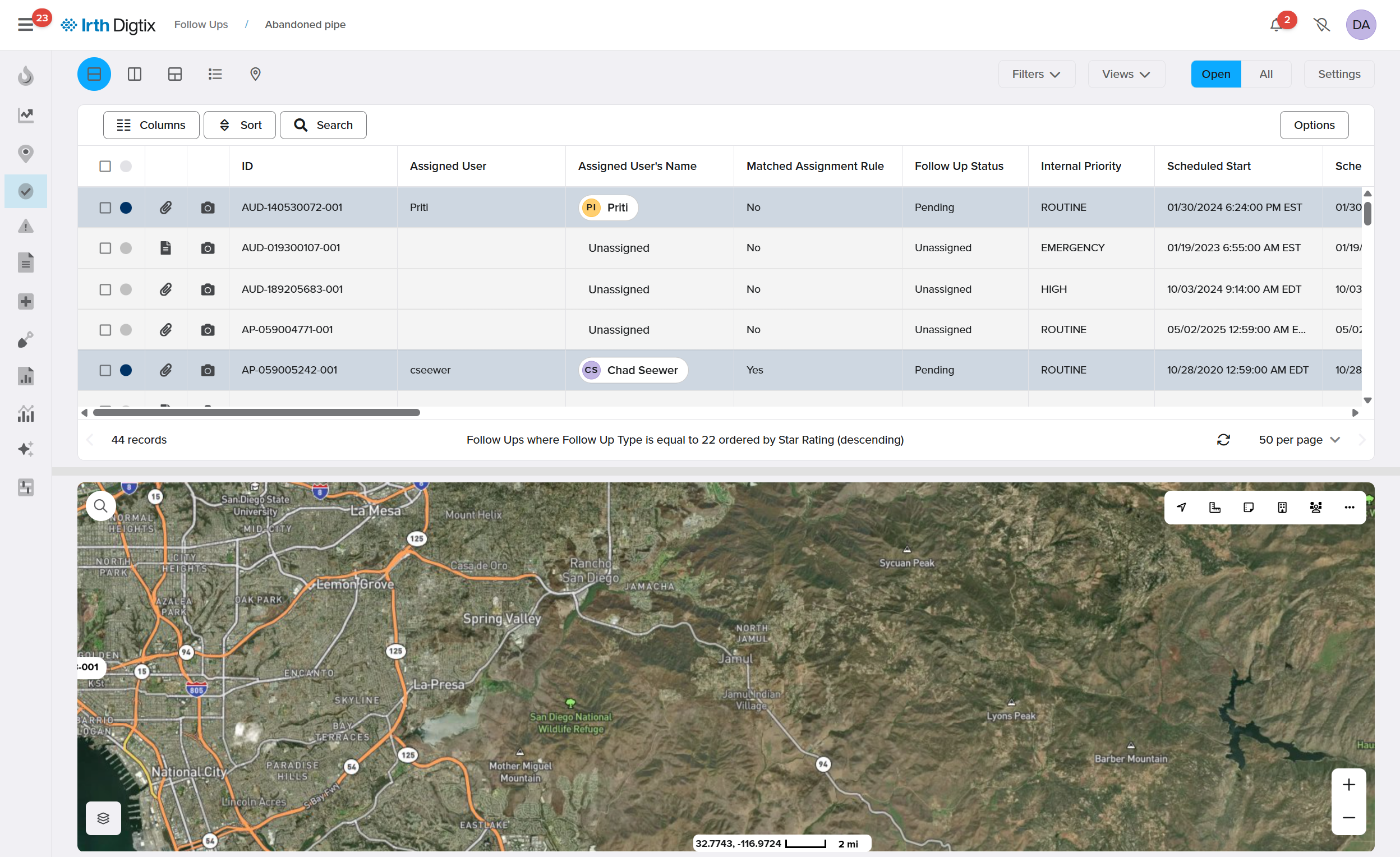
Available capabilities include:
Column filtering, sorting, and custom views
Status‑based color coding
Map overlays
Excel export
Review of completed follow‑ups
Open and Complete a Follow‑Up
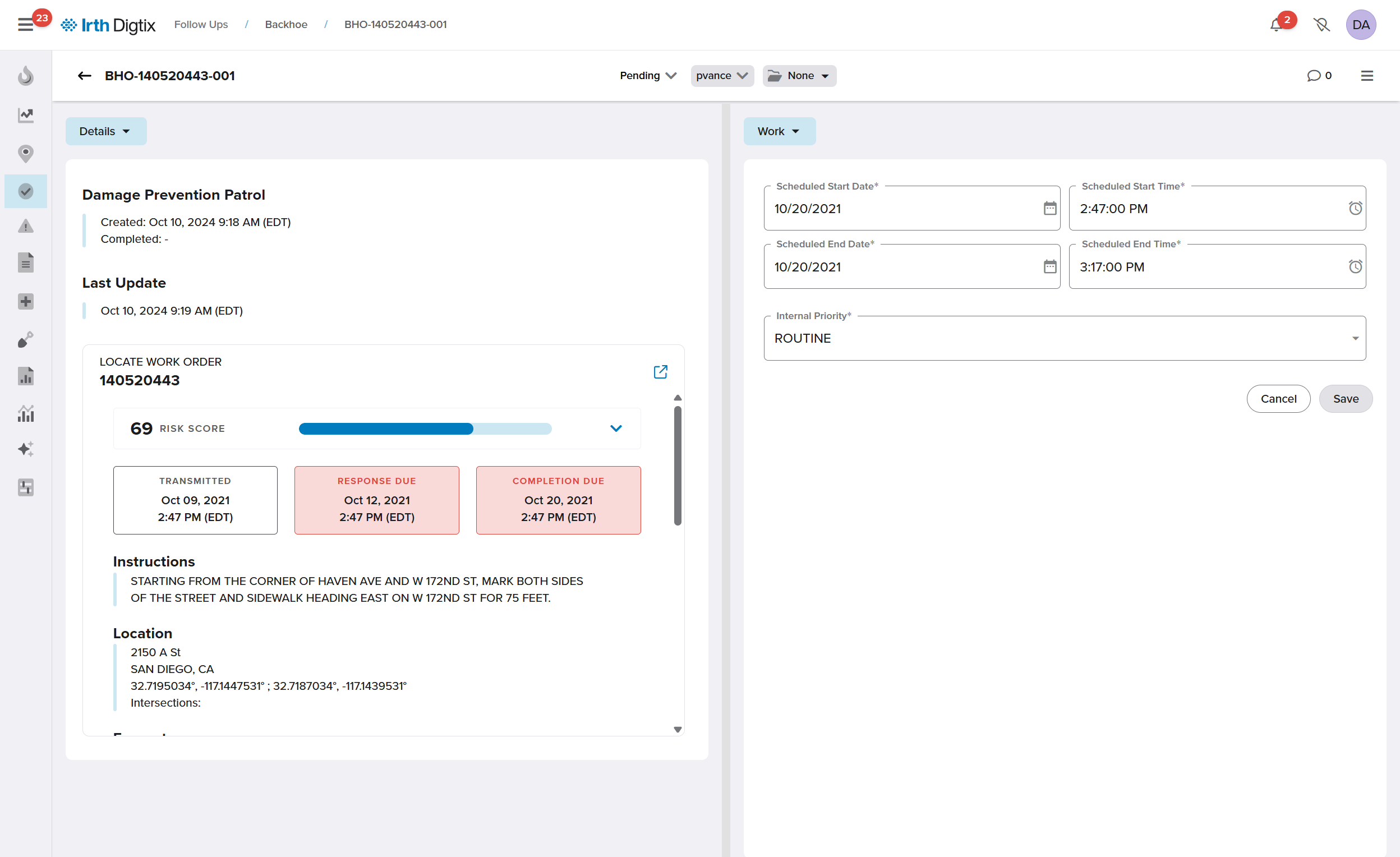
Opening a follow‑up displays the Follow‑Up window, where users can:
- Assign and prioritize the follow‑up
- Adjust scheduled start and end times
- Start time defaults to the locate request’s work starts time
- End time defaults to one hour later
- Attach photos using a device camera
- Drag and drop files as attachments
- Create and attach diagrams and custom forms
- View the full follow‑up history
- Open the related locate request
- Create additional follow‑ups for the same locate
Follow-Up Permissions
All permissions within Digtix are managed through the User Roles section of the Administration screen. By default, the ability to manage (create, edit, delete) follow-up types is reserved for the Administrator permission group.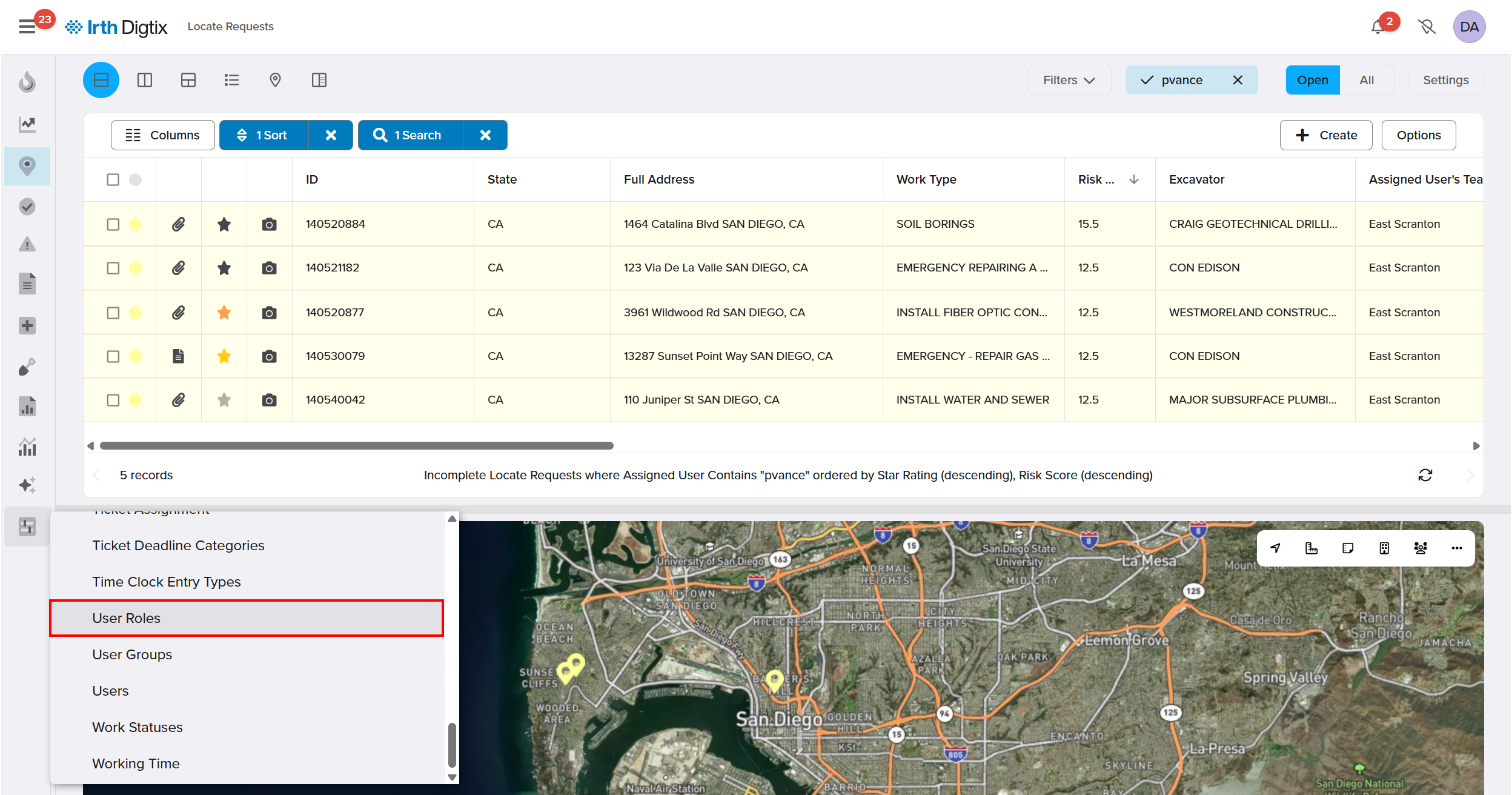
The ability to trigger follow-ups from locate requests is granted or revoked by the Ticket Follow Ups > Create toggle.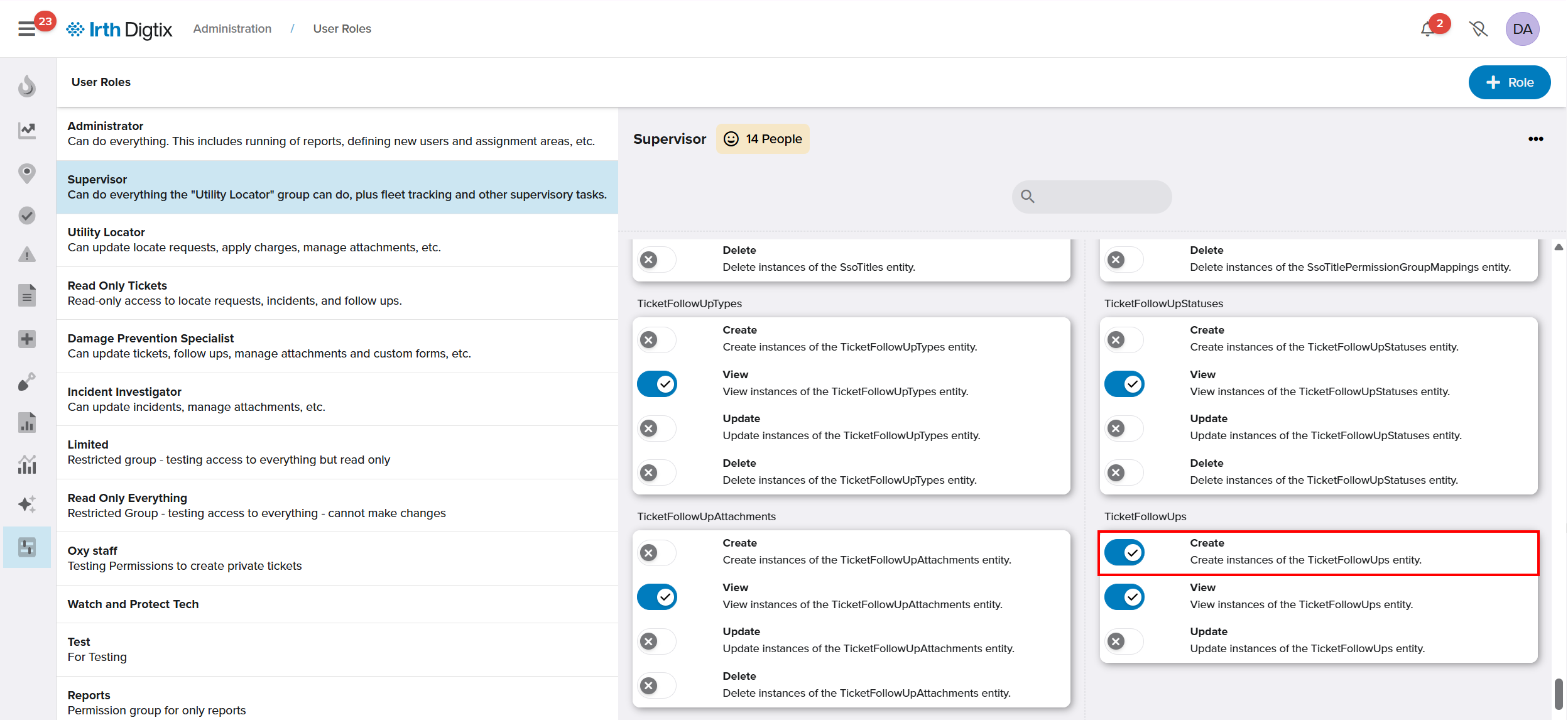
A permission group, Damage Prevention Specialist, under the Administration > User Roles menu. The completion of triggered follow-ups is granted to this permission group by default. Adding a user to the Damage Prevention Specialist permission group will provide that user with the appropriate permissions for viewing and completing triggered follow-ups.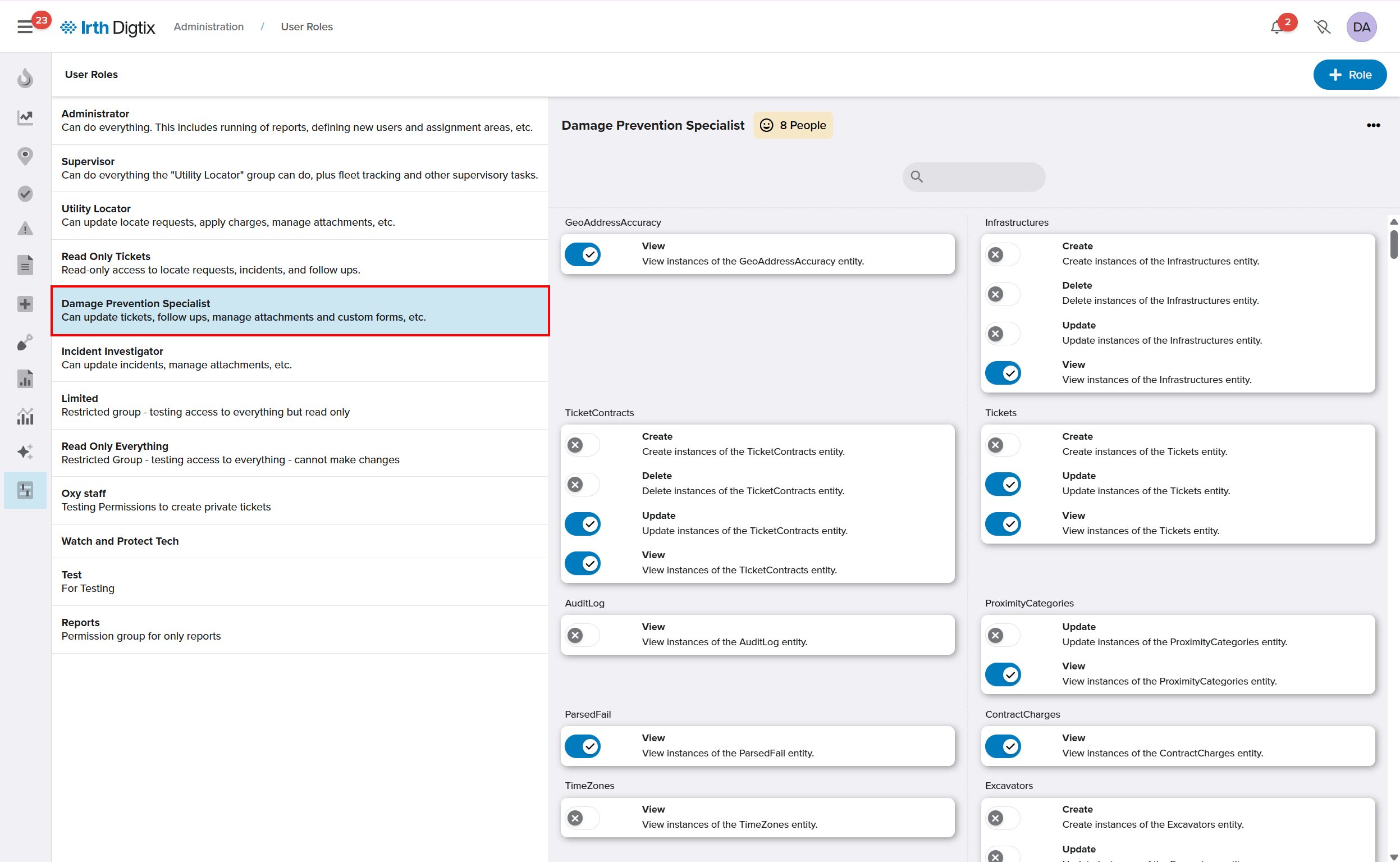
As with all permissions in Digtix, Administrators may modify default values to provide their Digtix users with the exact capabilities they need.
FAQ/Troubleshooting:
Q: Why can’t I create or edit Follow‑Up Types?
A: Only users with Administrator permissions can manage Follow‑Up Types.
Q: Why don’t I see the option to trigger a follow‑up from a locate request?
A: You may be missing the TicketFollowUps > entity > Create permission.
Q: Who can complete follow‑ups?
A: By default, users in the Damage Prevention Specialist permission group can view and complete follow‑ups. Administrators can customize permissions as needed.
Questions? Contact us!

Was this article helpful?
That’s Great!
Thank you for your feedback
Sorry! We couldn't be helpful
Thank you for your feedback
Feedback sent
We appreciate your effort and will try to fix the article