Introduction to the Ticket Map (New UI)
Purpose/Overview
In this article, you’ll learn how to use the Ticket Map in Digtix to visually track, analyze, and manage tickets more efficiently.
The Ticket Map provides a geographic view of tickets from the Locates, Incidents, and Follow-Ups pages, allowing users to quickly understand where work is occurring, identify nearby infrastructure, and make more informed decisions. This feature is intended for operational users, dispatchers, and supervisors who need spatial awareness to improve response times, reduce risk, and streamline daily workflows.
Navigation Path:
To access this feature: Digtix > Locates/Follow Ups/Incidents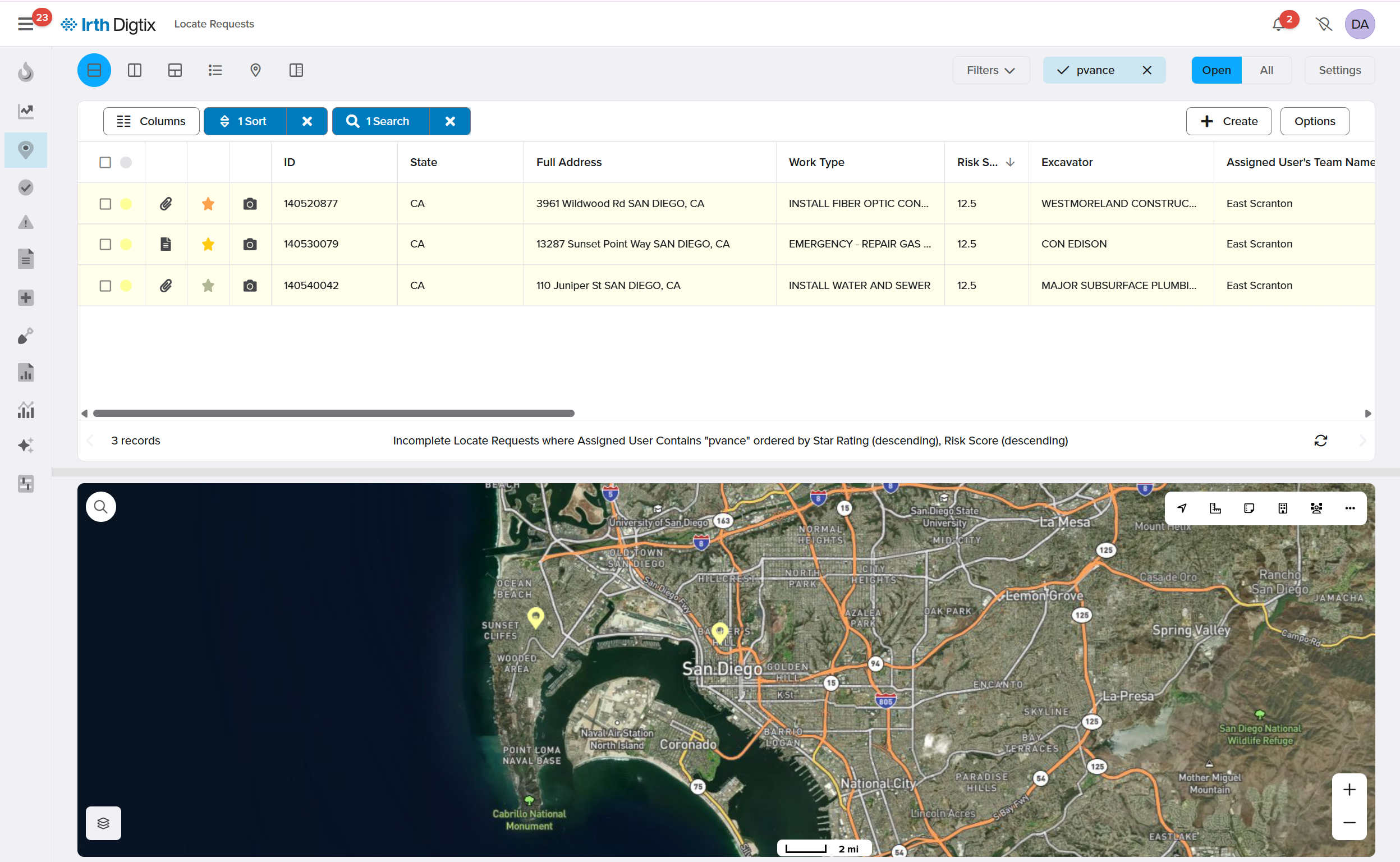
Things to Know:
Permissions: Access to the Ticket Map is based on standard ticket viewing permissions. Users must have access to Locates, Incidents, or Follow-Ups to view corresponding tickets on the map.
Data Visibility: Only tickets returned in the ticket grid are displayed on the map.
Infrastructure Data: Infrastructure must be loaded into Digtix to be visible when enabled on the map.
Map Notes: Map Notes are organization-wide, visible to all users, and retained for up to seven years.
Behavior: Map labels, color coding, and visible layers are user-controlled through the Settings menu.
Key Benefits/Use Cases:
Visual Ticket Awareness: Quickly see where all active tickets are located to improve situational awareness and planning.
Infrastructure Comparison: Overlay infrastructure data on the map to assess proximity to assets and identify potential risk areas.
Operational Efficiency: Use color coding, labels, and distance measurement tools to prioritize work, reduce travel time, and support faster decision-making.
How It Works:
View Tickets on the Map
- Navigate to the Locates, Incidents, or Follow-Ups page.
- Scroll to the bottom of the page to view the Ticket Map, or click the Map icon to open it in full-screen mode.
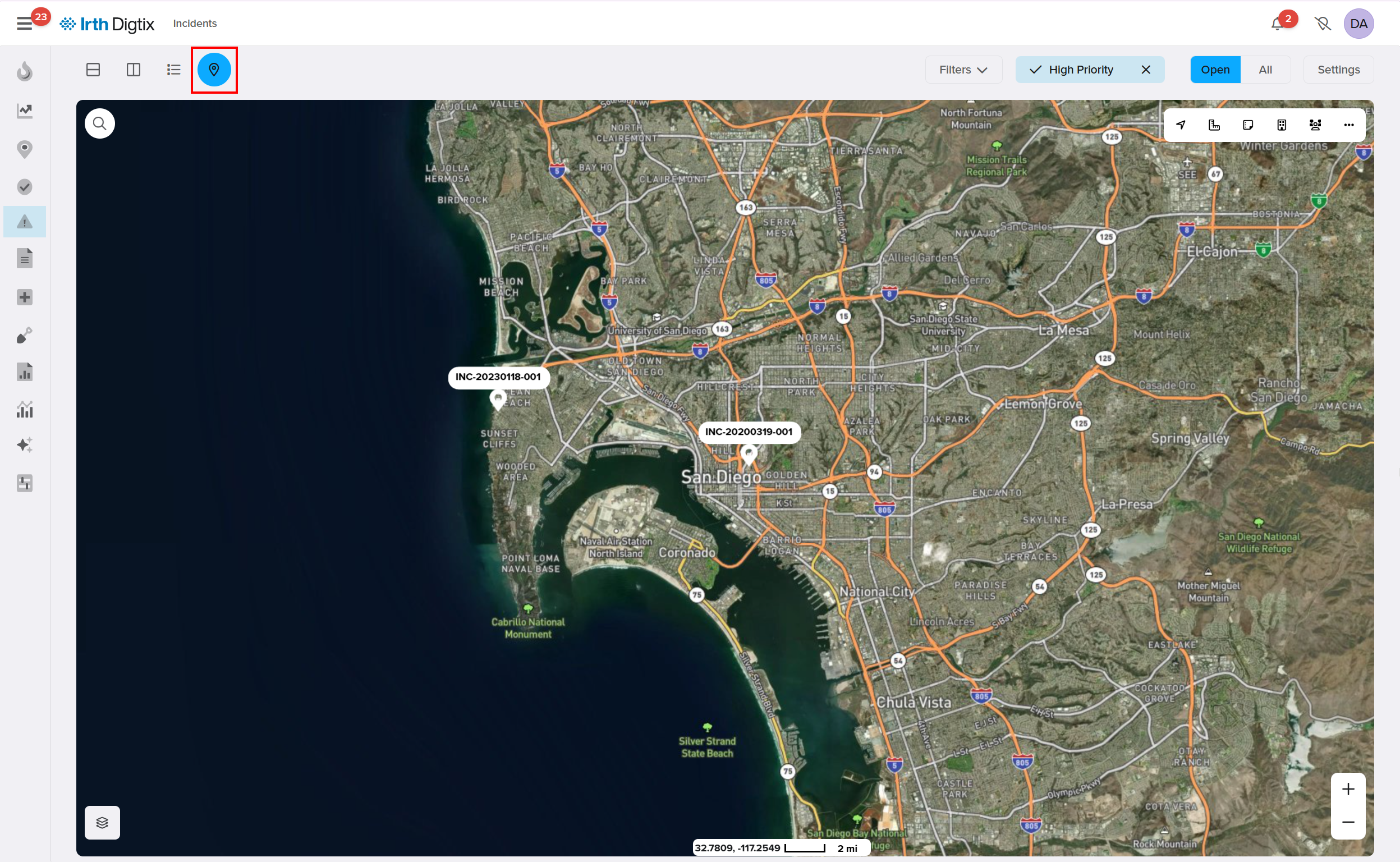
- Each ticket from the grid appears as a labeled marker on the map.
Configure Map Labels
Map labels display key ticket information directly on each marker.
- Open the Settings menu on the map.
- Under Map Label, select the desired fields for Label 1 and Label 2.
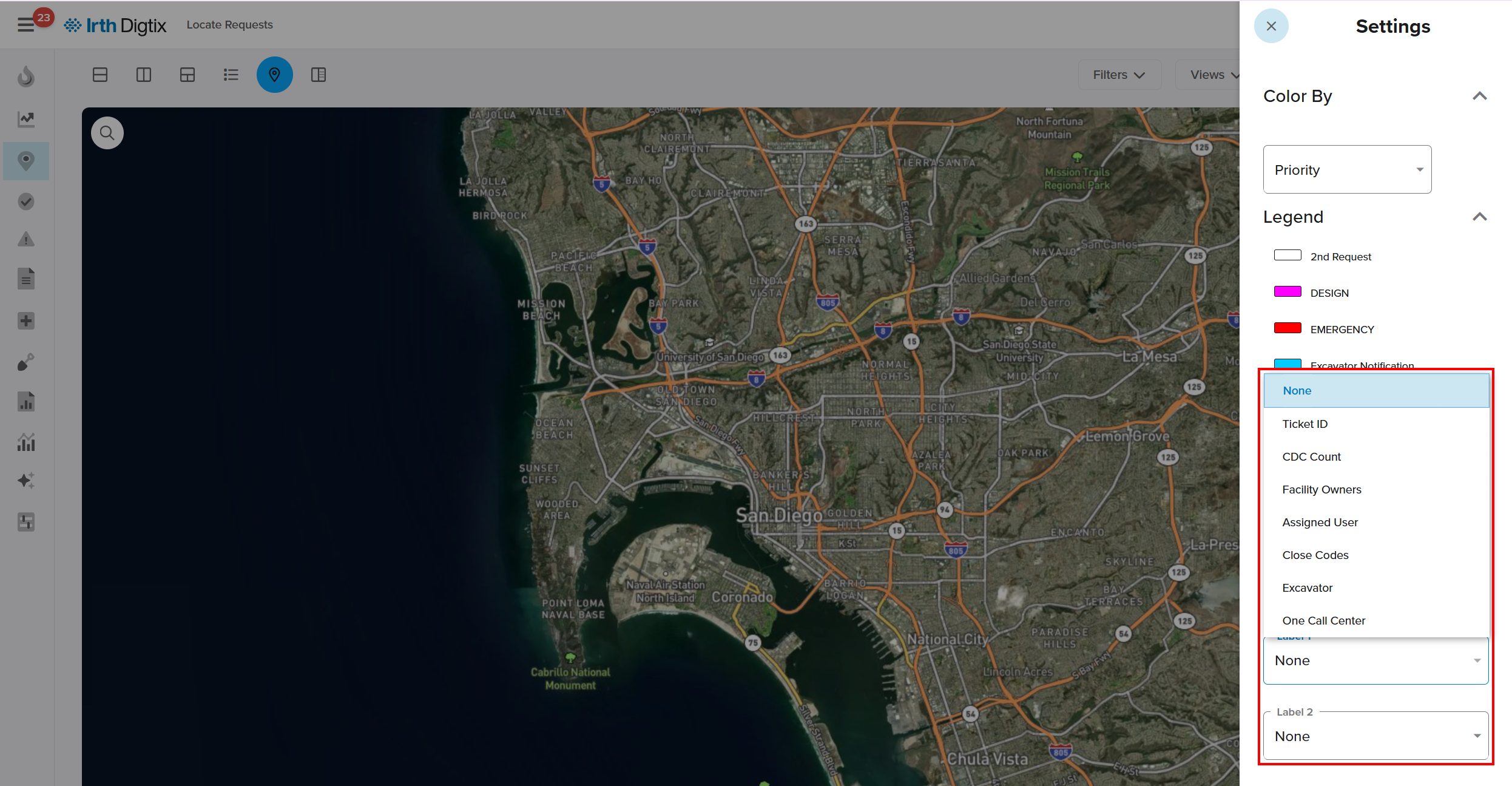 Available options include:
- None
- Ticket ID
- CDC Count
- Facility Owners
- Assigned User
- Close Codes
- Excavator
- One Call Centers
Color Tickets by Criteria
Ticket markers can be color-coded to visually highlight priorities or status.
- Open the Settings menu.
- Select a Color By.
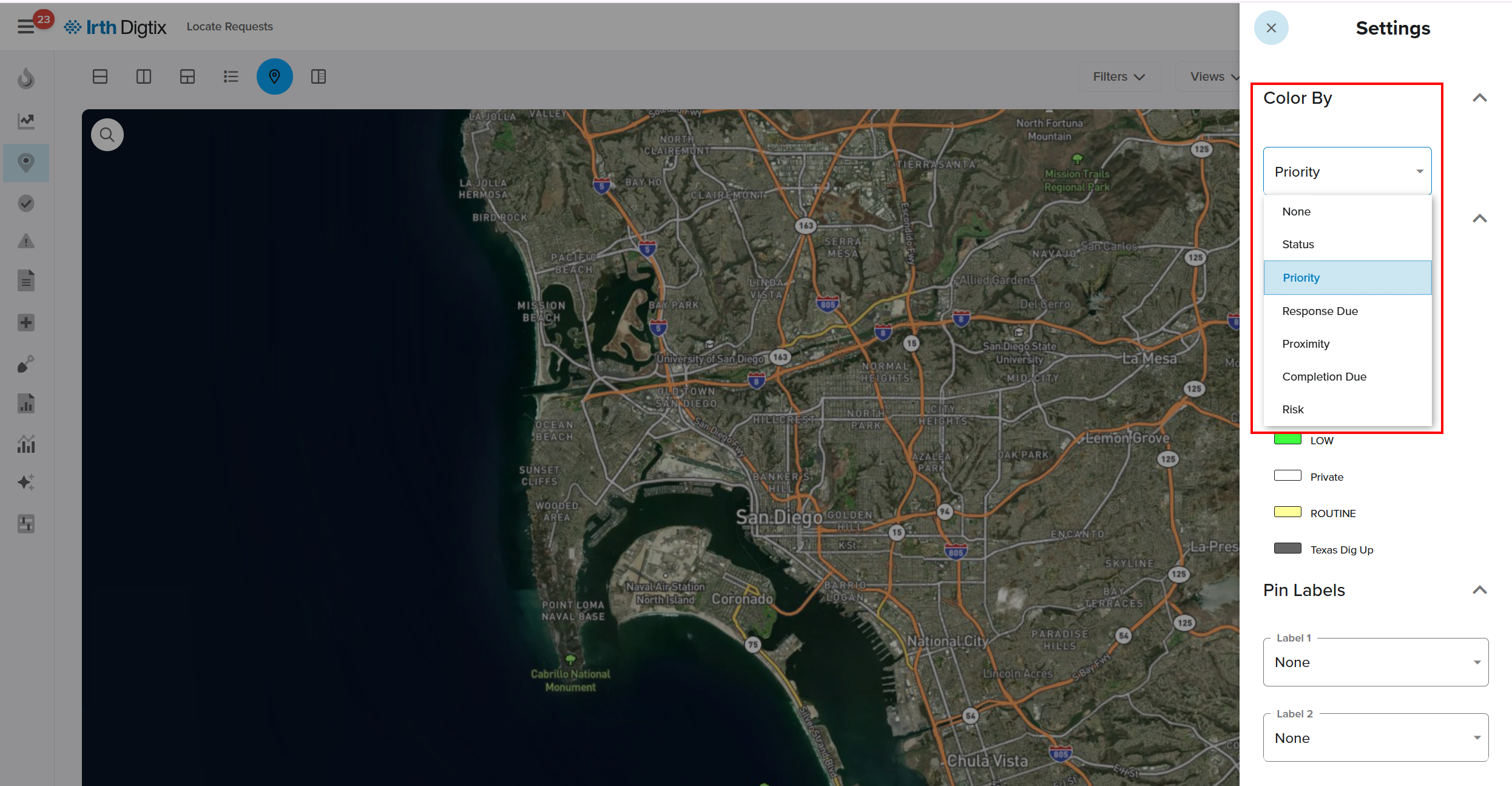 Available options include:
- None
- Status
- Priority
- Response Due
- Proximity
- Completion Due
- Risk
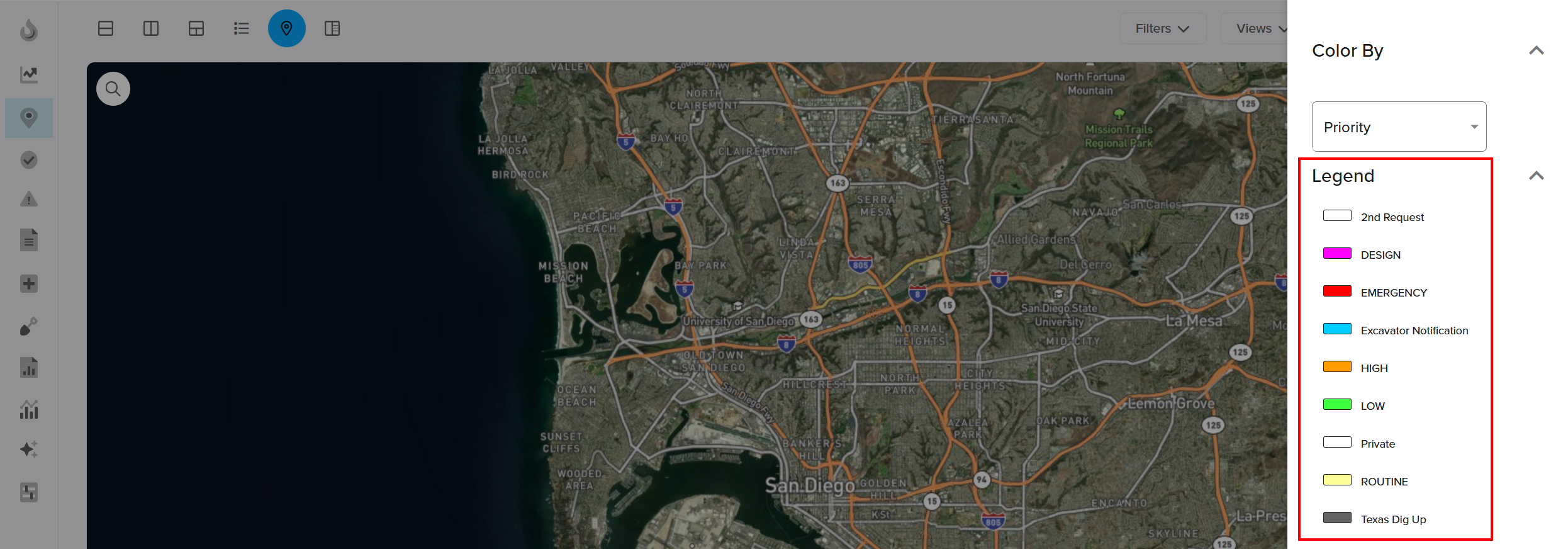
- Review the Legend, displayed directly below the Color By menu, to understand color meanings.
Show Facilities (Infrastructure Layers)
Infrastructure layers can be toggled on or off for better context.
- Click the Show Facilities icon on the map.

- Click the Infrastructures dropdown menu.
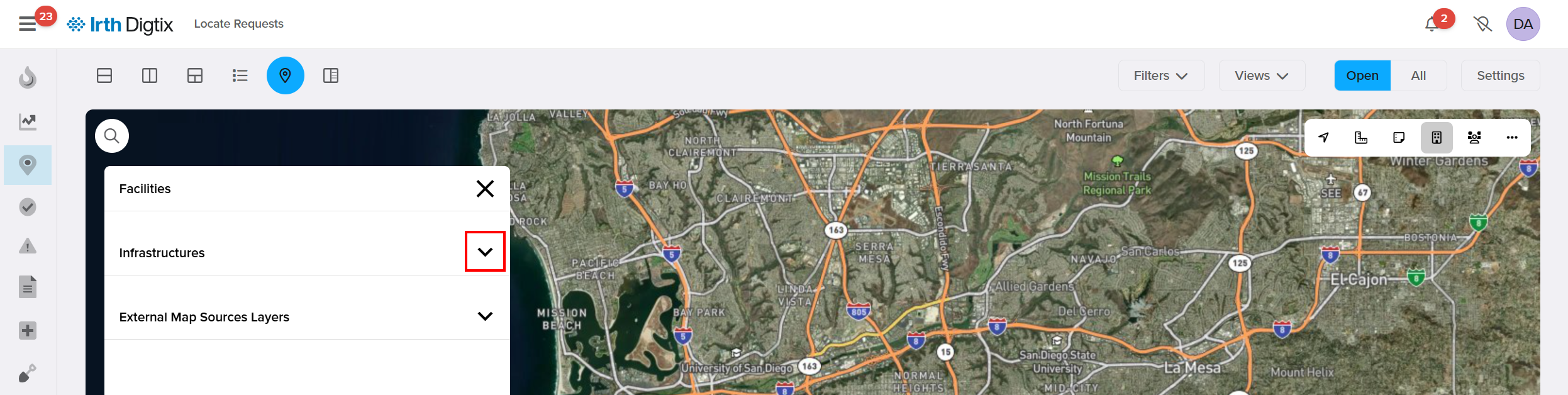
- In the Infrastructures section, toggle available infrastructure layers as needed.
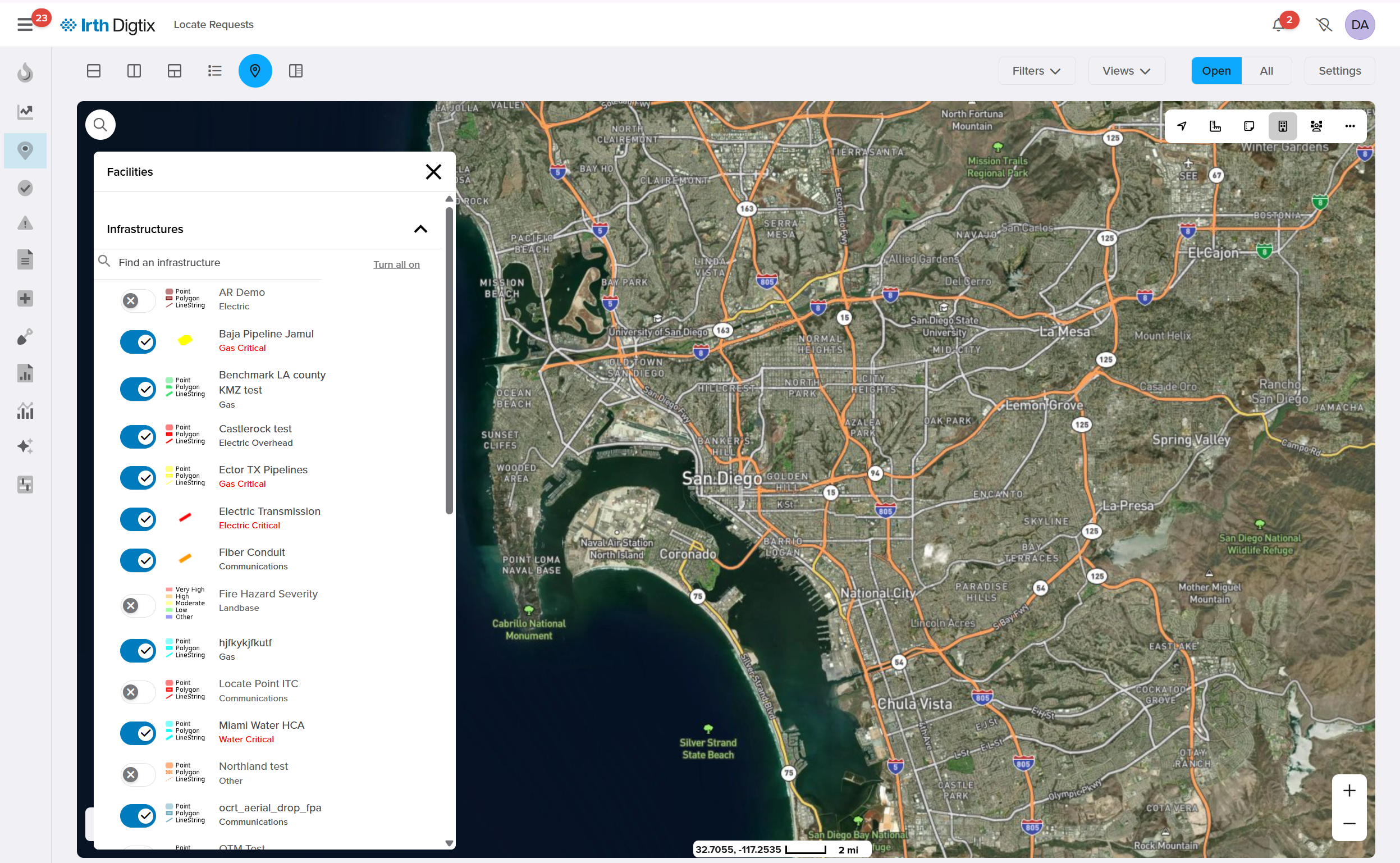
- Enabled infrastructure appears directly on the Ticket Map.
Use Map Notes
Map Notes allow you to store location-based information that is not tied to a ticket. These notes can be toggled on or off by clicking the Map Notes icon.
View Map Notes
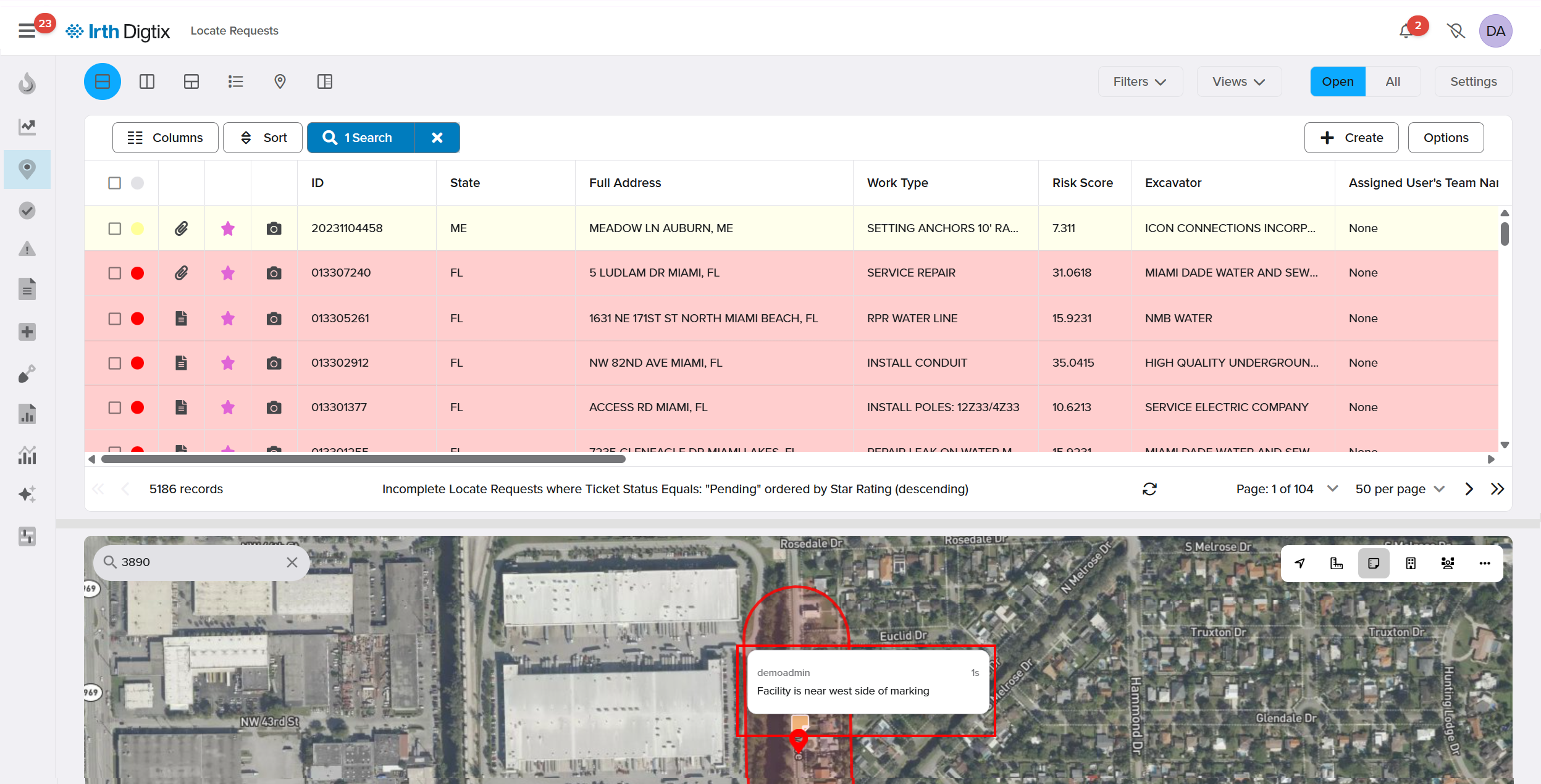
- Hover over a Map Note icon to see a brief description and the creator’s name.
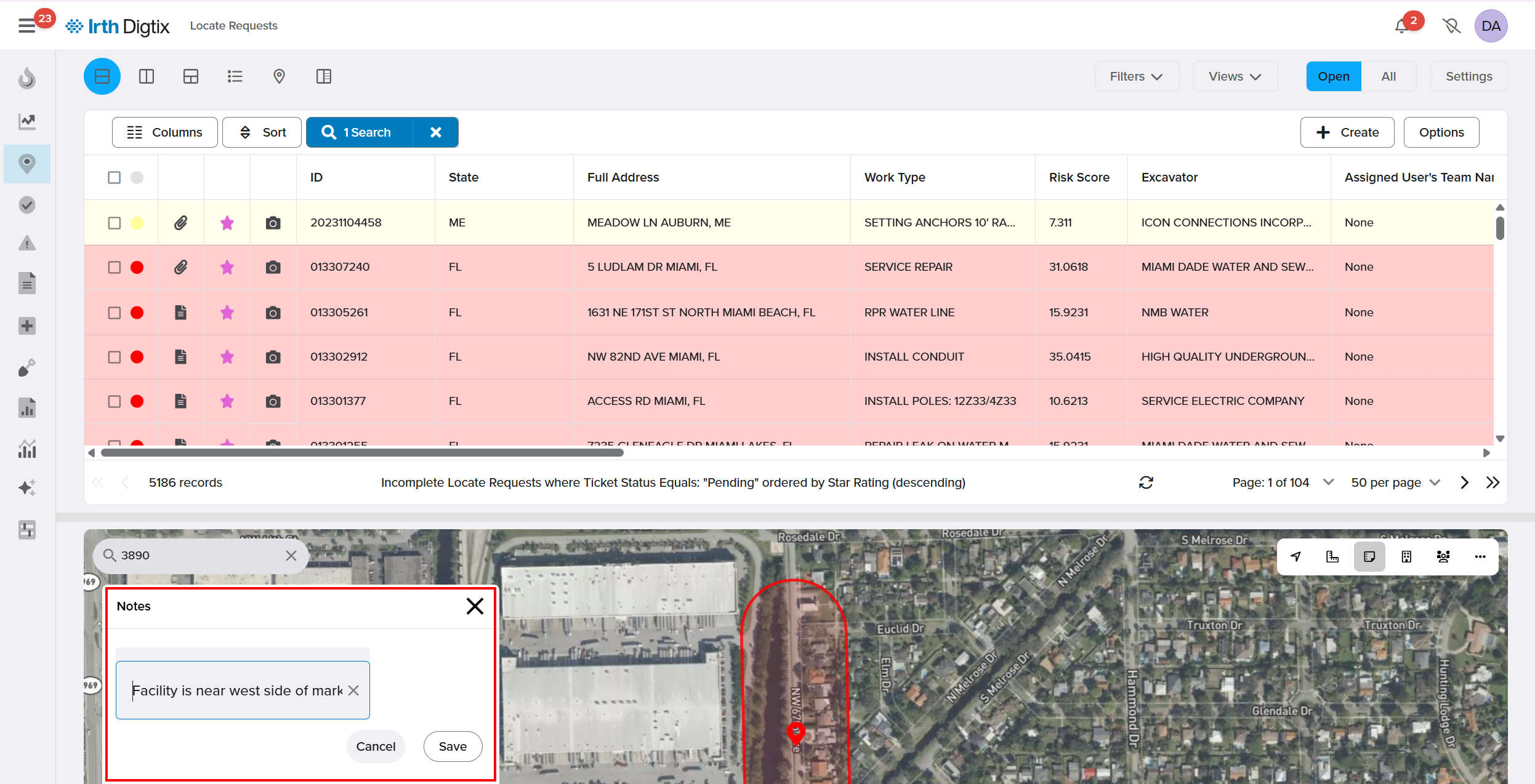
Create a Map Note
- Long‑click (click and hold for 2 seconds) on the desired map location.
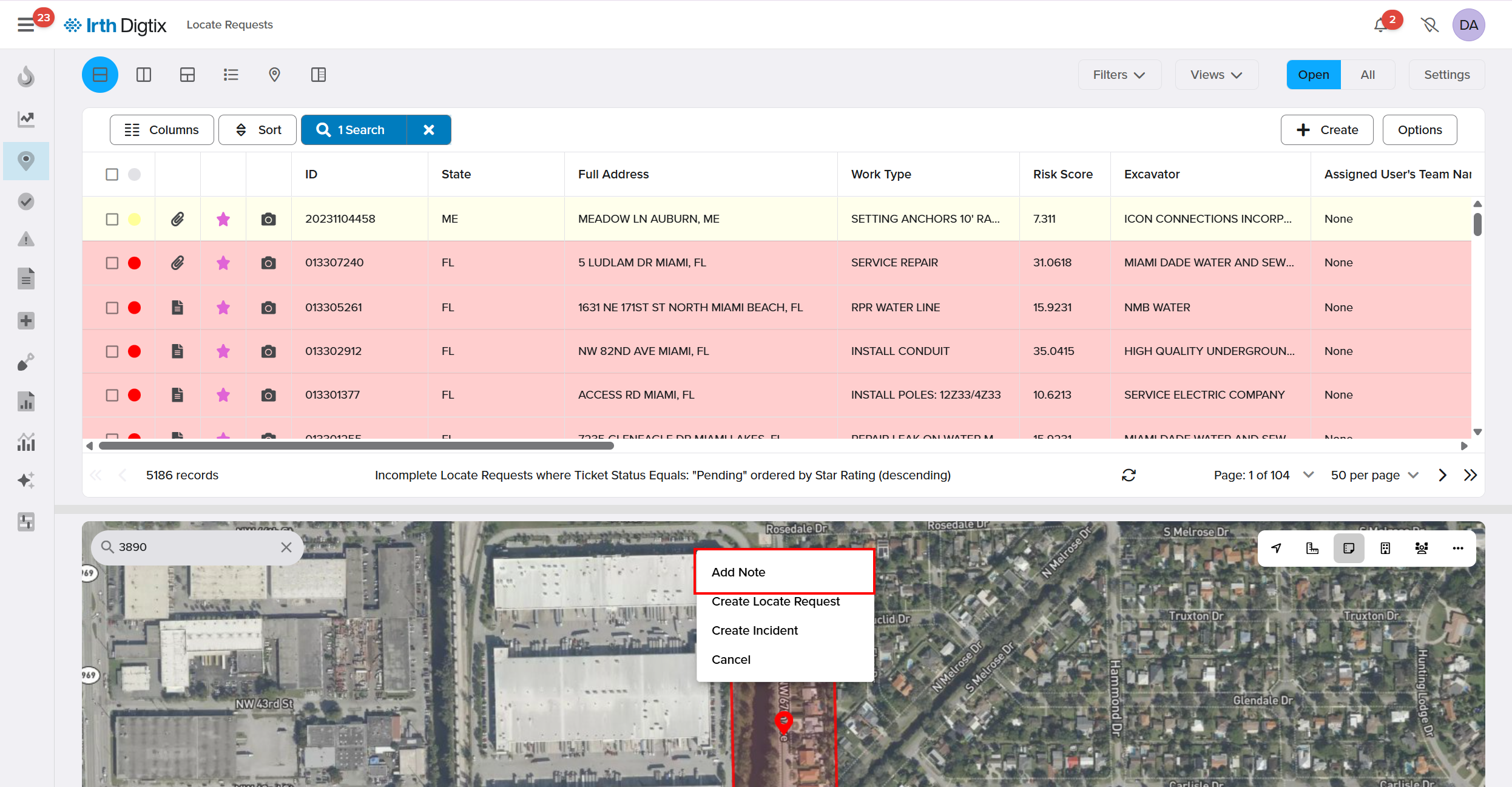
- Enter the note details in the pop-up window and Save.
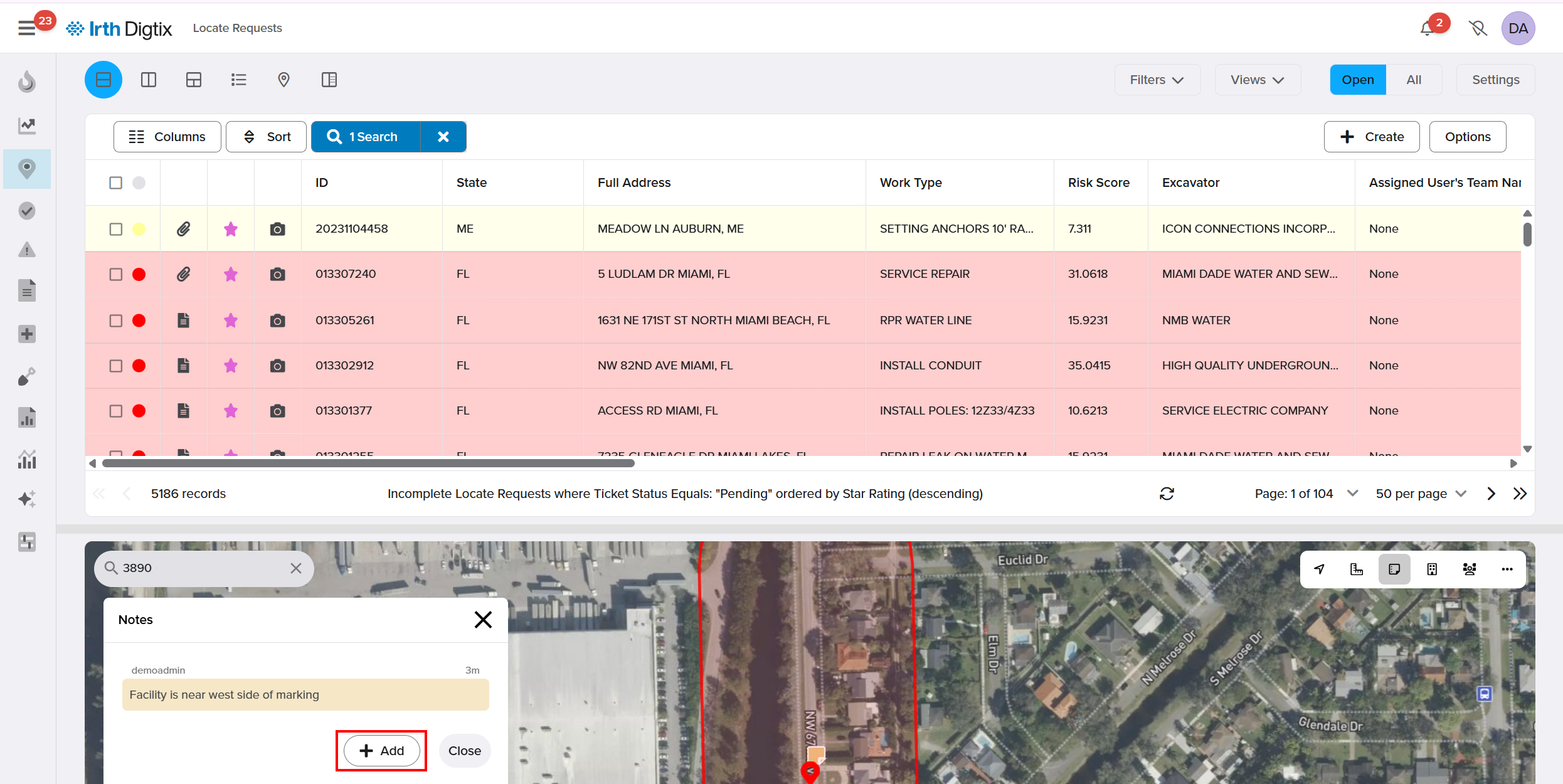
Update an Existing Map Note
- Open the existing Map Note.
- Click the + Add button to add a new entry and Save.
Measure Distance on the Map
The Measurement Tool calculates distances between points on the map.
- Click the Ruler icon to activate the Measurement Tool.

- Choose your measurement options.
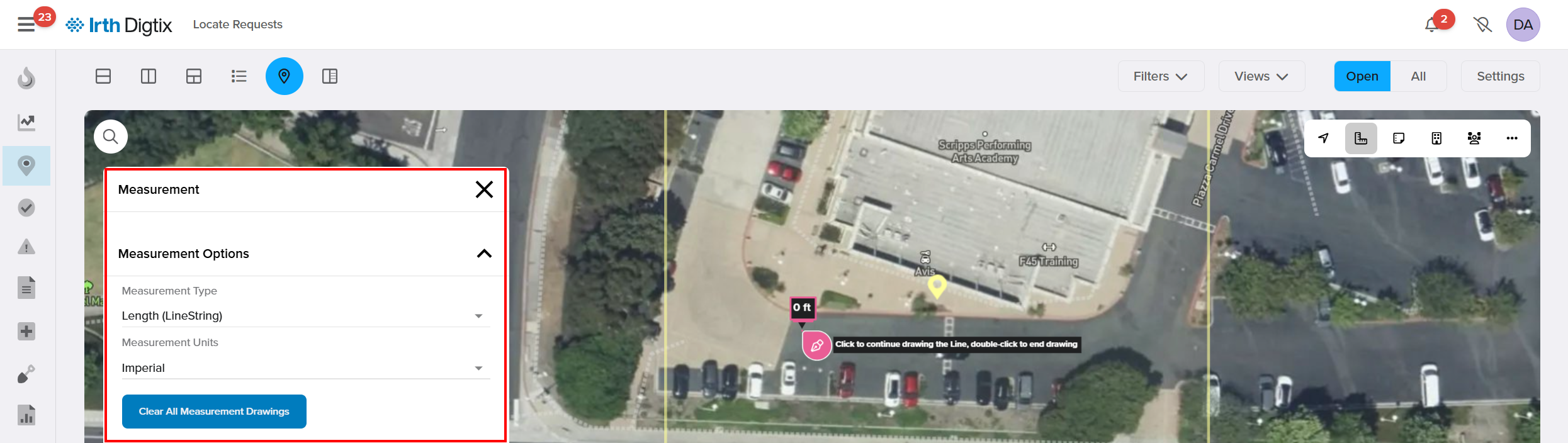
- Click to set a starting point.
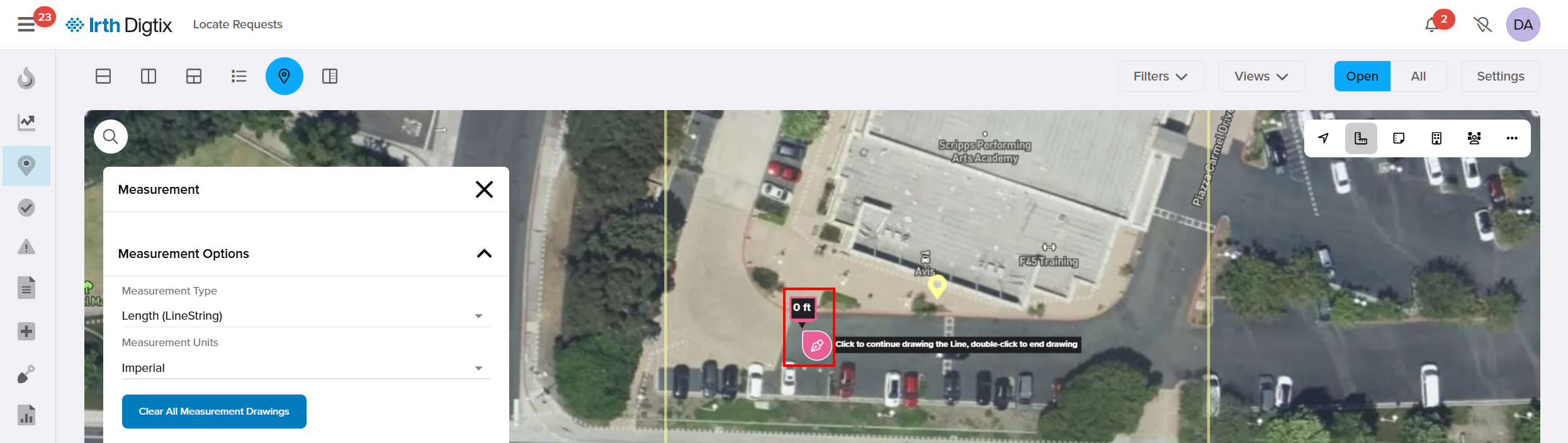
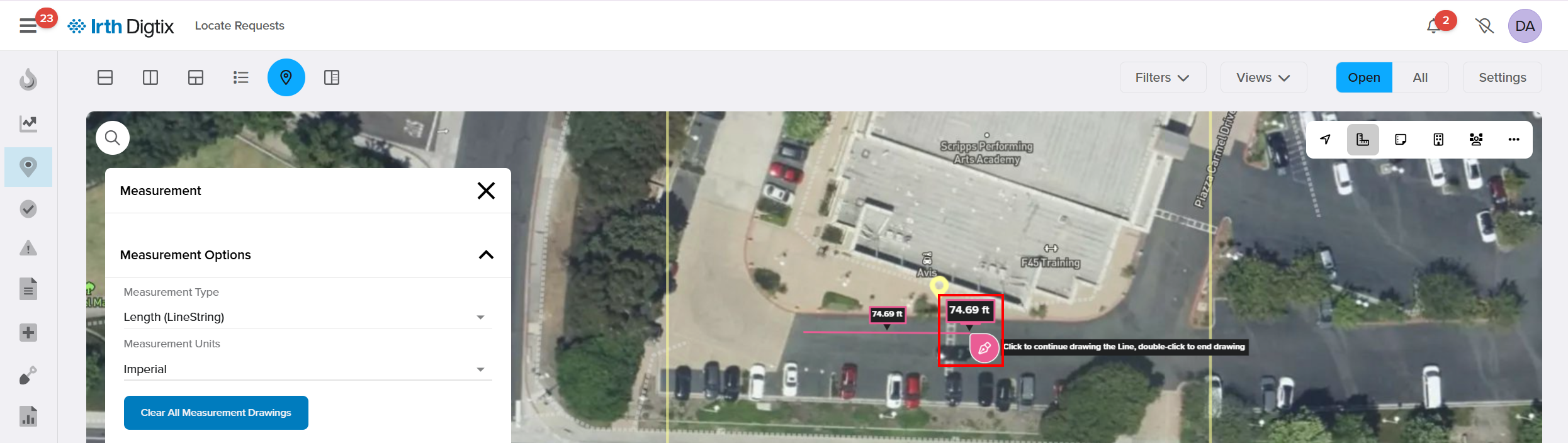
- Move the cursor and click again to set the ending point.
- The distance is displayed directly on the map.
Search by Address
- Click the Magnifying Glass icon.

- Enter an address in the Map Address Search field.
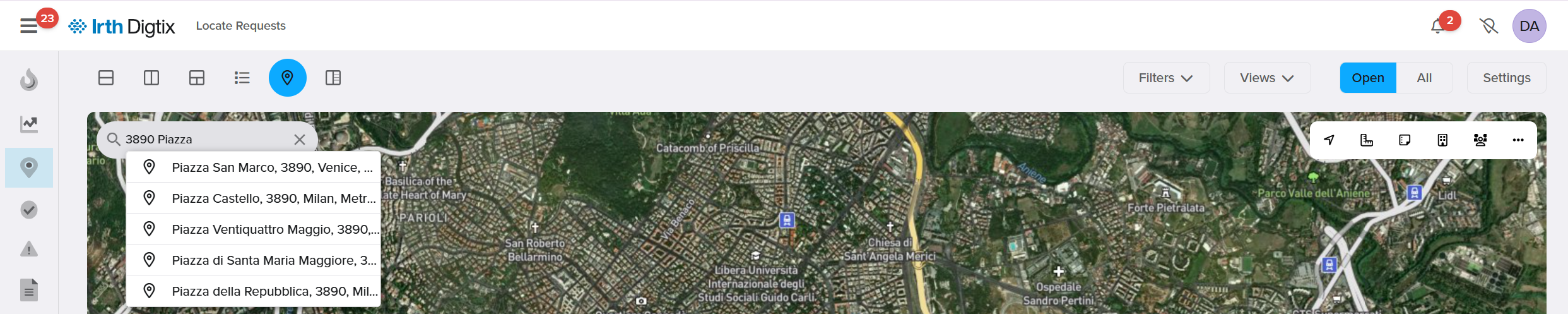
- Click Enter, and a blue marker appears at the searched location.

FAQ/Troubleshooting:
Q: Why don’t I see all tickets on the map?
A: The Ticket Map only displays tickets currently returned in the ticket grid. Adjust filters if needed.
Q: Are Map Notes visible to other users?
A: Yes. Map Notes are shared across your organization and visible to all users.
Q: Why can’t I see infrastructure on the map?
A: Infrastructure must be loaded into Digtix and enabled through the Show Facilities menu.
Questions? Contact us!

Was this article helpful?
That’s Great!
Thank you for your feedback
Sorry! We couldn't be helpful
Thank you for your feedback
Feedback sent
We appreciate your effort and will try to fix the article