Please follow the steps below if you have a user who cannot access Digtix. If you have completed all the steps and still cannot access Digtix, please contact your Digtix support personnel.
TROUBLESHOOTING STEPS
Make sure Digtix is being accessed from any of the major internet browsers.
- Check the user's login URL to ensure they are logging into the correct environment. The URL hostname should match the company's specific login page, e.g., "acme.digtix.com."
- Ensure the user exists within the system, is "Active," and is configured correctly.
- Ask the user what their username is.
- Login to Digtix with an administrative account.
- Navigate to the "Users" section of the "Administration" menu item page.
- Verify that the username exists in the list of users. (NOTE: Usernames and passwords are case-sensitive.)

Figure 1: Expand Menu
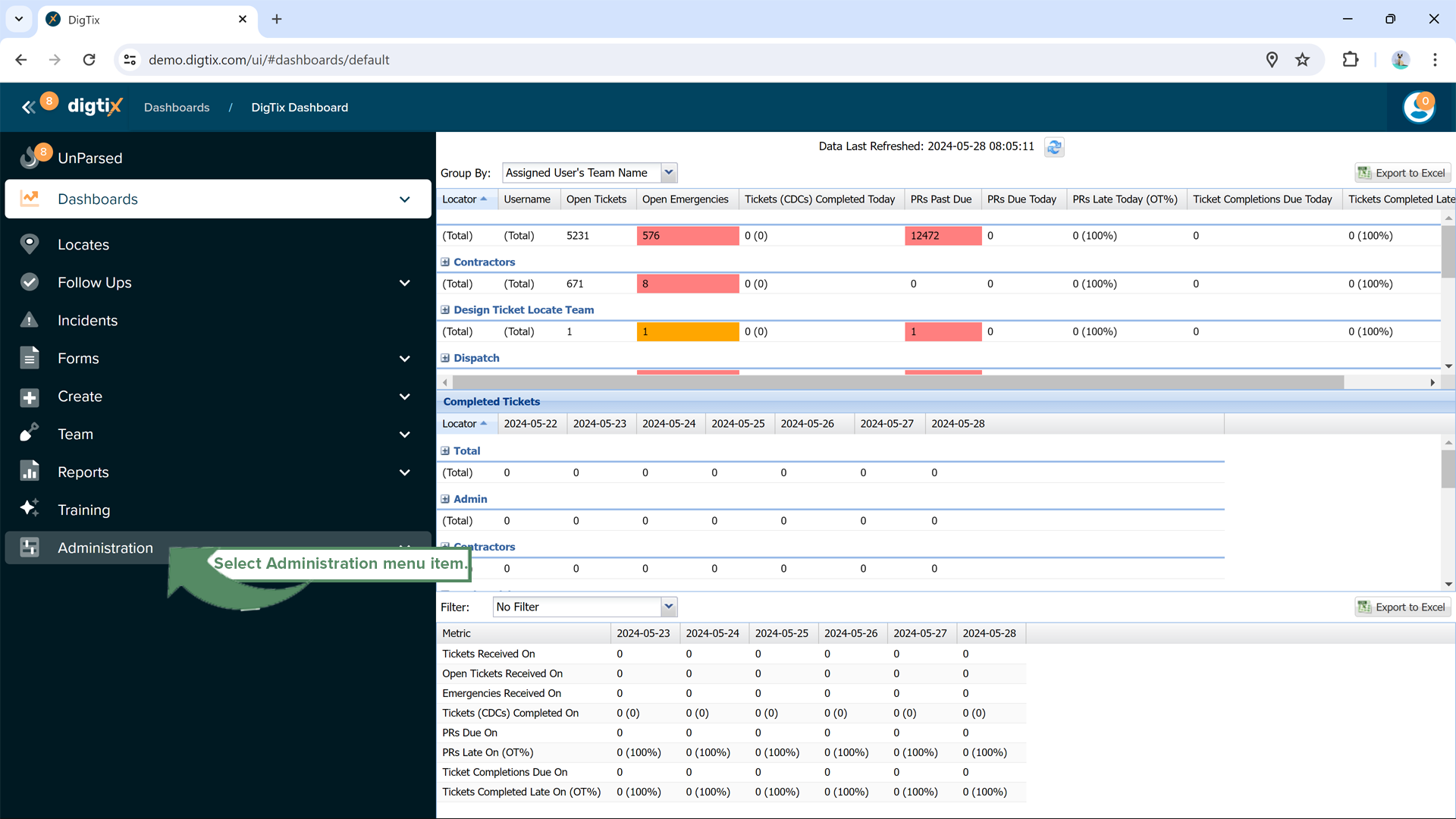 Figure 2: Select Administration
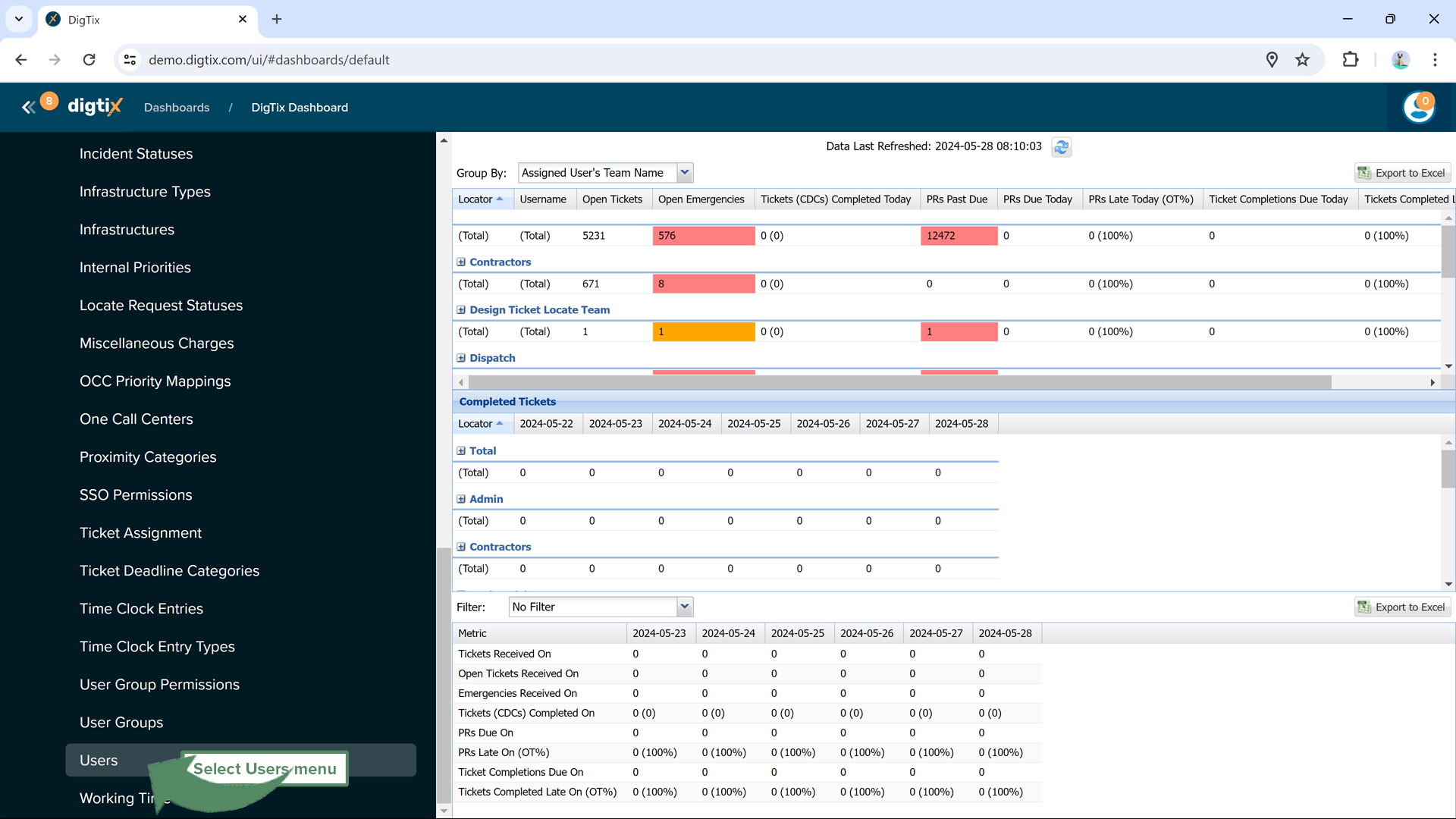 Figure 3: Select Users Menu
If the username does not appear in the list, ensure the user is not "inactive" by toggling the "Show Inactive" button towards the top right corner of the user list.

Figure 4: Select Inactive
If the user appears inactive, they must be reactivated to access Digtix. Open the user's profile by double-clicking on the appropriate entry in the user list. On the user's profile, check the "Active" checkbox field and click the "Submit" button.
3. Verify that the user's email address is correct.
- If the email is incorrect, update the email address and click the "Submit" button.
4. Verify that the user has the appropriate "Permission Groups" granted to them.
- If the user's permission groups are incorrect, check or uncheck the appropriate permission groups and click the "Submit" button.
5. Ensure the user is "Enabled." Users become disabled after five consecutive failed login attempts.
This is a security feature to prevent brute-force password guessing.
- If the "Enabled" checkbox is not checked, check it and click the "Submit" button.
and follow the instructions presented.
- The password recovery process requires the user to submit their username. The Digtix system then sends that user an email with a temporary password. Upon logging in with this temporary password, the user will be required to change their password.
- If the user's email address is incorrect, they will not receive the temporary password email. See step 3 above for instructions on how to update a user's email address.
- Depending on your organization's IT email filters, the Digtix password recovery email may be flagged as spam or junk. If the email is not delivered to the user's inbox, have the user check their spam/junk folders.
Was this article helpful?
That’s Great!
Thank you for your feedback
Sorry! We couldn't be helpful
Thank you for your feedback
Feedback sent
We appreciate your effort and will try to fix the article