Accessing and Exporting the Technical Console (New UI)
Purpose/Overview
In this article, you’ll learn how to access and export the Technical Console in Digtix. The Technical Console is used to collect diagnostic and technical information from a client device when troubleshooting issues or analyzing system behavior. This feature is primarily intended for administrators, support teams, or users assisting with issue investigation, and it provides a straightforward way to capture relevant logs for further analysis.
Navigation Path:
To access this feature, once you are in debug mode, go to: Digtix > Account Menu > Console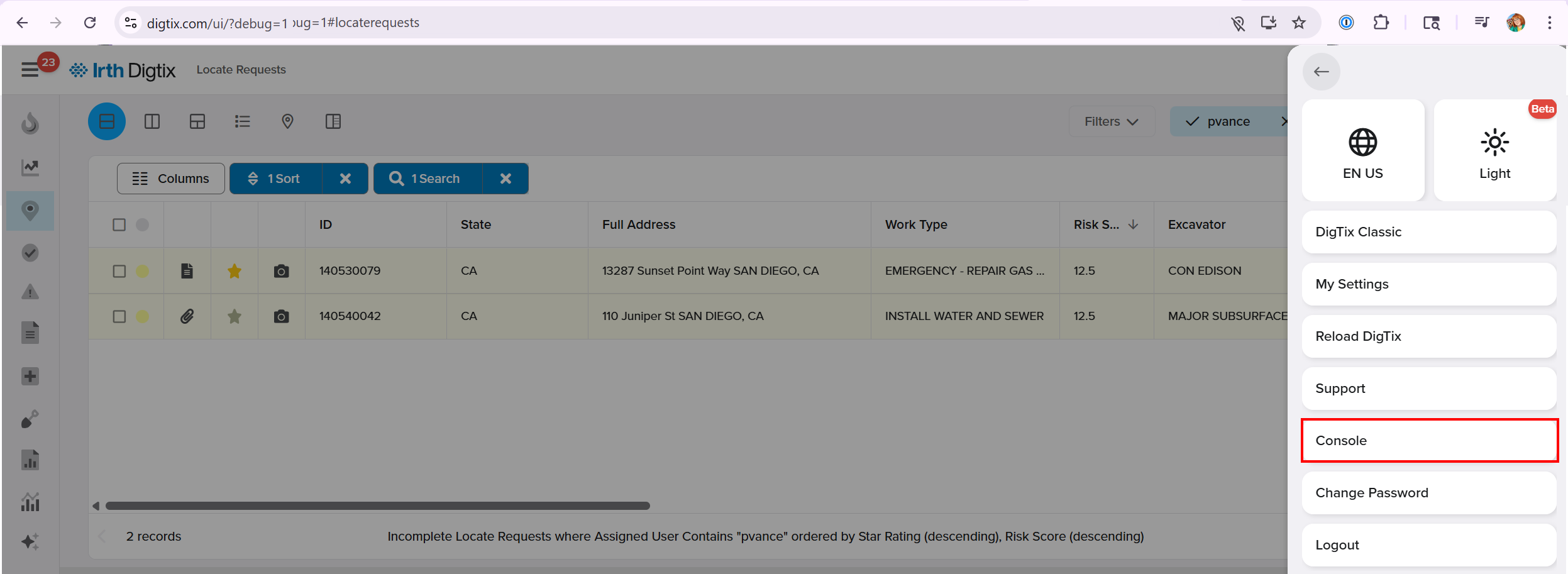
Things to Know:
Permissions & Access
- You must be able to log in to Digtix successfully to access the Technical Console.
- Access to the Console option is available only when Digtix is launched in debug mode.
Browser / Platform Considerations
- The Technical Console is accessed through a web browser.
- Certain iOS devices have limitations that prevent exporting console logs directly.
Known Limitations & Behaviors
- On some iOS devices, the Export button may not appear. In these cases, console messages must be copied manually or captured via screenshots.
- Diagnostic logs are collected only after debug mode is enabled and user actions are performed.
Key Benefits/Use Cases:
Issue Troubleshooting: Collect technical logs while reproducing an issue to help identify errors, performance issues, or unexpected behavior.
Support Escalation: Provide exported diagnostic files to internal teams or support staff for faster and more accurate issue resolution.
Behavior Validation: Capture console activity to confirm system responses during specific workflows or actions within Digtix.
How It Works:
Follow these steps to access and export the Technical Console:
Log in to Digtix
Sign in to your Digtix account as you normally would using your web browser.Enable Debug Mode
- Select the Profile icon and select Enable Debug from the menu.
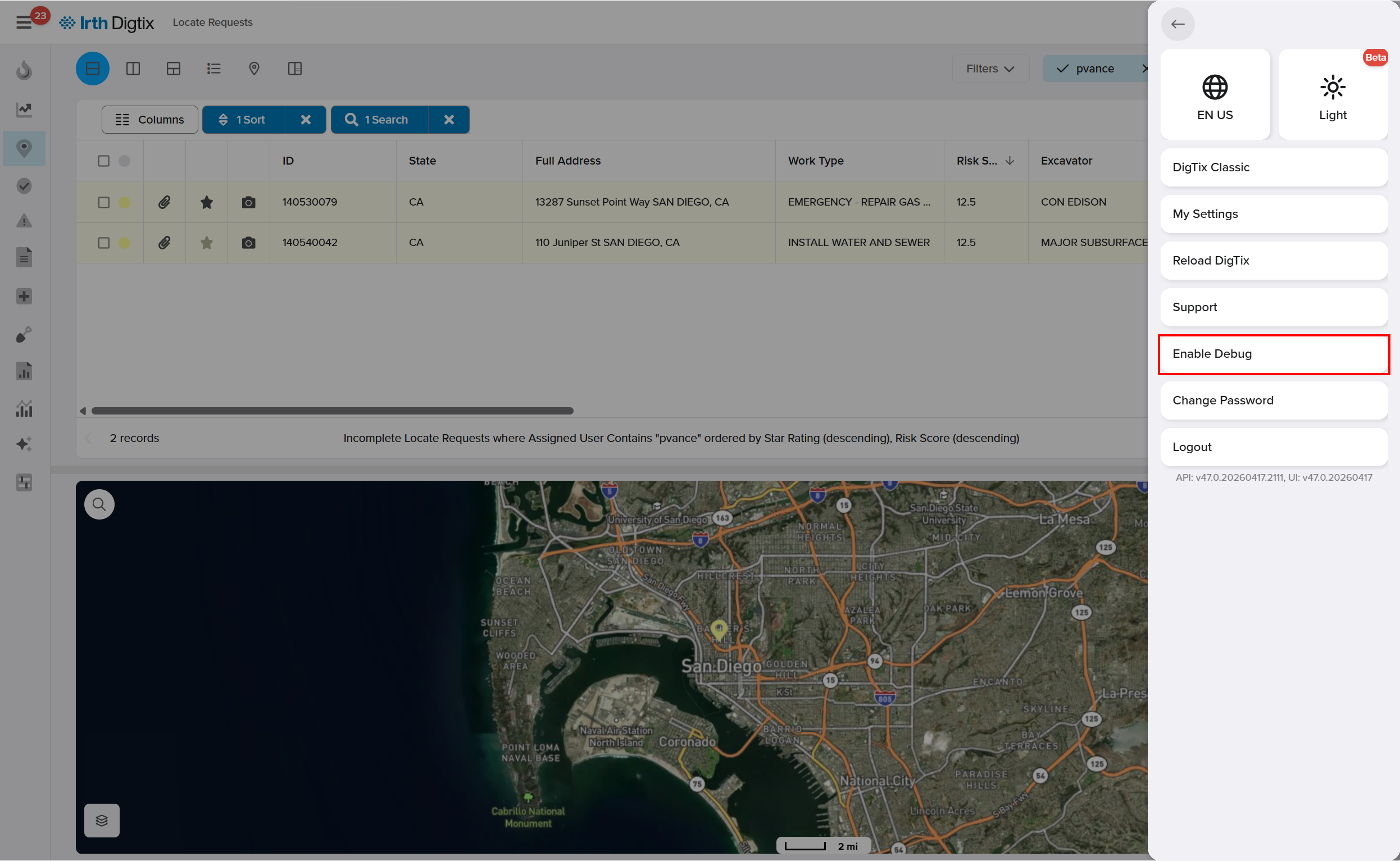
- Select the Profile icon and select Enable Debug from the menu.
Perform Relevant Actions
Once Digtix loads in debug mode, complete the actions or workflow related to the issue you are investigating.Open the Technical Console
- Select the Account menu in the top-right corner.

- Click Console to open the Digtix debug console window.
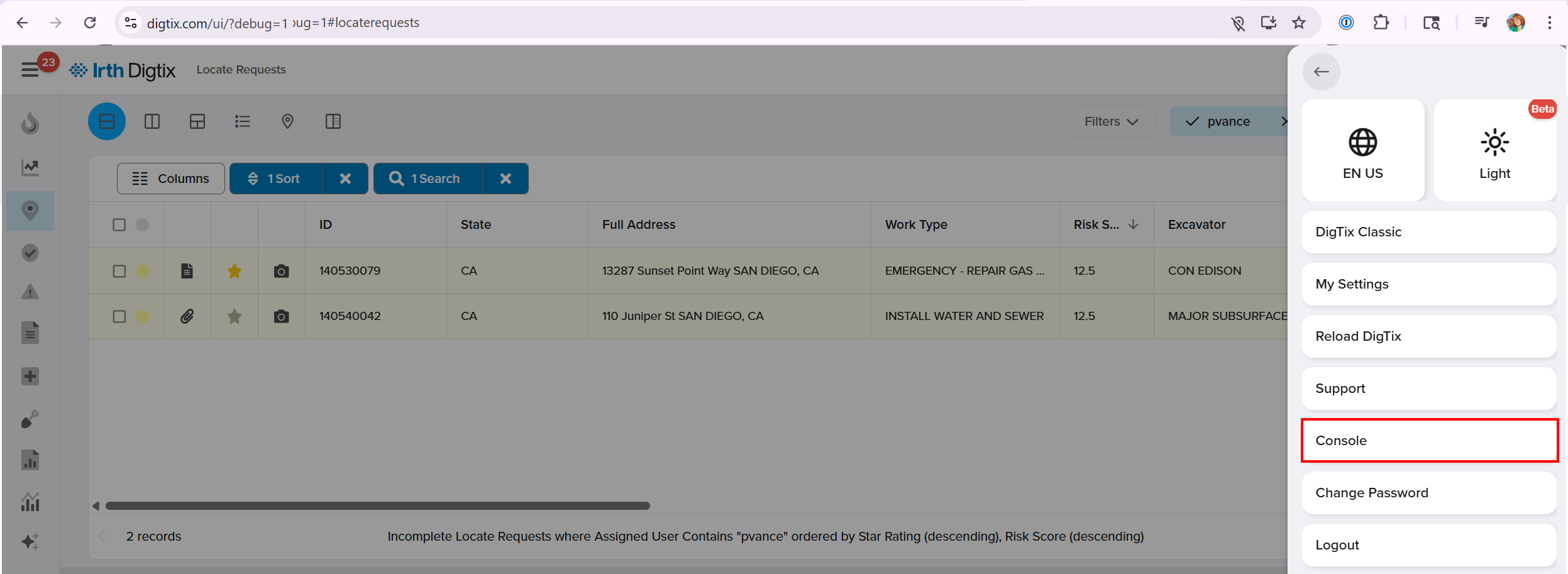
- Select the Account menu in the top-right corner.
Export the Console Log
- In the console window, click Export in the top-right corner.
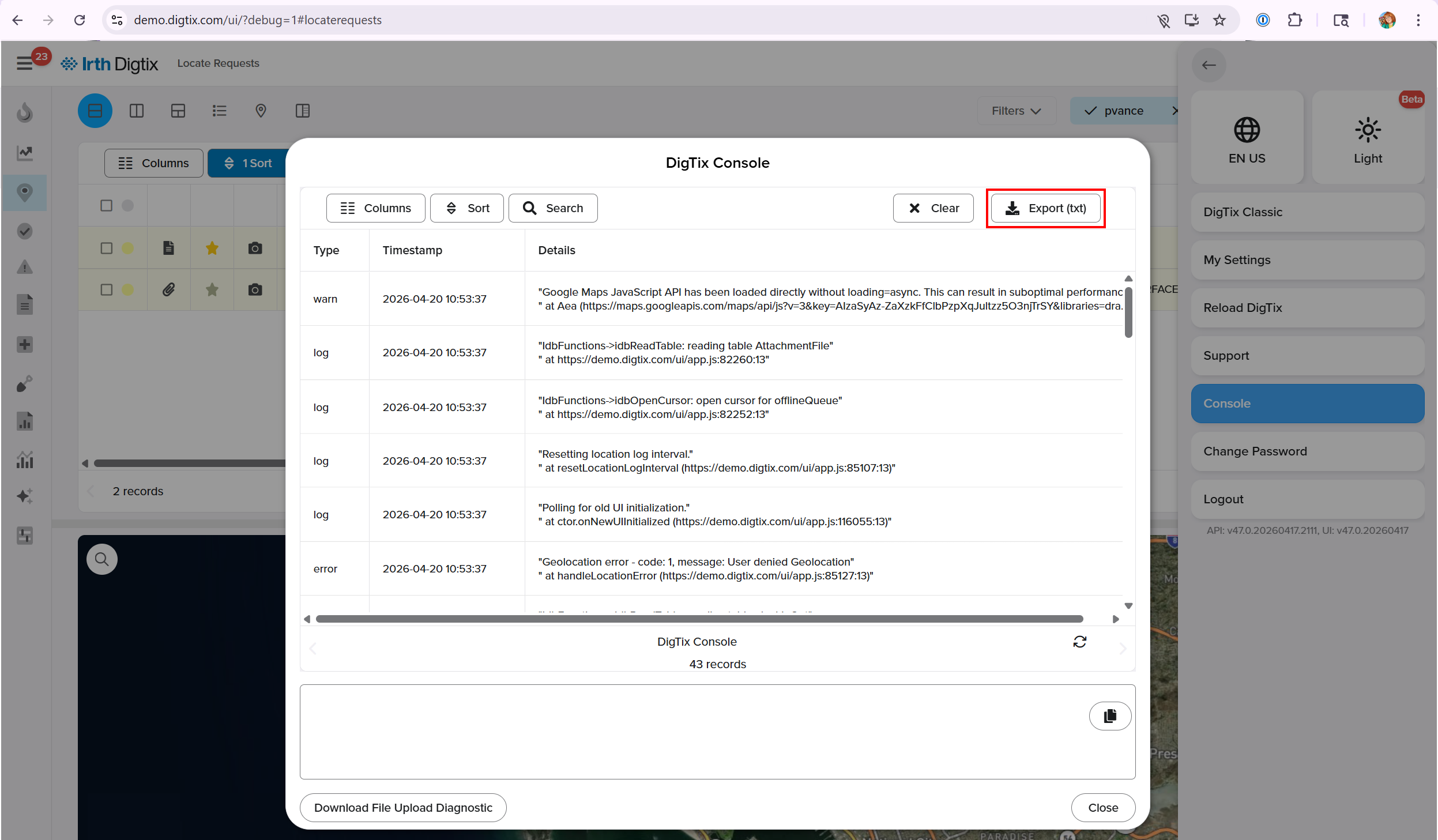
- A diagnostic text file will be downloaded to your device.

Note: If the Export button is not available (commonly on certain iOS devices), manually copy the console messages into a file or capture screenshots instead.
- In the console window, click Export in the top-right corner.
Share the Diagnostic File
Provide the downloaded diagnostic text file to the appropriate team or individual for analysis.
FAQ/Troubleshooting:
Q: Why don’t I see the Console option in the Account menu?
A: The Console option is only available when Digtix is launched in debug mode. Click the Profile icon and select Enable Debug.
Q: Why is the Export button missing on my device?
A: Some iOS devices do not support exporting console logs. In these cases, copy the messages manually or use screenshots.
Q: What actions should I perform before exporting the console log?
A: Perform the actions related to the issue you are troubleshooting so the relevant diagnostic information is captured.
Questions? Contact us!

Was this article helpful?
That’s Great!
Thank you for your feedback
Sorry! We couldn't be helpful
Thank you for your feedback
Feedback sent
We appreciate your effort and will try to fix the article