Once your Digtix account is activated, you’ll receive an email with login instructions. If you don’t see the email in your inbox, be sure to check your spam or junk folders.
Digtix is operational on all devices that support the latest version of any major modern browser. When accessing Digtix on a mobile Apple device (e.g. an iPad or an iPhone), Apple Safari is highly recommended.
To login to your Digtix account, navigate your web browser to your company’s Digtix home page and enter your username and password; then, click login. Users with single sign-on access will click the Log in with SSO link toward the bottom of the login screen.
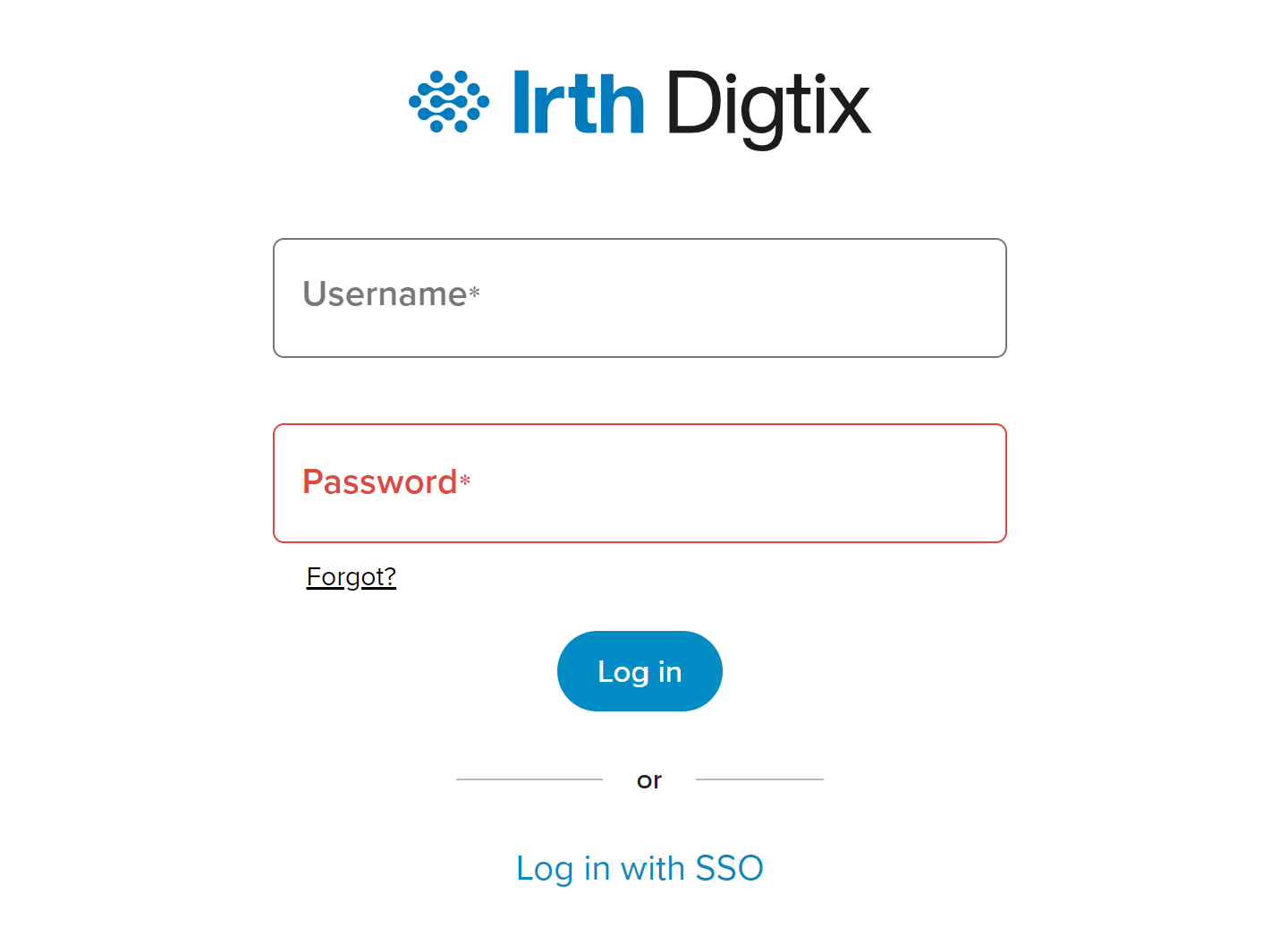
Figure 1: Digtix Login Screen
If you forgot your password, click the Forgot? link under the Password textbox. The recover password window will appear. Enter your username; then, click submit. A recovery password is emailed to the associated account. The email contains a temporary password. On the Digtix login page, enter your username and the temporary password from the email you received; then, click login. Digtix will require you to choose a new password to use moving forward.
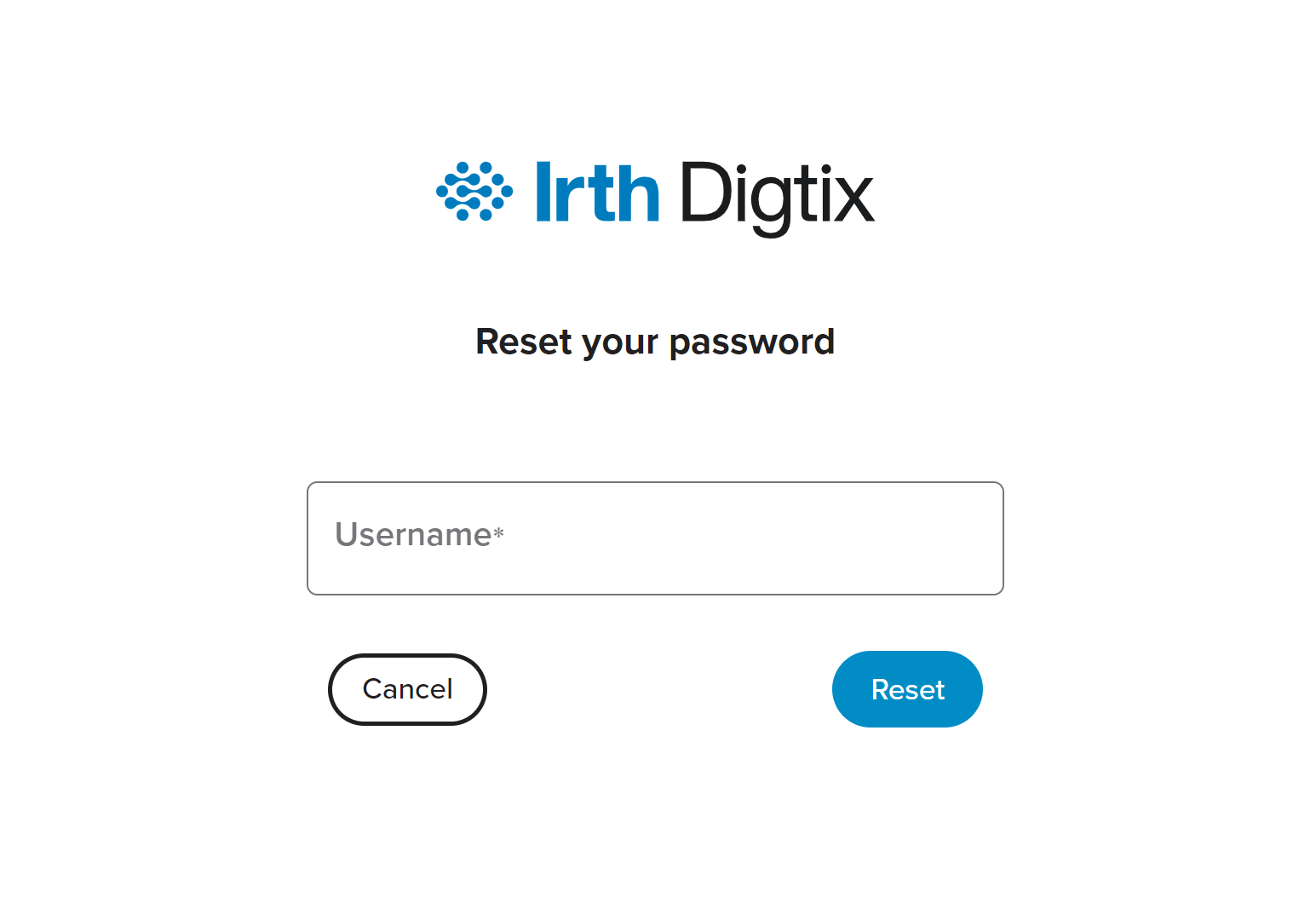
Figure 1: DigTix Reset Password Screen
As a security measure, user accounts will lock after several consecutive incorrect login attempts. Locked accounts must be unlocked by a Digtix administrator. If you find your account has been locked, you should contact your manager and ask that they unlock it.
Was this article helpful?
That’s Great!
Thank you for your feedback
Sorry! We couldn't be helpful
Thank you for your feedback
Feedback sent
We appreciate your effort and will try to fix the article