Incomplete File Uploads Troubleshooting Guide (New UI)
Purpose/Overview
In this article, you’ll learn what to do when a file attachment is marked as Incomplete in the Digtix File Upload Manager. This guide explains why incomplete uploads occur, who may be affected, and how to quickly resolve the issue. It also outlines the value of these troubleshooting steps—helping users restore stalled uploads, prevent data loss, and ensure successful attachment completion.
Navigation Path:
To access this feature, go to: Digtix > Locates > Ticket > Attachments
Things to Know:
Supported Browsers: Microsoft Edge, Chrome, and Safari are supported browsers.
Device Consistency: File uploads must be completed on the same device where the upload was initiated.
Network Considerations: Other applications consuming bandwidth or multiple Digtix tabs open may reduce upload performance.
Connectivity Requirements: Broadband is recommended. Mobile networks may appear strong but still lack the throughput needed for large file uploads.
Storage Requirements: At least 5GB of free disk space is recommended before uploading.
File Upload Diagnostic Tool: A File Upload Diagnostic button is available to capture a detailed snapshot of the client environment, helping Support quickly identify upload‑related issues.
Key Benefits/Use Cases:
Field Technicians Uploading Photos: Field technicians often upload multiple photos or documents while on‑site, and occasionally these uploads stall or show as incomplete. The troubleshooting steps in this guide help them quickly restore connectivity or resume the upload, allowing them to complete their documentation without needing to retake photos or repeat work.
Office Reviewers Uploading Large PDFs: Office staff who regularly upload large PDFs or supporting documents may encounter incomplete uploads due to browser limitations, storage issues, or network congestion. By following these recommendations, they can identify and resolve the source of the interruption, ensuring their documents are successfully attached and ready for review.
Users Working Remotely on Mobile Hotspots:
Remote or mobile workers frequently rely on hotspots or variable network conditions. When uploads fail to finish, this guide provides simple steps (like restarting the hotspot or refreshing the page) to reestablish stability so their files can be uploaded reliably, even in challenging environments.
How It Works:
If an upload fails, Digtix automatically retries it in the background. Errors are handled silently, and the upload remains Pending until it completes, allowing the process to continue without disrupting the user.
If issues continue, follow these steps to restart or complete an unfinished file upload:
Verify Browser Compatibility: Ensure you are using Chrome, Firefox, or Safari. Unsupported browsers may prevent file uploads from finishing.
Use the Same Device: Continue the upload on the same device used to start it (e.g., smartphone → smartphone).
Check Network Usage: Close other apps using heavy bandwidth and reduce open Digtix tabs to improve upload speed.
Confirm a Stable Internet Connection: Prefer wired or high‑speed WiFi. Mobile network “bars” do not guarantee sufficient upload throughput.
Check Your Device Storage: Make sure at least 5GB of free space is available for handling and staging uploads.
Refresh Digtix: Refreshing the page forces Digtix to retry or resume the file upload.
Reset WiFi (If Applicable): Turn WiFi off, wait a few seconds, then turn it on again. Once connected, refresh the Digtix page.
Restart Hotspot Devices (If Applicable): If using a “jetpack” or “MiFi,” restart it, wait for connectivity to return, then refresh Digtix.
If all steps fail, download File Upload Diagnostic and contact Support.
Download File Upload Diagnostic:
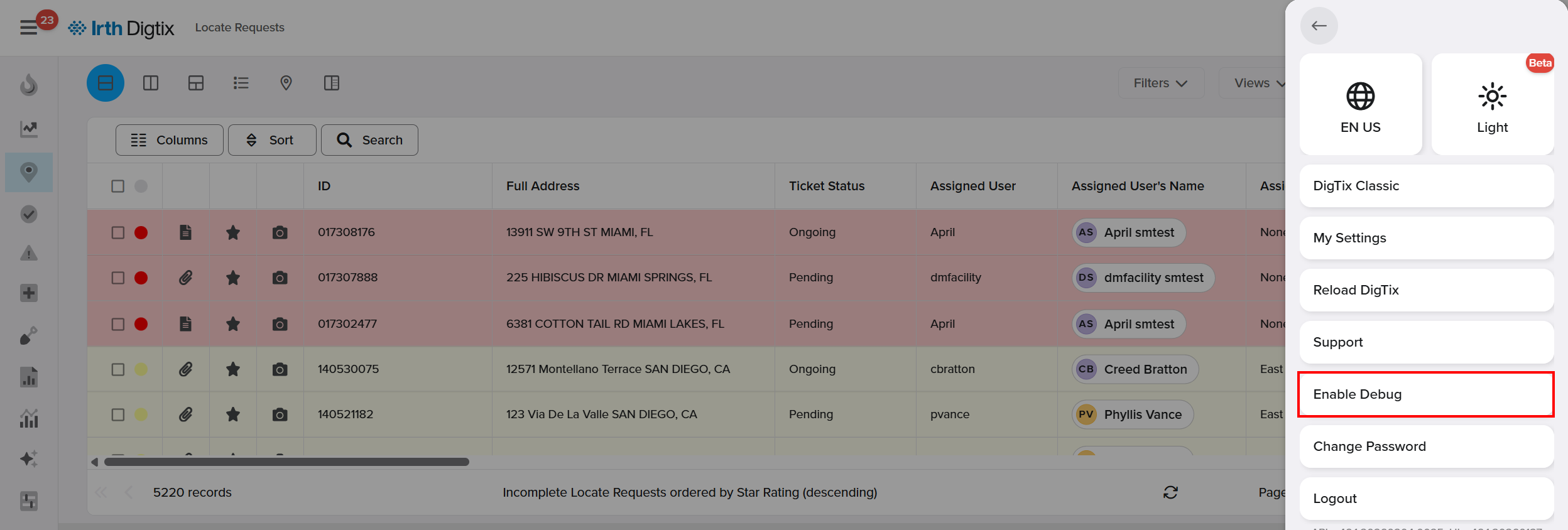
- Open your Account Profile menu and select Enable Debug, then confirm when prompted.

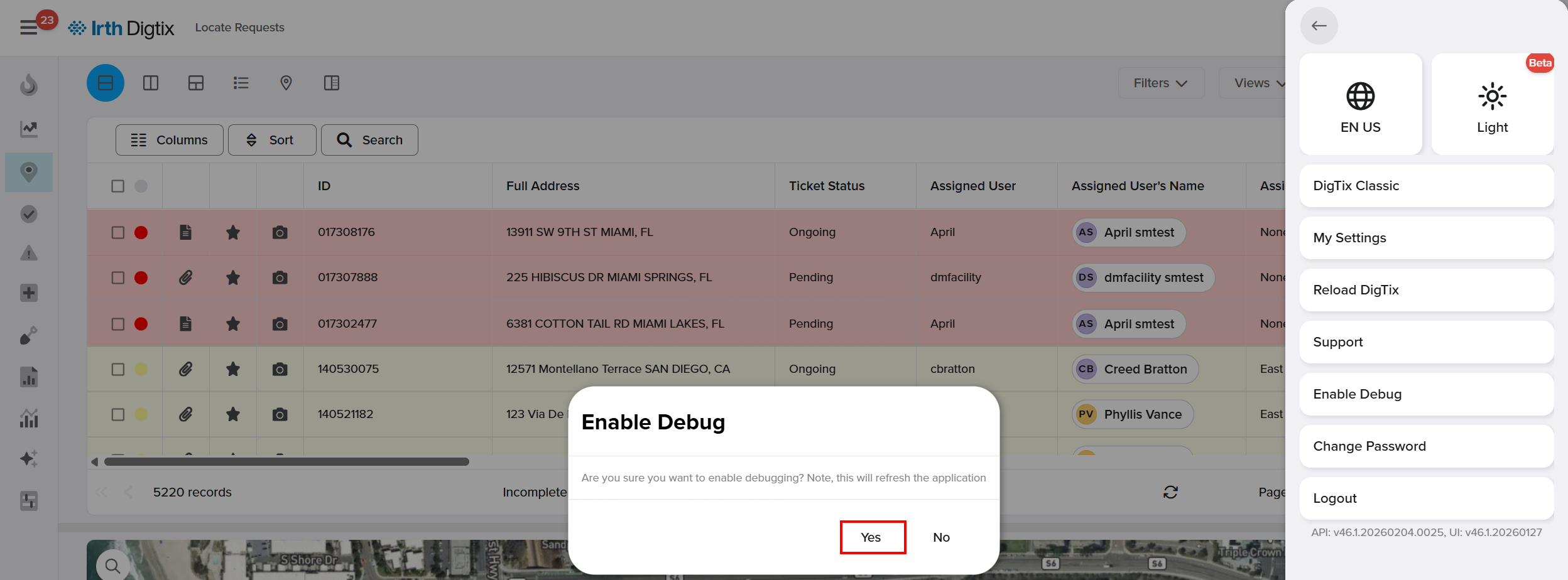
- Digtix will reload, and the Console button will appear in your menu.
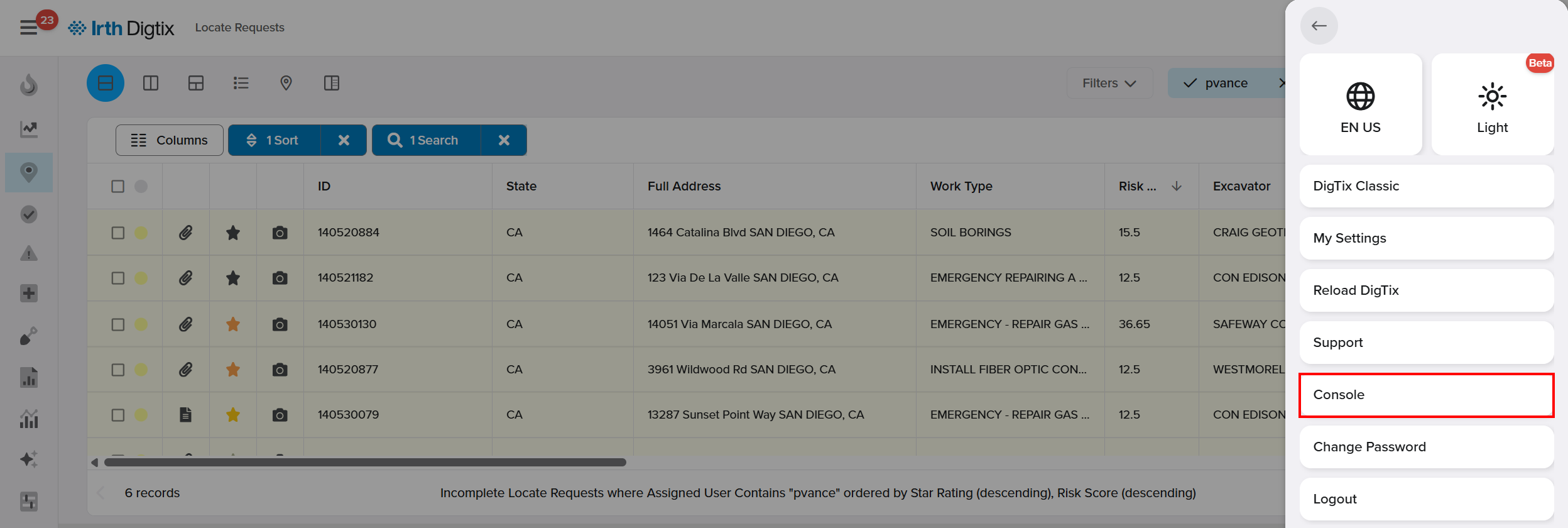
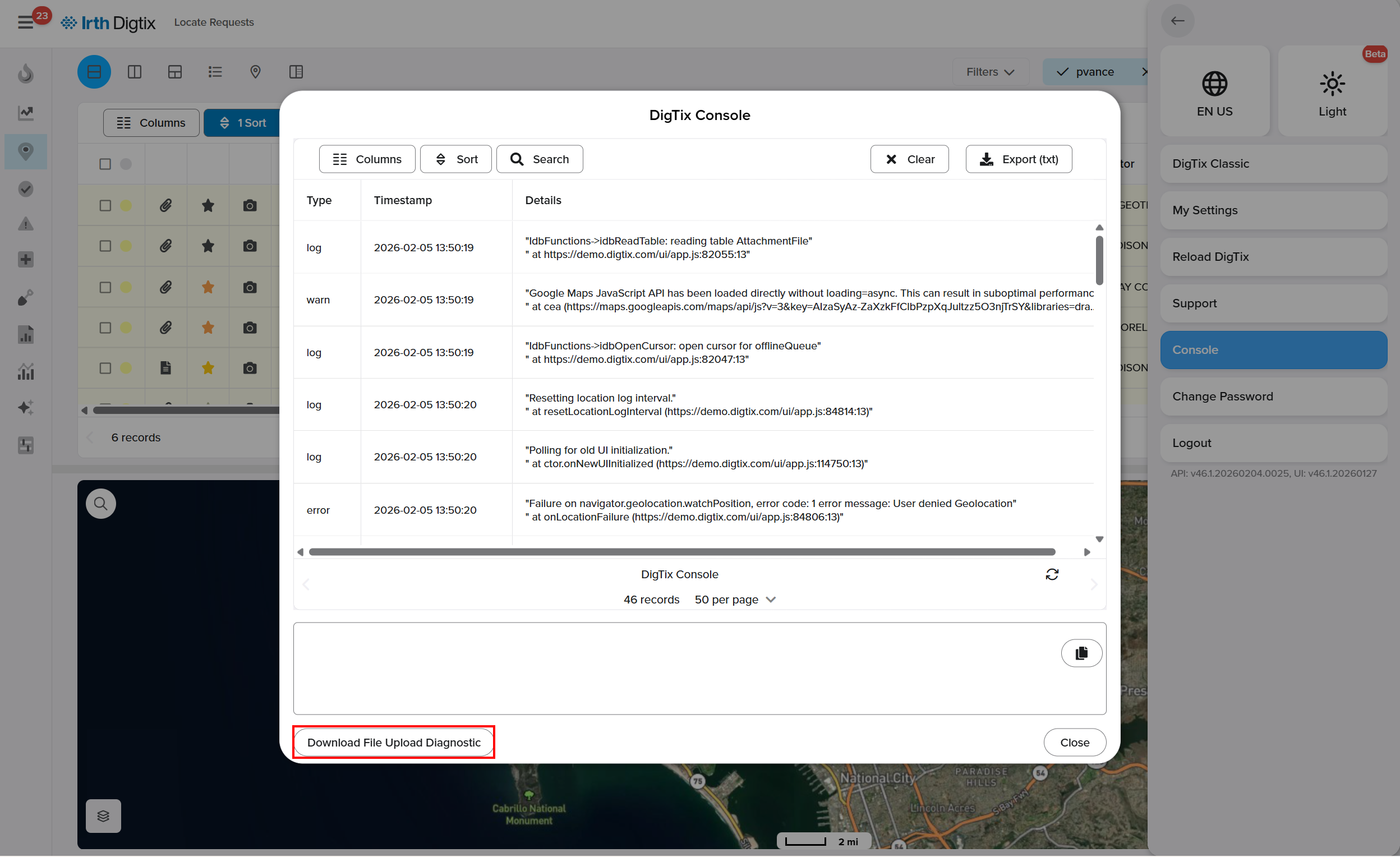
- Click Console, then select Download File Upload Diagnostic to generate the diagnostic file, which will save to your Downloads folder for attaching and sending to Support.
FAQ/Troubleshooting:
Q: Why does my file upload say Incomplete?
A: Common causes include weak connectivity, unsupported browsers, switching devices mid‑upload, or insufficient storage. Check the troubleshooting steps above.
Q: Can I resume an upload on a different device?
A: No. Uploads must be completed from the same device they were started on.
Q: My WiFi looks strong; why won’t my upload finish?
A: Strong bars do not equal strong upload throughput. Broadband or high‑speed WiFi is recommended, especially for large media uploads.
Questions? Contact us!

Was this article helpful?
That’s Great!
Thank you for your feedback
Sorry! We couldn't be helpful
Thank you for your feedback
Feedback sent
We appreciate your effort and will try to fix the article