GIS Infrastructure Layers and External Map Data (New UI)
Purpose/Overview
In this article, you’ll learn how GIS Infrastructure Layers and External Map Data work in Digtix and how they help bring critical geospatial information directly into the application. These layers allow administrators to import or connect external GIS data, such as utilities, pipelines, fiber routes, or weather services, so locate requests can be viewed in a proper geographic context.
This feature is designed for Digtix administrators and GIS/IT teams who manage infrastructure data. By visualizing internal and external GIS layers within Digtix, organizations can improve situational awareness, increase accuracy, and make more informed operational decisions.
Navigation Path:
To access this feature, go to: Digtix > Administration > Infrastructures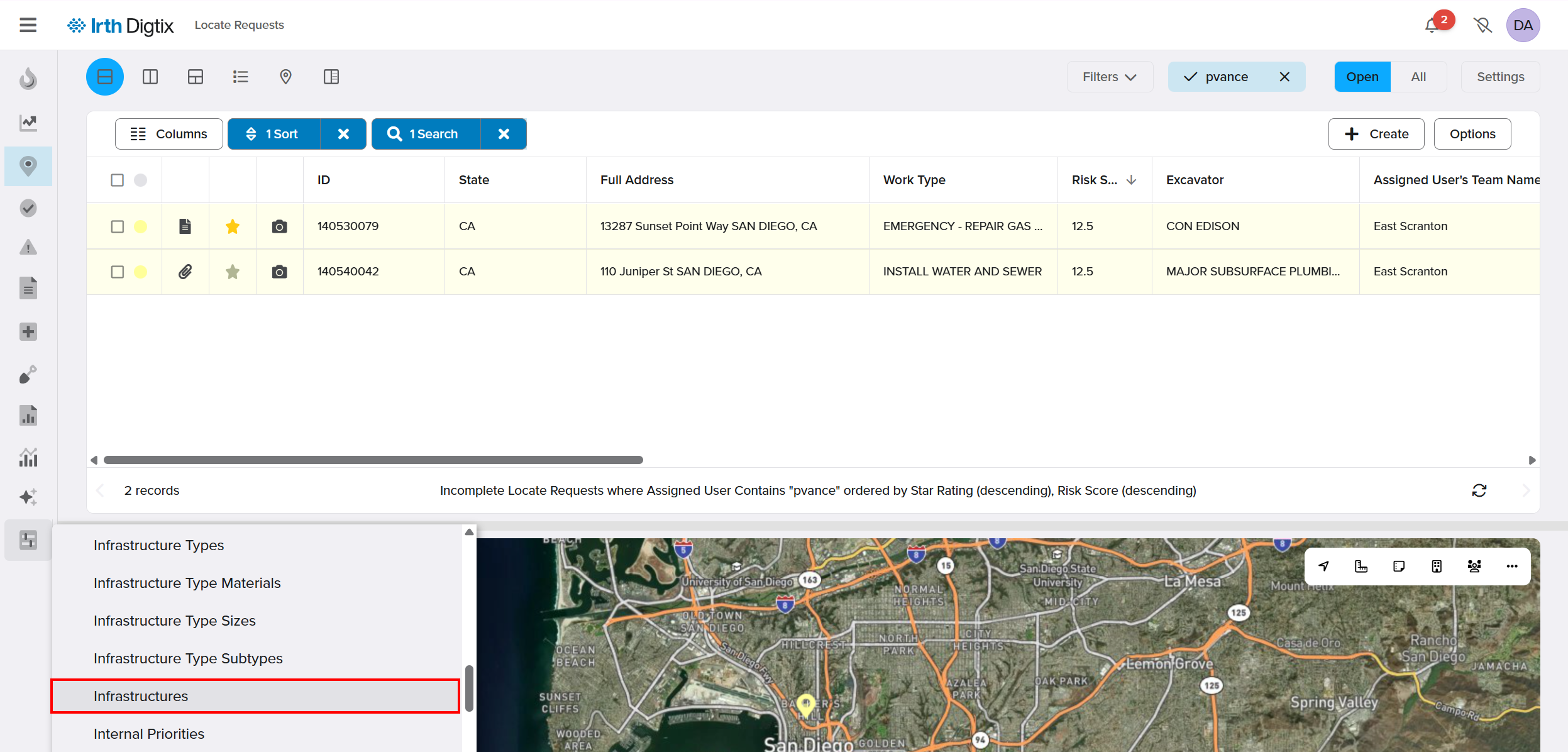
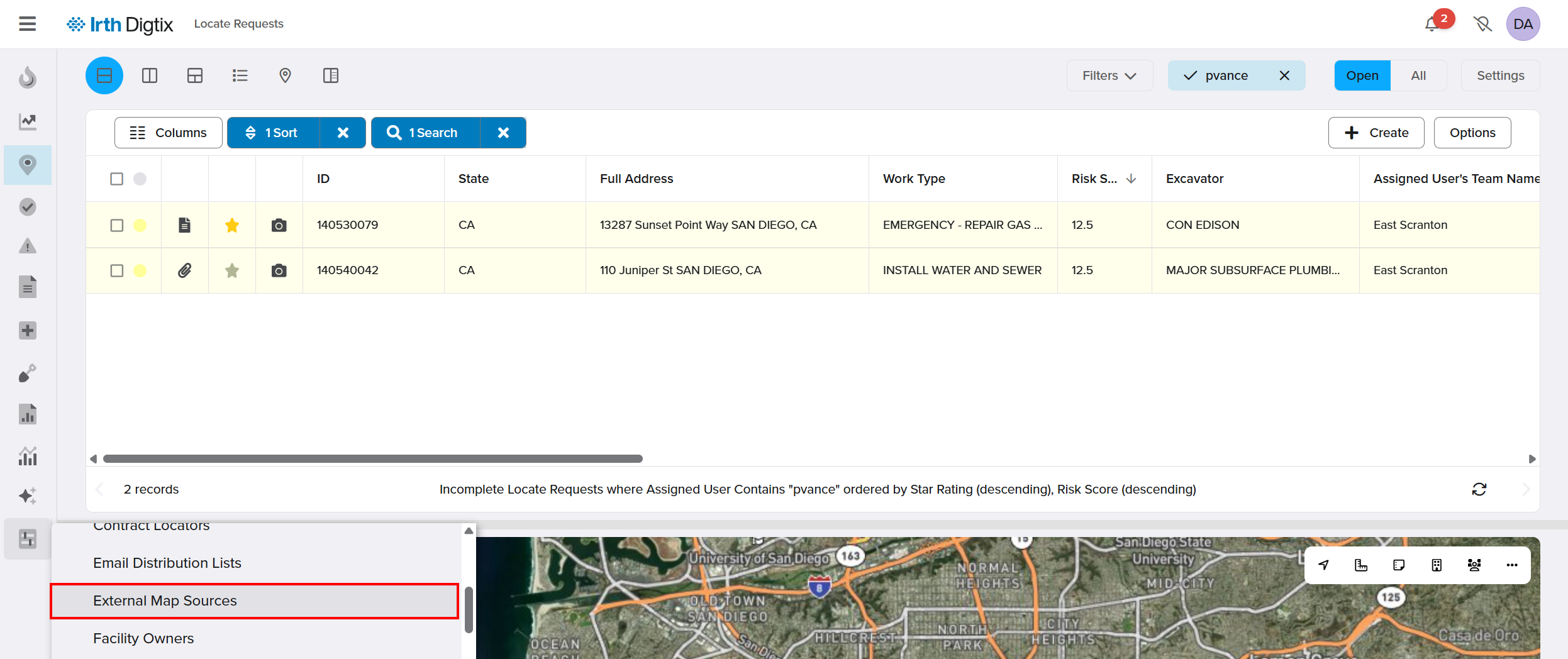
For external map data (WMS/WFS), go to: Digtix > Administration > External Map Sources
Things to Know:
Permissions: Administrative access is required to create, edit, or delete infrastructure layers and external map sources.
- Supported GIS Formats (Manual Import):
- ESRI Shapefile (.shp, .shx, .dbf, .prj – zipped)
- Google KML/KMZ
- Coordinate System Requirement: GIS data must use a geographic coordinate system (latitude/longitude), such as WGS84. Projected coordinate systems (northing/easting) may result in inaccurate positioning.
File Size Limits:
- Manual UI import: up to 64 MB
- Automatic (SFTP) import: up to 2 GB
- Enterprise Features: Automatic GIS imports and WMS/WFS integrations are available with Digtix Enterprise and may include additional service costs
- Performance Consideration: Importing large GIS datasets can be resource-intensive and is recommended outside normal business hours.
Key Benefits/Use Cases:
Visualizing Utility Infrastructure: Administrators import utility lines or assets as infrastructure layers so locate requests can be viewed in context, improving accuracy and response quality.
Automated GIS Data Updates: GIS teams automatically update infrastructure layers via SFTP, ensuring Digtix always reflects the most current data without manual uploads.
Viewing External Map Data: Organizations display third-party data (such as weather radar or public GIS services) via WMS/WFS to enhance situational awareness during locate operations.
How It Works:
Create or Edit an Infrastructure Layer
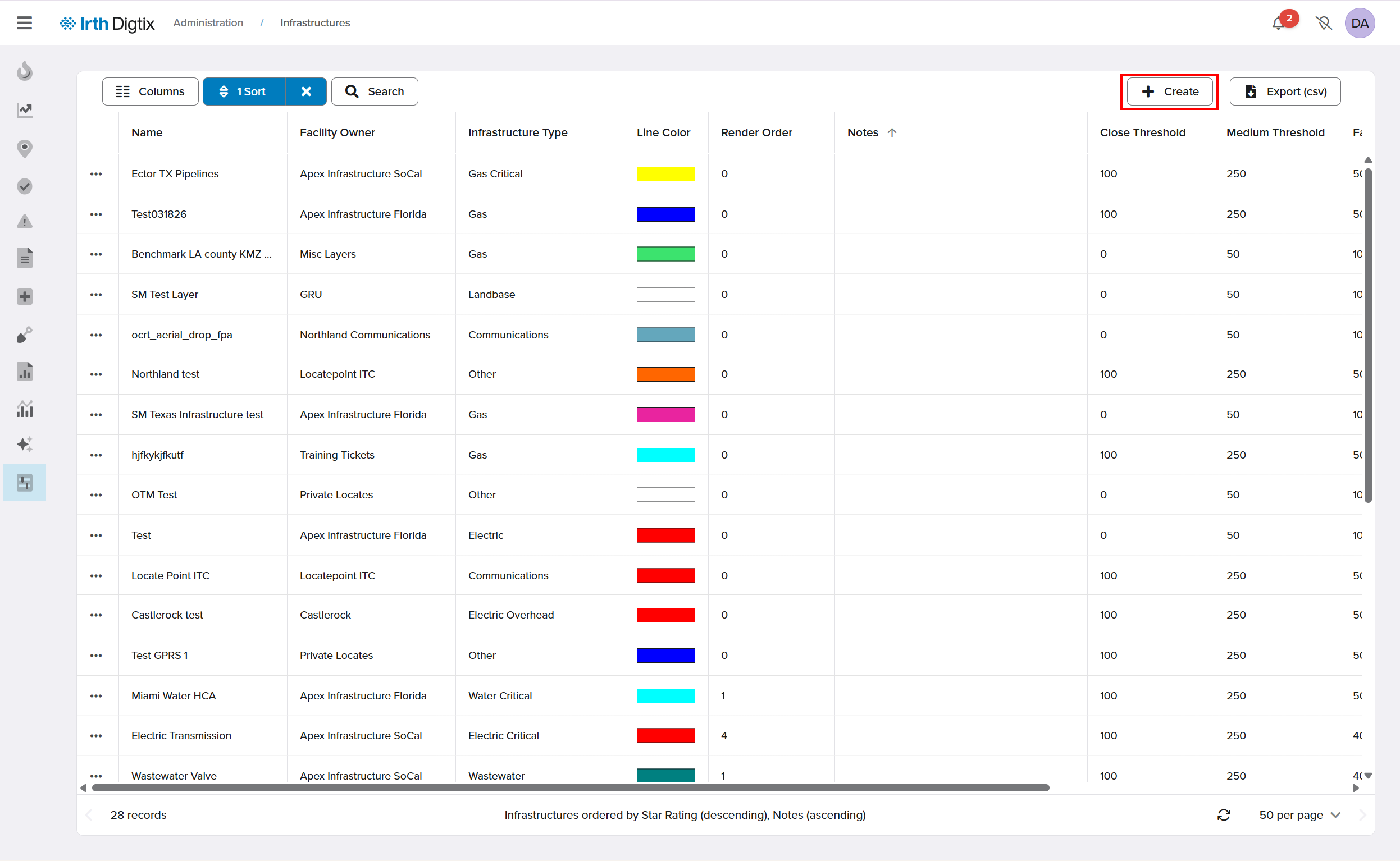
- Go to Administration > Infrastructures.
- Click Create to add a new layer, or select an existing layer and click Edit.
- Configure the infrastructure layer settings, ensuring the required items are included.
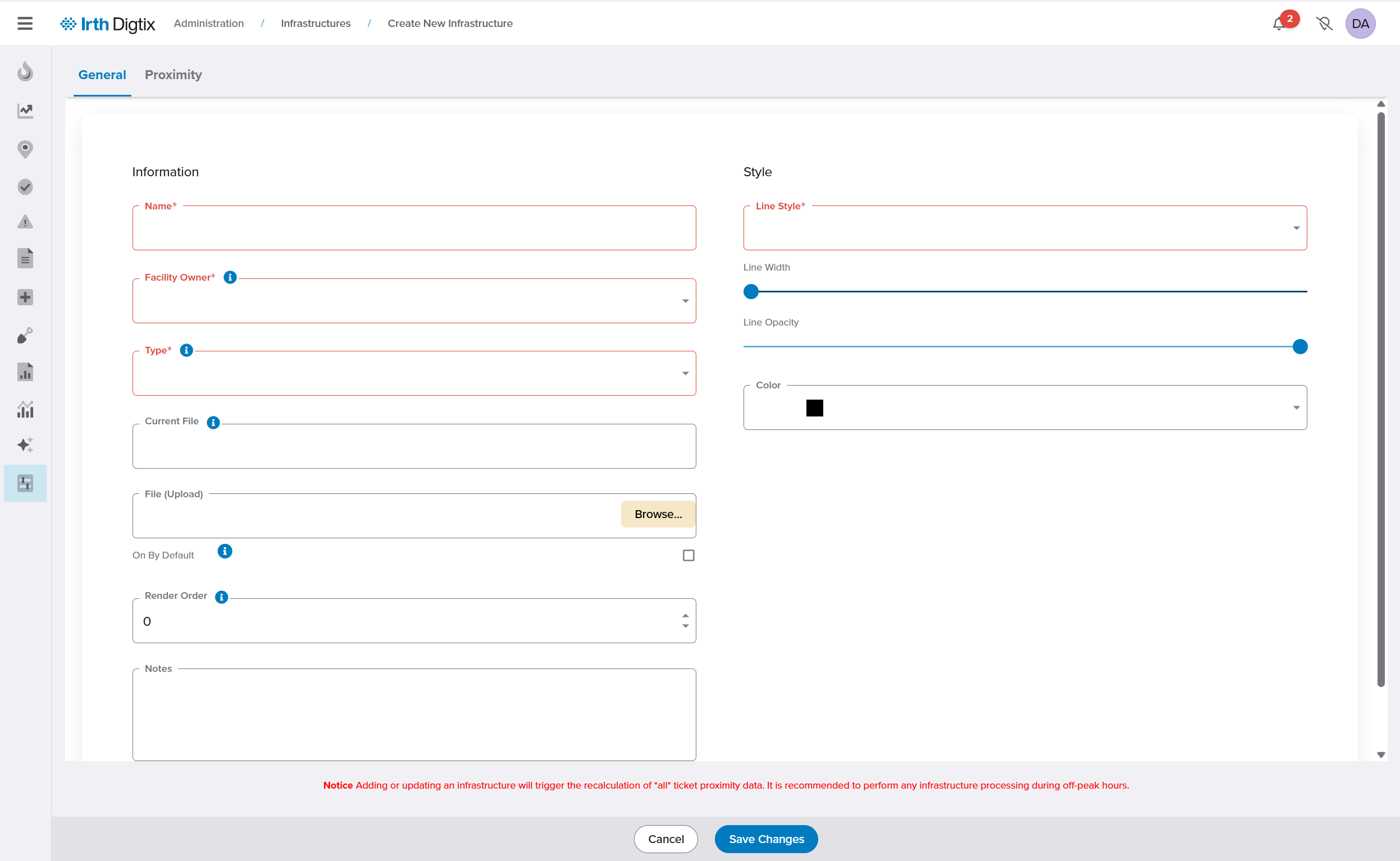
- Click Save Changes.

Import GIS Data (Manual)
- If using an ESRI Shapefile, ensure all four required files (.shp, .shx, .dbf, .prj) are present and zipped together.
- Edit or create an infrastructure layer.
- In the File (Upload) field, click Browse… and select the KML/KMZ file or zipped Shapefile.
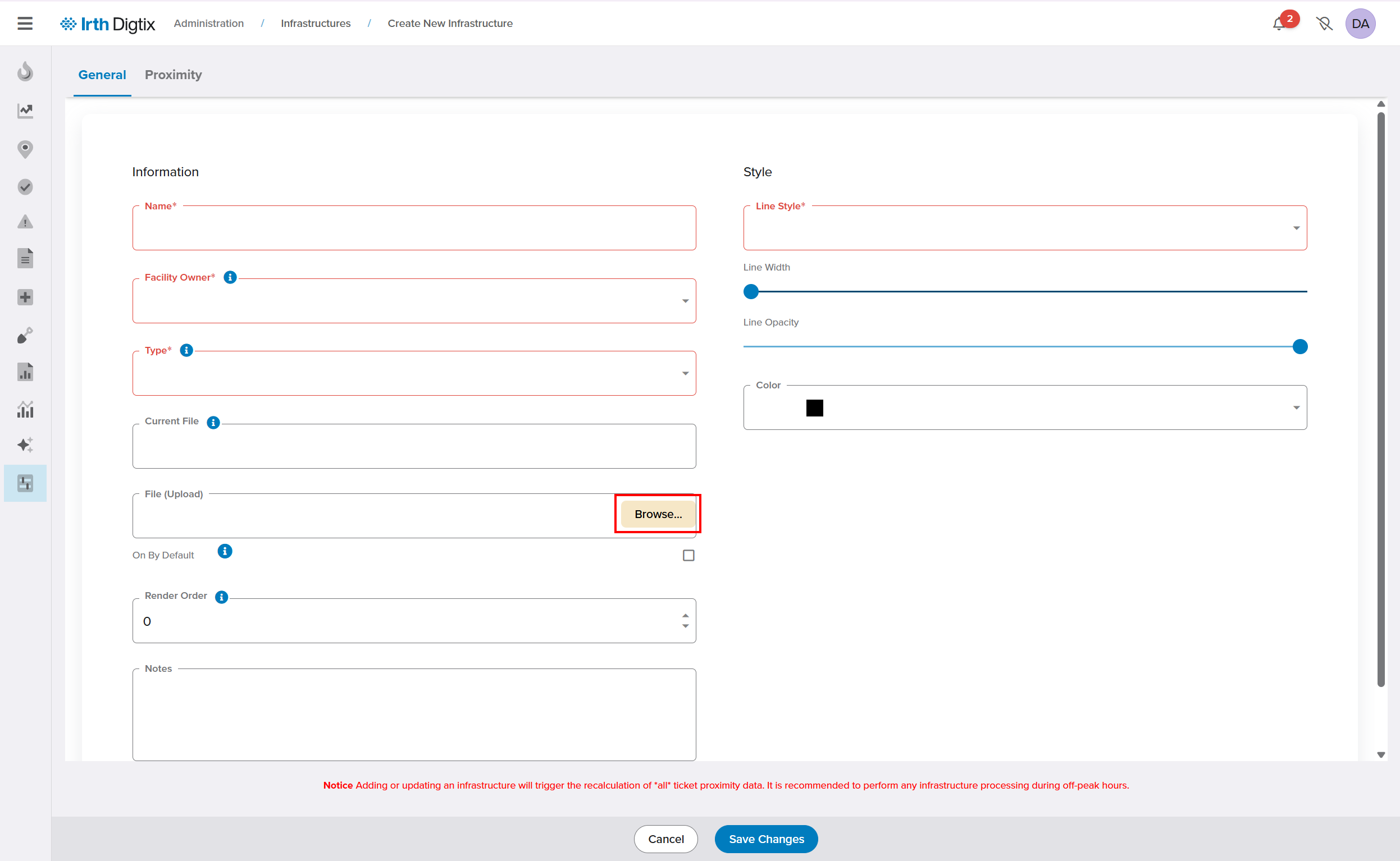
- Click Save Changes to upload and process the data.
NOTE: Geodatabase (GDB) files and files larger than 64 MB are not supported via the UI.
Import GIS Data (Automatic – Enterprise)
- Generate an SSH key pair and provide the public key to the Digix team.
Generating an SSH key pair is a common and quick (~5 minutes) IT process. If you're unsure how to do this, please work with your IT department. Here are instructions on how to generate an SSH key pair on Windows and shell scripting environments:
https://www.ssh.com/ssh/putty/windows/puttygen
https://www.ssh.com/ssh/keygen/ - Once access is granted, connect to sftp.digtix.com using your private key.
- Upload GIS files to the appropriate server folder:
- Shapefiles: upload individual files (not zipped), all with the same name.
- GDB: place in a
Digtix.gdbfolder, zip it asDigtix.gdb.zip.
- Digtix automatically processes files on a scheduled interval (typically overnight).
- Existing layers are updated by name; new layers may be created if no match exists.
View External Map Data (WMS/WFS – Enterprise)
- Go to Administration > External Map Sources.
- Click Create and configure the source, ensuring all required items are present.
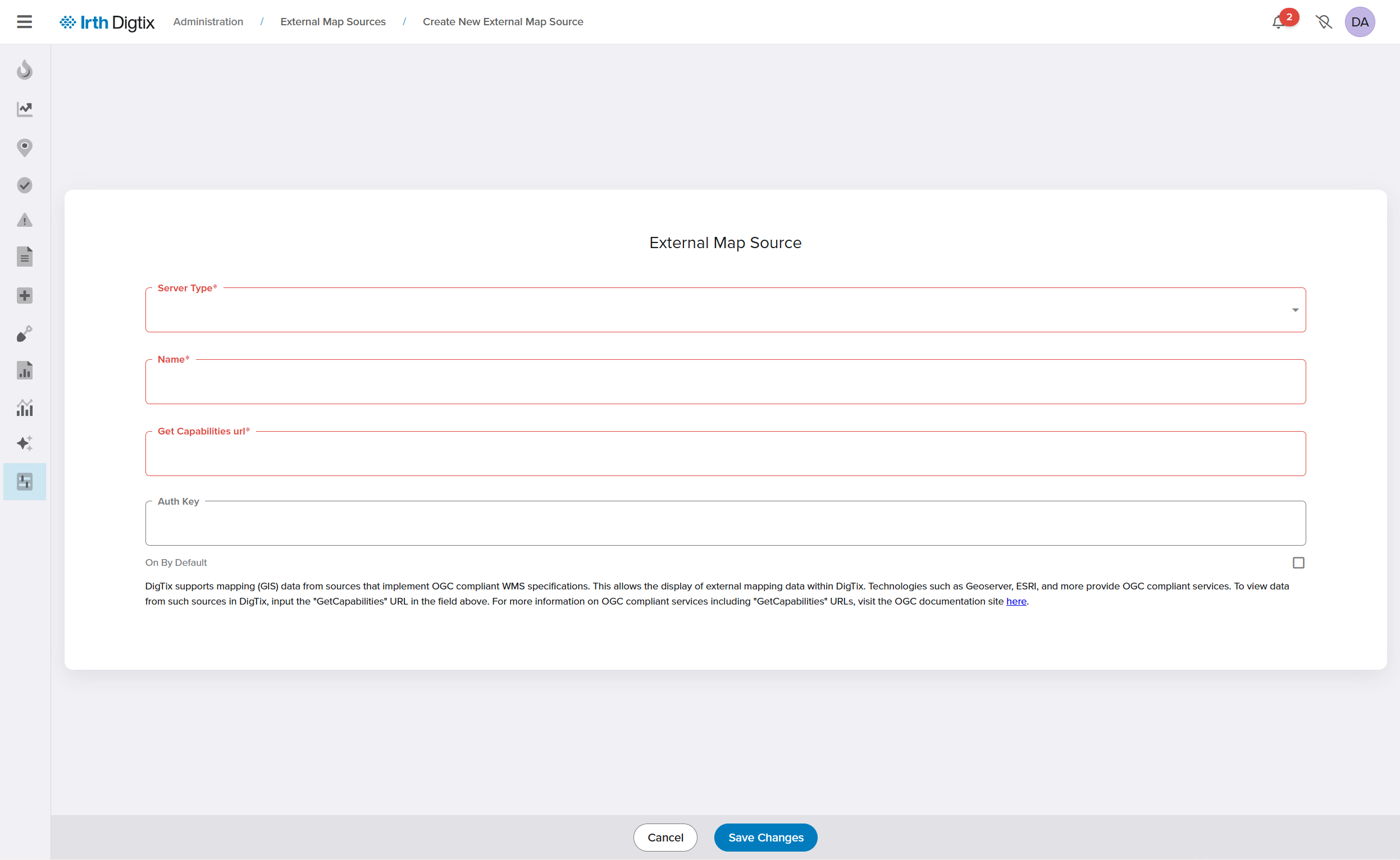
- Click Save Changes to save the configuration.
- Open a map view, select the Show Facilities icon, and toggle the desired layers on or off.
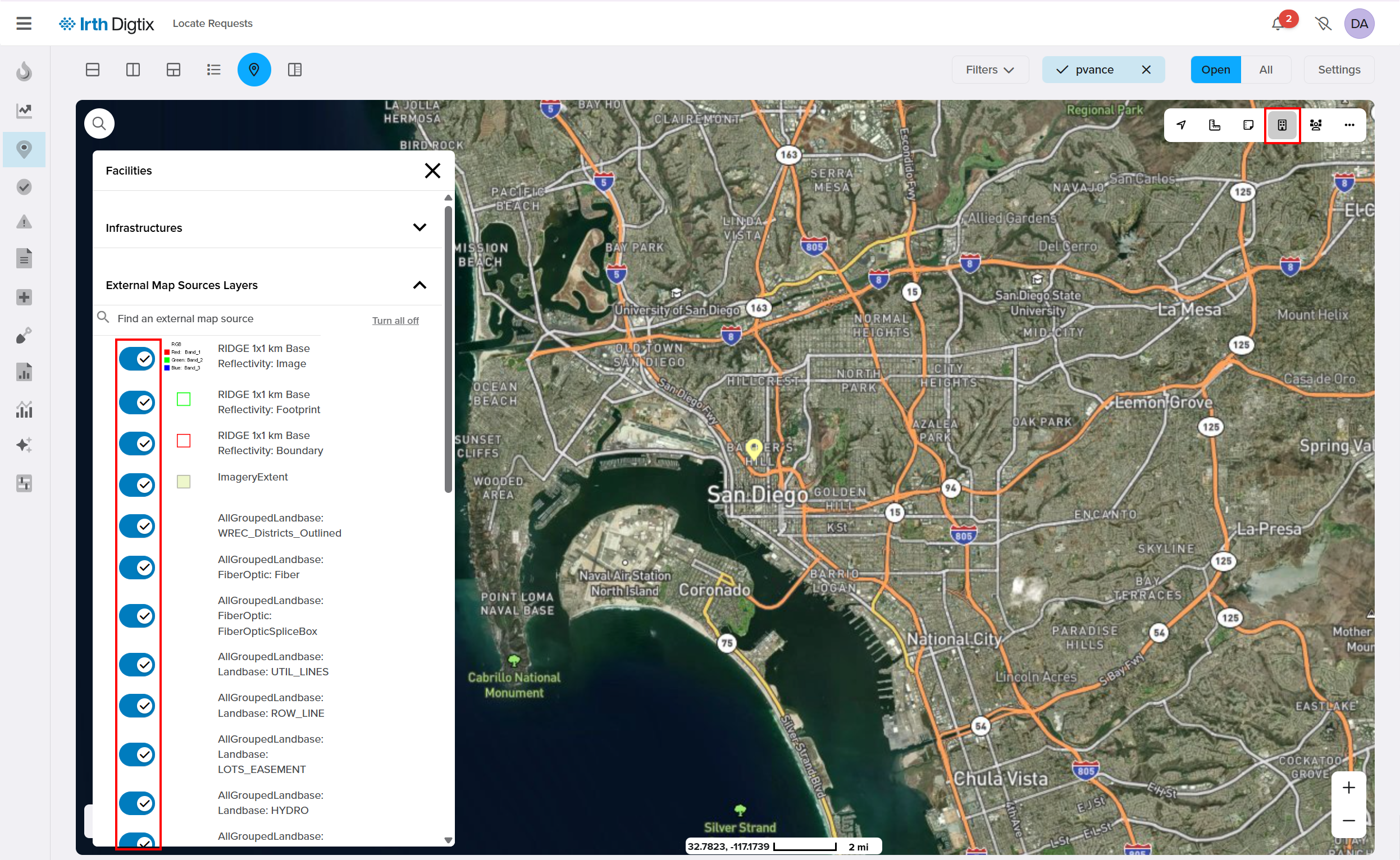
IMPORTANT: Users must have network access to the external service endpoints. WMS/WFS layers do not support proximity calculations in Digtix.
FAQ/Troubleshooting:
Q: Why does my GIS data appear in the wrong location?
A: The data may be using a projected coordinate system instead of a geographic (latitude/longitude) system like WGS84.
Q: Why can’t I upload my GIS file through the UI?
A: The file may exceed the 64 MB limit or be in an unsupported format (such as GDB). Use automatic SFTP import instead.
Q: Why do I see an error when viewing WMS layers?
A: The external service may be behind a firewall or require network authentication. Users must have access to the service endpoint.
Questions? Contact us!

Was this article helpful?
That’s Great!
Thank you for your feedback
Sorry! We couldn't be helpful
Thank you for your feedback
Feedback sent
We appreciate your effort and will try to fix the article