Simplified UI Mode
Purpose/Overview
In this article, we cover Simplified UI Mode, an optional workflow mode designed to reduce interface complexity for new locators and users with limited experience. This feature was built to guide inexperienced users to work within a predefined, consistent workflow by locking down view selection and grid customization options on the Locate Requests main screen. It solves the problem of new users becoming overwhelmed or making unintended configuration changes, and it is intended for administrators or Full Access users who onboard and manage new locators, as well as the new locators themselves who benefit from a streamlined, distraction-free grid experience.
What is a Synced View?
A Synced View is a shared, organization-wide custom view for the Locate Requests grid. Unlike a My View (a personal view created and used by an individual user), a Synced View is visible to and usable by all users in the system, and behaves identically to a My View in terms of filtering, column configuration, and layout. Synced Views can only be created, edited, or deleted by users with Administrator or Full Access data access levels. All other users can select and use them, but cannot modify them. Simplified UI Mode relies on Synced Views to give new or inexperienced locators a consistent, pre-configured grid experience that administrators control centrally.
Navigation Path:
To access this feature: Administration > Users > [User] > General tab > Workflow / Work Mode > Simplified UI toggle > View dropdown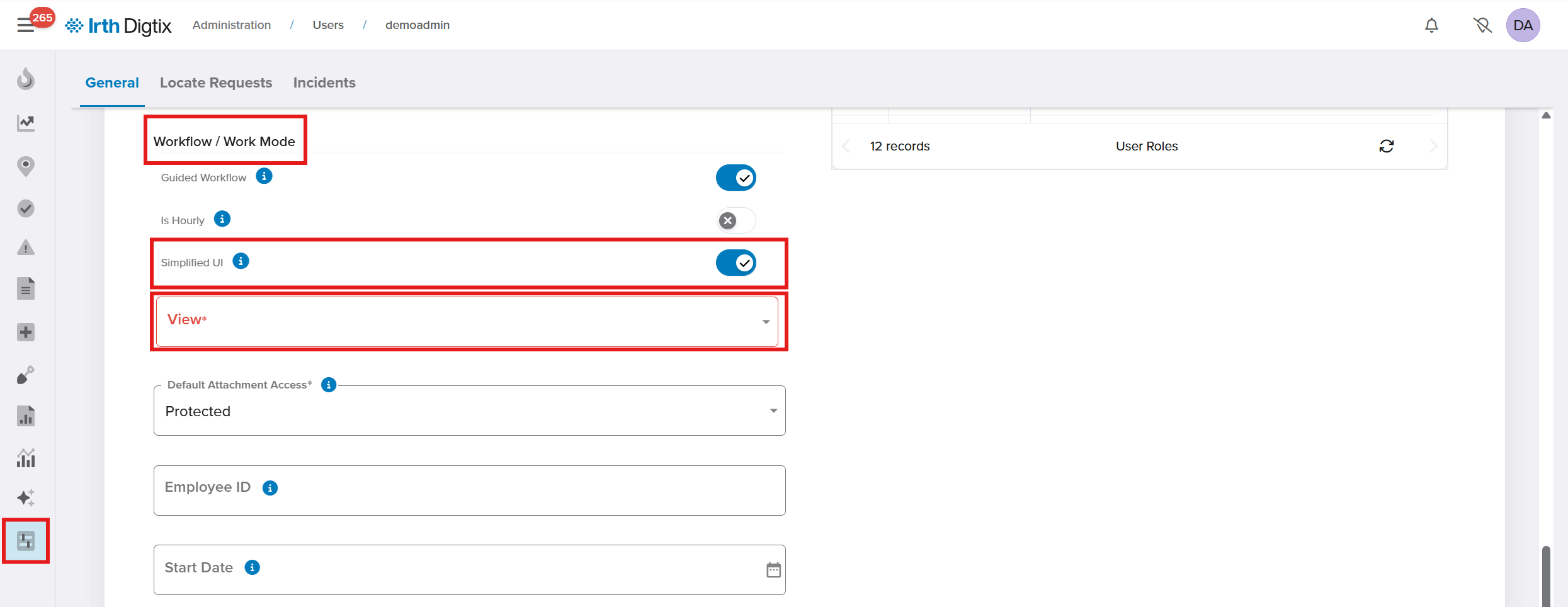
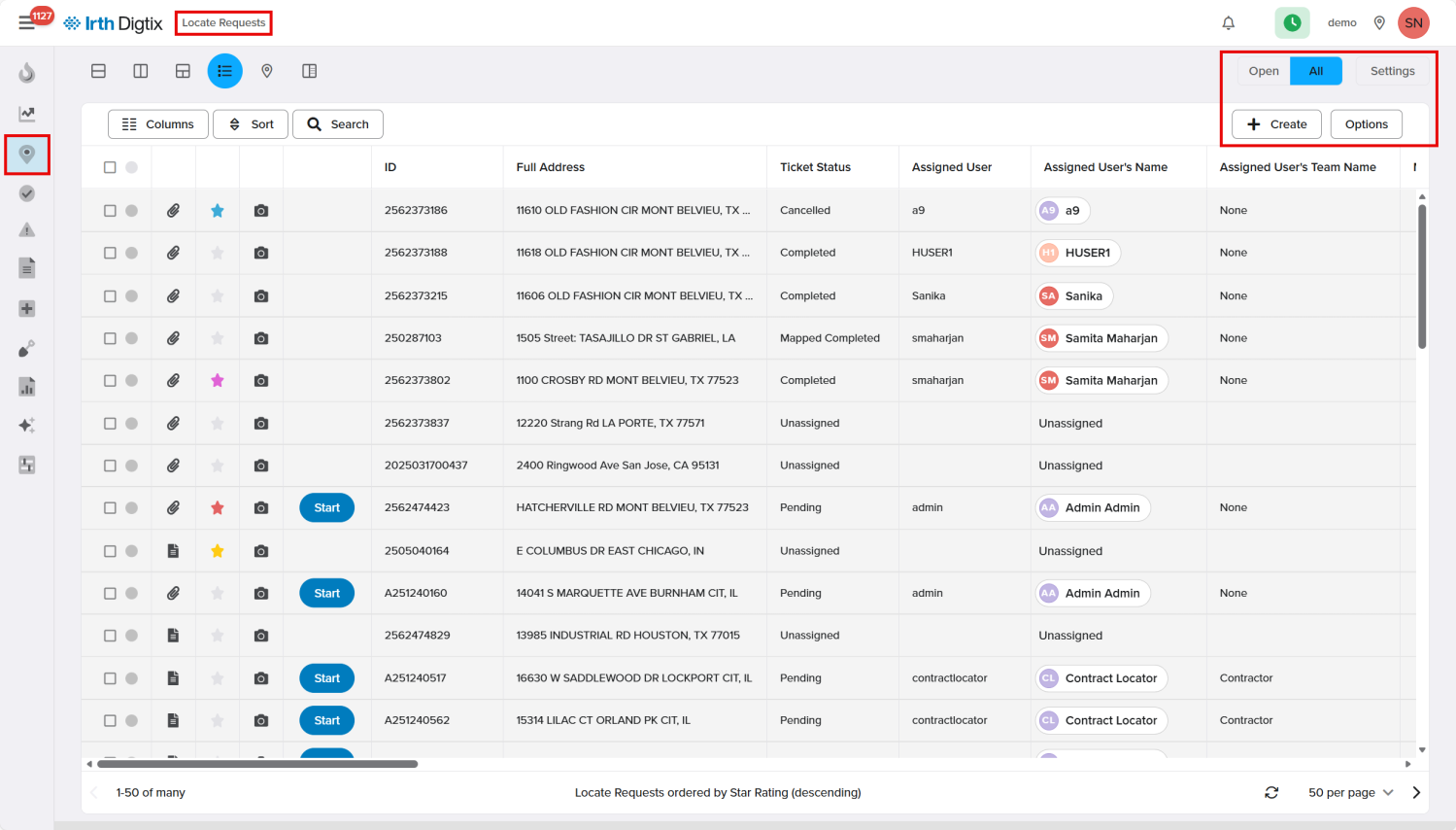
Once enabled, the affected experience appears at: Locate Requests > Locate Requests grid and map interface
Things to Know:
- Simplified UI Mode can only be configured for a user by an Administrator or Full Access user.
- It affects only the Locate Requests main screen (grid and map interface) — it does not affect the Locate Request detail screen.
- A Synced View must be assigned in the Simplified UI View dropdown; this field must be populated for any user with Simplified UI Mode enabled.
- Users in Simplified UI Mode cannot change the assigned view — the Views button is hidden entirely.
- The Columns menu remains visible but is read-only; users can see column options for reference but cannot reorder, enable, or disable columns.
- The Settings menu (top-right corner) is also view-only; users cannot modify dropdown values, grid settings, or configuration options.
- Only Administrators and Full Access users can create, edit, rename, or delete Synced Views; all other users can view and use them but cannot manage them.
- This feature applies to the New UI of Digtix only, and only to Locate Requests (not Incidents or Follow-ups).
Key Benefits/Use Cases:
- Faster onboarding for new locators: New field staff are guided into a single, standardized view without the ability to accidentally change filters, columns, or settings, reducing training time and support tickets.
- Standardized team configuration: Administrators can create a Synced View once and assign it across multiple new users, ensuring consistency in how tickets are displayed and processed across the team.
- Reduced accidental misconfiguration: By making the Views, Columns, and Settings menus read-only for these users, organizations reduce the risk of new or inexperienced users disrupting their own workflow or losing track of tickets.
How It Works:
Follow these steps to set up or enable Simplified UI Mode:
- Create a Synced View (if one doesn't already exist): An Administrator or Full Access user creates a new view from the Locate Requests grid Views menu and selects Synced View as the type, then configures the desired filters, columns, and layout.
- Open the target user's profile: Navigate to Administration > Users > [User] > General tab.
- Enable Simplified UI: Turn on the Simplified UI toggle under Workflow / Work Mode.
- Assign the View: Select the desired Synced View from the View dropdown that appears. This field is required for the setting to take effect.
- Save changes: Click Save Changes to apply the configuration to the user's profile.
- Verify the experience: The next time the user loads the Locate Requests grid, the system automatically loads the assigned Synced View, hides the Views button, and makes the Columns and Settings menus read-only.
FAQ/Troubleshooting:
Q: A user has Simplified UI enabled but can't log in to the Locate Requests grid correctly. What's wrong?
A: Confirm that a Synced View has been selected in the Simplified UI View dropdown on the user's profile. This value must be populated for Simplified UI Mode to function correctly.
Q: Can a Simplified UI user switch to a different view?
A: No. The Views button is hidden for these users, and the system always loads the assigned Synced View automatically.
Q: Does Simplified UI Mode affect the ticket detail screen?
A: No. Simplified UI Mode only affects the Locate Requests grid and map interface, not the Locate Request detail screen.
Q: Who can create or edit the Synced View used in Simplified UI Mode?
A: Only users with Administrator or Full Access data access levels can create, edit, rename, or delete Synced Views.
Questions? Contact us!

Was this article helpful?
That’s Great!
Thank you for your feedback
Sorry! We couldn't be helpful
Thank you for your feedback
Feedback sent
We appreciate your effort and will try to fix the article