Auto-Processing Tickets Based on Excavator and Keyword
OVERVIEW
Digtix provides a way to direct tickets by an excavator and contained work done for 'X' to a particular folder.
The following steps will set up auto-processing tickets based on excavator and keyword.
- Under Administration, select Ticket Assignement.
- Select Create, then name the New Ticket Assignment Rule.
- Select Create Rule.
- You must add conditions to your new rule, so select Create in the Conditions section.
- Choose Ticket Field Match as your type.
- Choose the field.
- Add in the regex pattern (what you want to capture).
Note: The regex match pattern is case-sensitive and more than one criterion can be added by using the | symbol (ie. ACME|SMITHS DIGGING). - Assign to a user.

Figure 1: Expand Menu
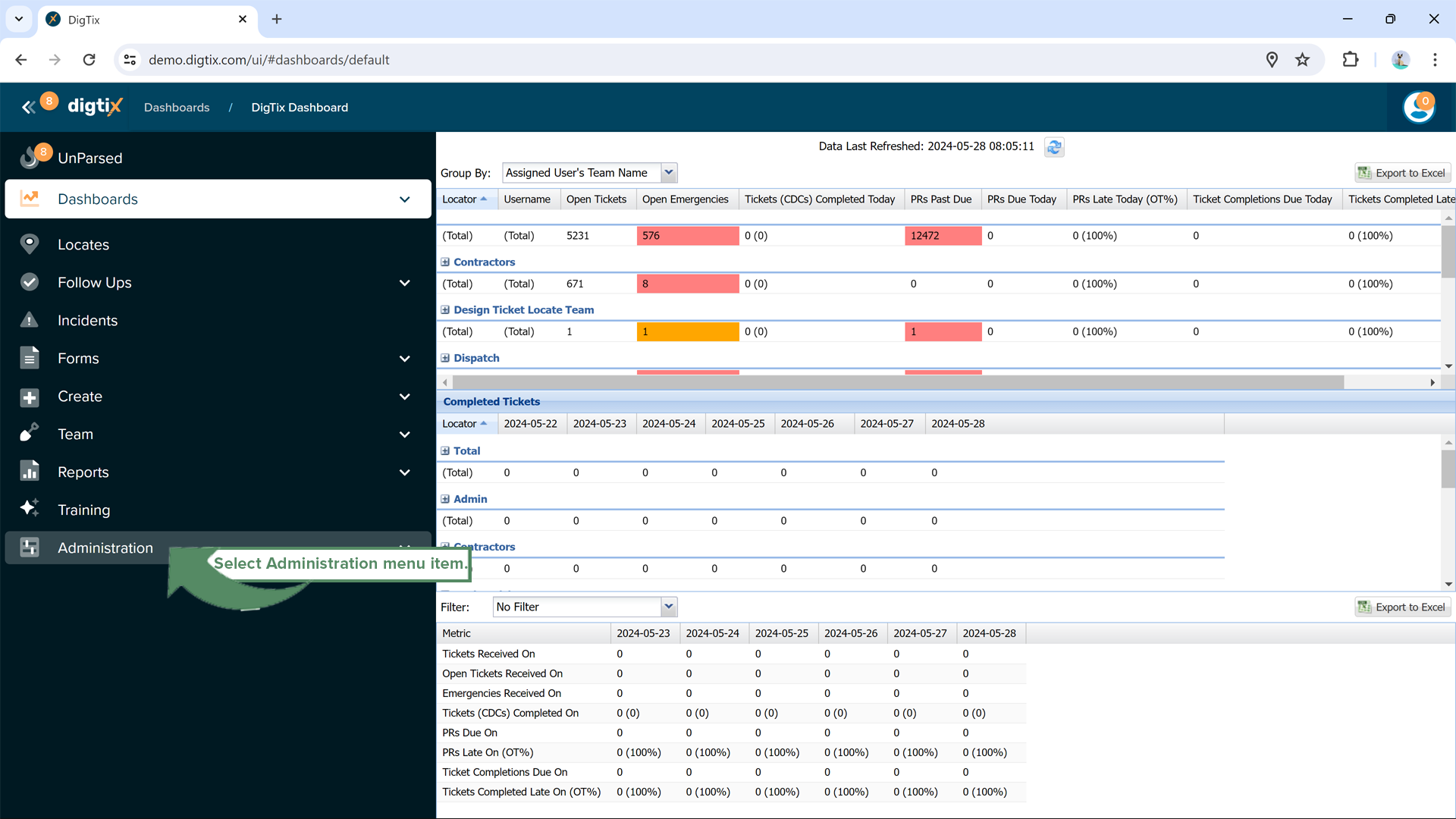 Figure 2: Select Administration
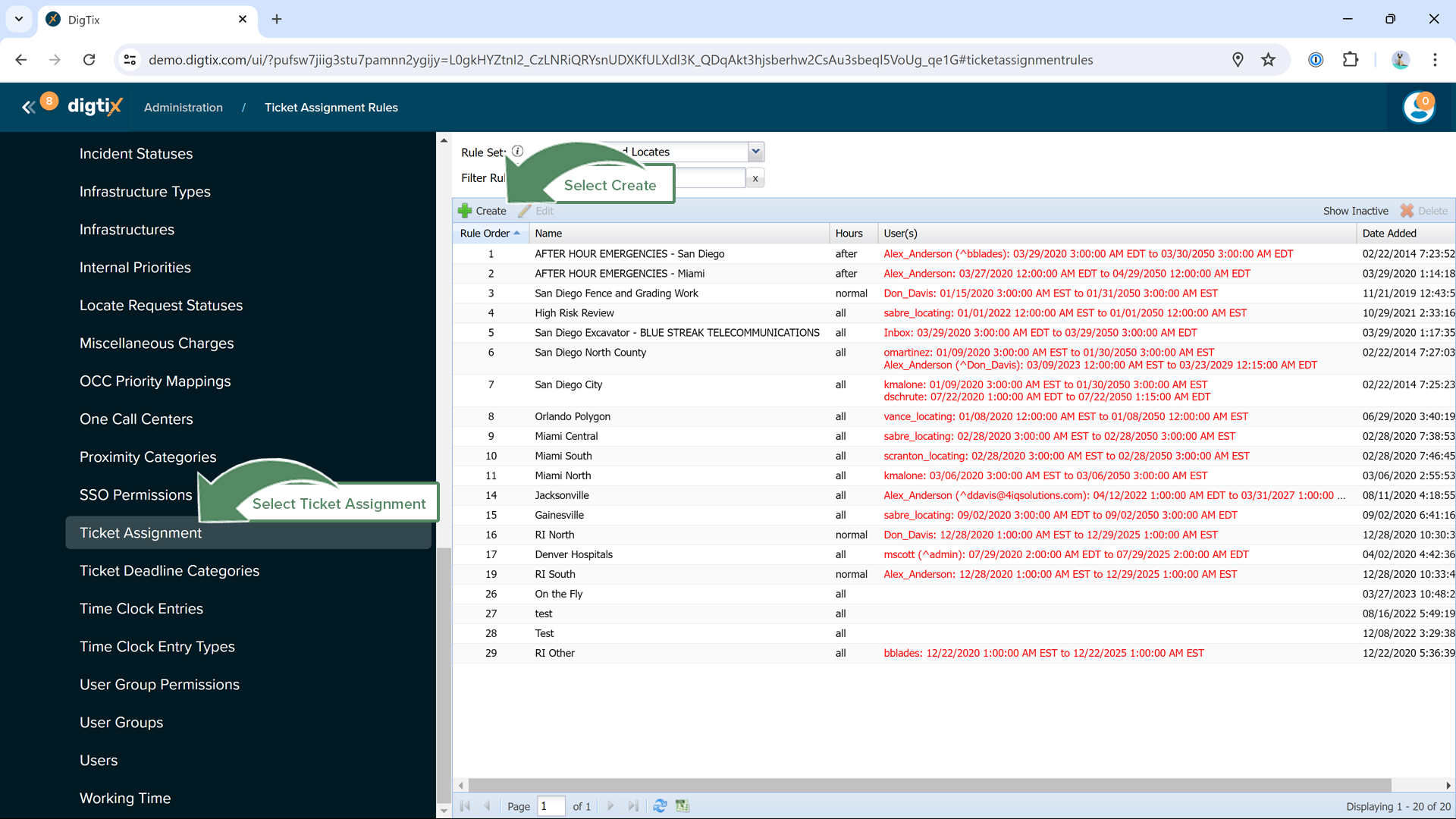
Figure 3: Select Ticket Assignment, then select Create
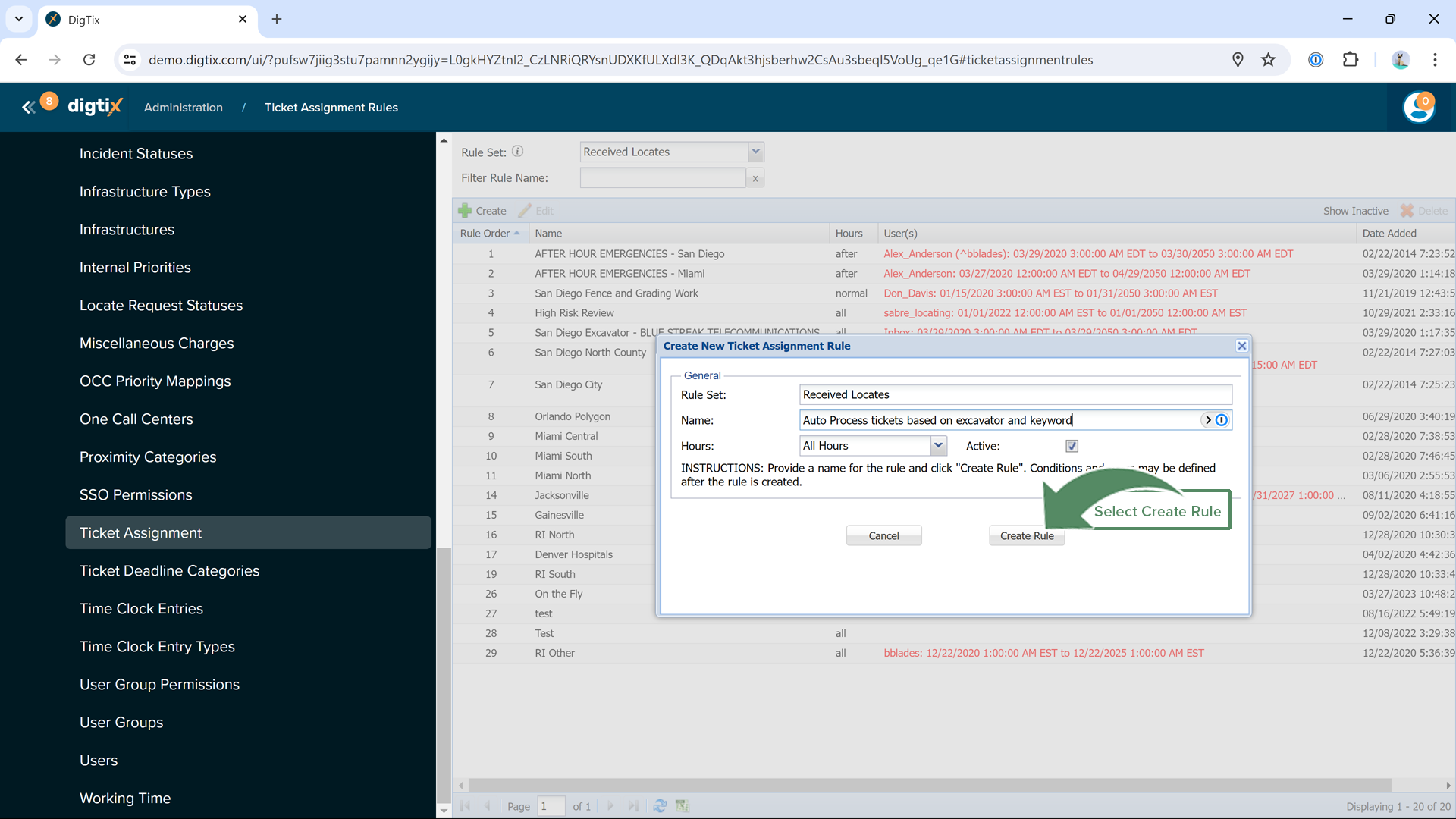 Figure 4: Select Create Rule
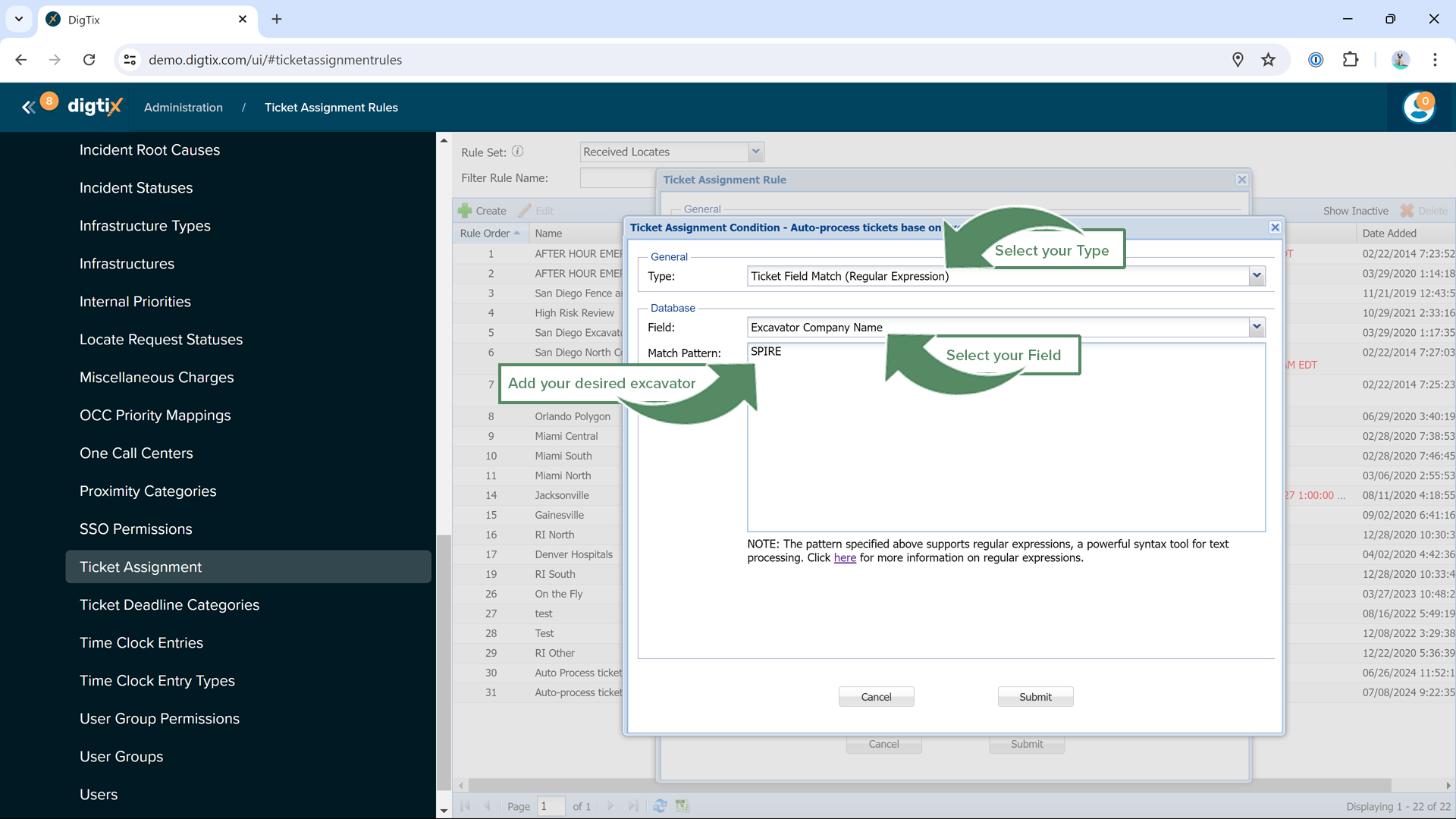 Figure 5: Add Ticket Assignment Condition
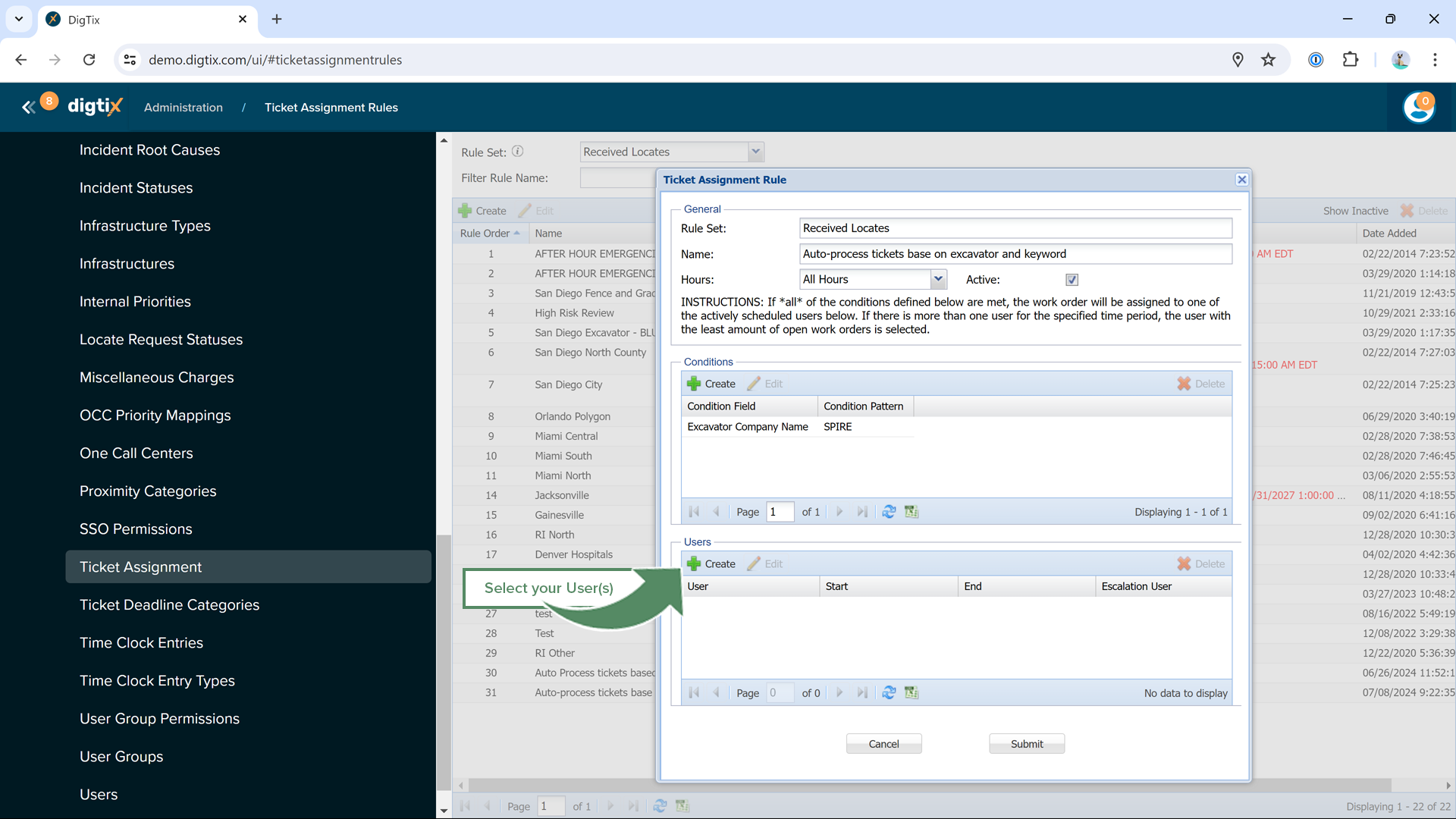 Figure 6: Select Create under User(s)
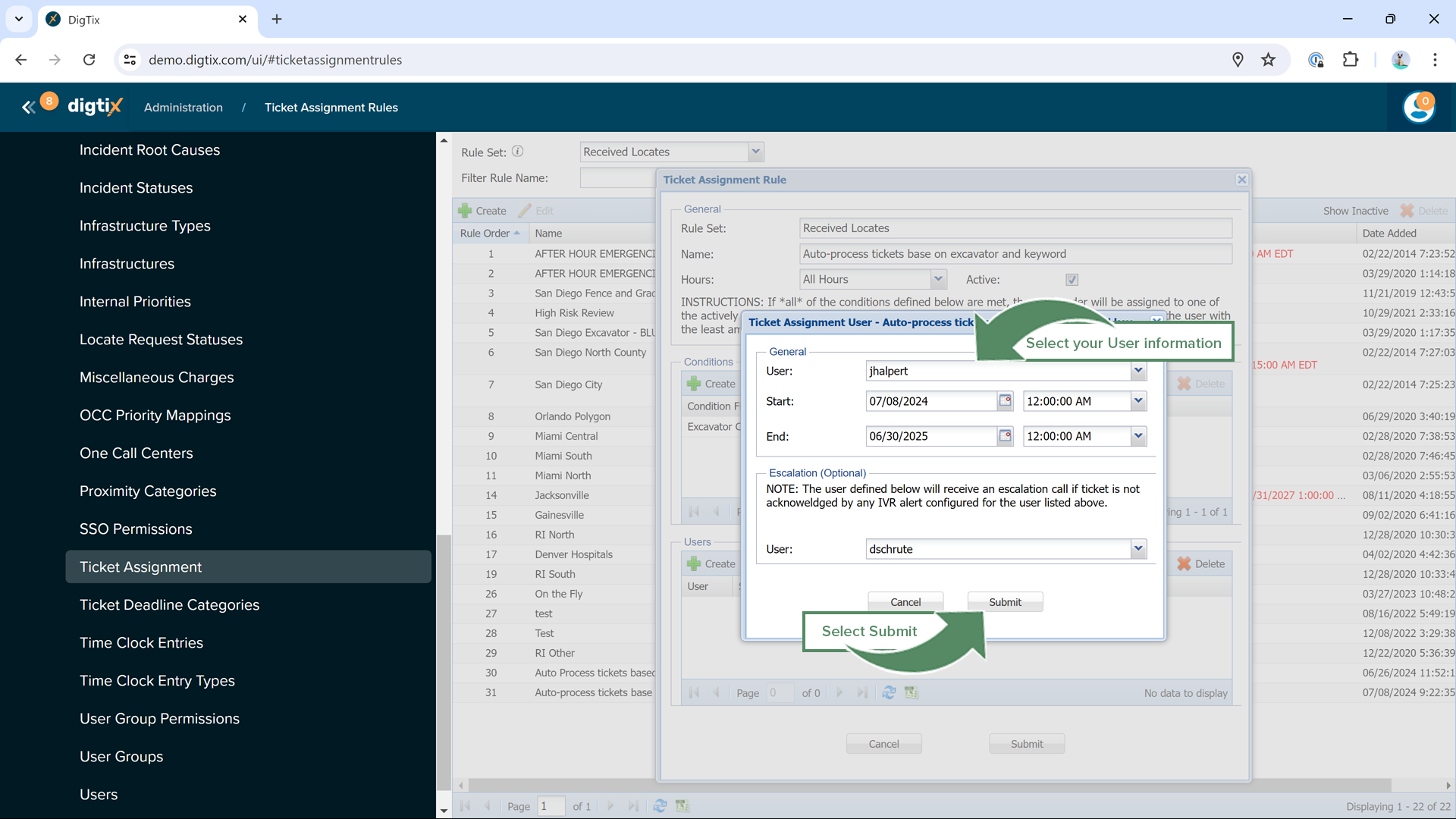 Figure 7: Submit the completed Ticket Assignment User form
Note: The regex match pattern is case-sensitive and more than one criterion can be added by using the | symbol (ie. ACME|SMITHS DIGGING).
Figure 2: Select AdministrationFigure 4: Select Create RuleFigure 5: Add Ticket Assignment ConditionFigure 6: Select Create under User(s)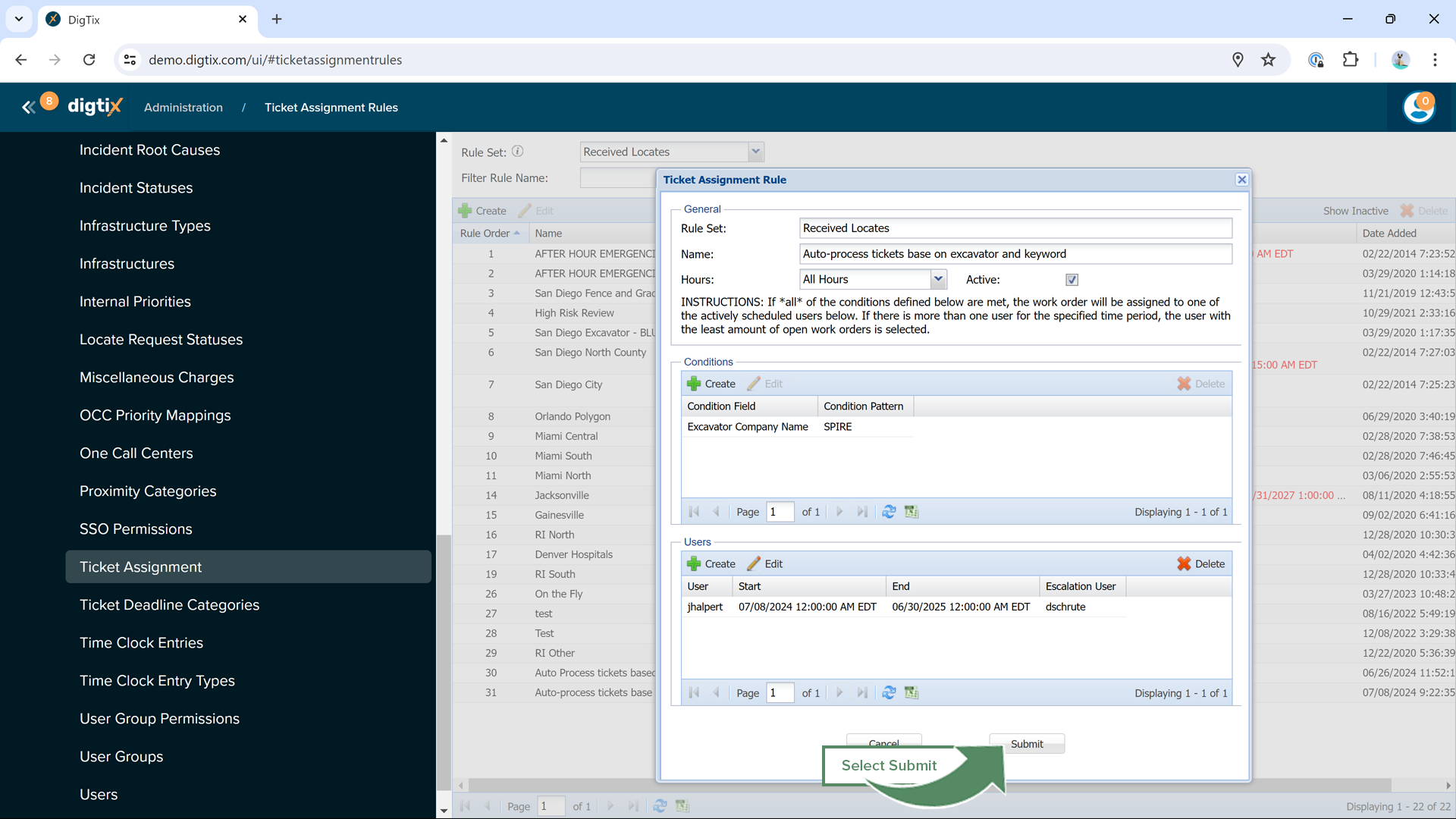 Figure 8: Complete the Ticket Assignment Rule by selecting Submit
Figure 8: Complete the Ticket Assignment Rule by selecting SubmitWas this article helpful?
That’s Great!
Thank you for your feedback
Sorry! We couldn't be helpful
Thank you for your feedback
Feedback sent
We appreciate your effort and will try to fix the article